
Work the causes in order, highest-yield first: a DDU clean driver reinstall in Safe Mode fixes the largest share, then revert every overclock and undervolt to stock, then test with your XMP/EXPO memory profile off. Skip raising the TdrDelay registry value entirely; Microsoft says those keys are for driver developers, not end users.
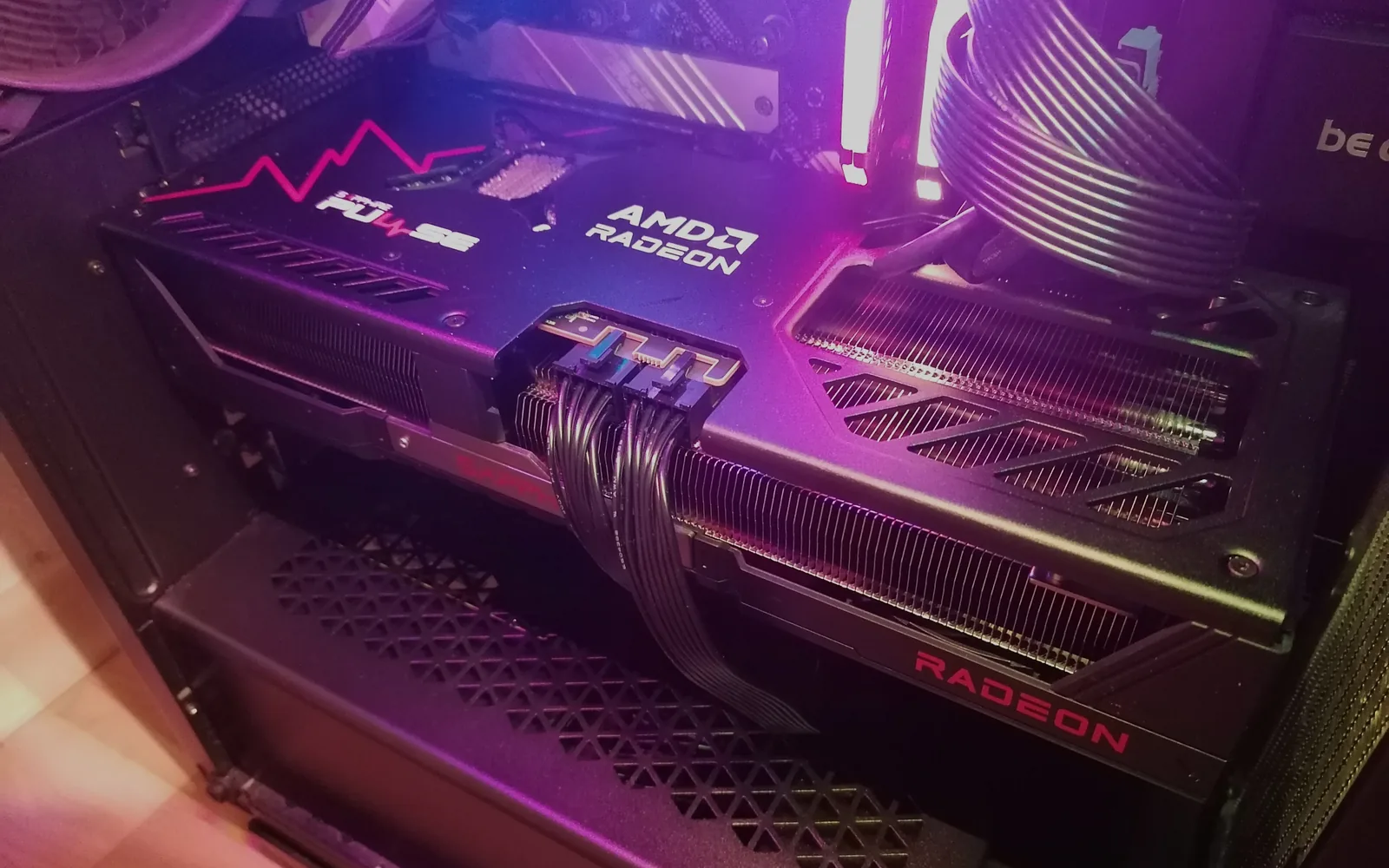
If your screen flickered, went black for a second, and Windows told you the “display driver stopped responding and has recovered,” it is tempting to blame the driver and rage at NVIDIA or AMD. Here is what most guides skip: the driver is usually not the real culprit.
The large majority of so-called GPU driver crashes trace back to an unstable overclock or undervolt (including aggressive factory tuning), unstable memory from an XMP or EXPO profile, marginal power delivery, or a corrupt leftover driver install. The driver is often just the component that happened to stall and report the problem.
Once you understand the actual Windows mechanism behind the crash, the fix order stops being a random list of tweaks and becomes a logical process. This guide explains what is really happening, then walks you through an ordered, verified fix path that matches what Microsoft, NVIDIA, and AMD themselves recommend. It also debunks the most popular bad advice on the internet: raising a registry timeout value to make the error “go away.”
What is actually happening: TDR explained
Windows has a built-in safety feature called Timeout Detection and Recovery, or TDR. According to Microsoft’s documentation, TDR detects when the GPU takes longer than expected to complete an operation, then resets the graphics card so the entire system does not hang. The GPU scheduler inside the DirectX graphics kernel (Dxgkrnl.sys) notices the stall and tries to preempt the stuck task. The wait time on that preempt operation is the TDR timeout.
That timeout is short. The default TDR timeout period in Windows is two seconds. If the GPU cannot finish or preempt the current task within that window, the OS decides the GPU is frozen and resets it.
When the reset succeeds, the only visible artifact is a brief screen flicker as the OS redraws the desktop, plus the informational message “Display driver stopped responding and has recovered,” which Windows also logs in Event Viewer. That recovery is a good outcome.
The bad outcome is bug check 0x116, VIDEO_TDR_FAILURE, which Microsoft defines as an attempt to reset the display driver and recover that failed. Windows also bug-checks the whole machine by default on the sixth GPU hang inside one minute, controlled by TdrLimitCount (default 5) and TdrLimitTime (default 60 seconds).
There is one useful nuance. A modern engine reset (bug check 0x141 with the app-blocked code 0x142) can block GPU access for only the offending process instead of the whole adapter, which is why sometimes a single game crashes while the rest of your desktop keeps running, versus the entire screen flickering at once.
If your games close to the desktop with no driver-timeout message at all - no black screen, no “display driver stopped responding” flicker - the cause is usually somewhere other than the driver; our games keep crashing on PC guide sorts those crashes by their signature.
Why most “driver crashes” are not the driver
This is where Microsoft’s own primary source does the heavy lifting. The official listed causes of VIDEO_TDR_FAILURE are: an outdated display driver; hardware issues including over-clocked components such as the motherboard; incorrect compatibility or settings, especially memory configuration and timings; insufficient cooling; insufficient power; defective parts like memory modules and motherboards; and too many background programs or visual effects slowing the PC.
Read that list again. Most of those are not “the GPU driver is buggy.” They are the system around the GPU being unstable. In a crash dump, the faulting kernel module is nvlddmkm.sys for NVIDIA and amdkmdag or atikmdag for AMD, which is why the error often reads “Display driver amdwddmg stopped responding.” That module name is what makes people blame the driver, but the module is simply where the stall surfaced.
It is the same name Windows prints in parentheses on a SYSTEM_THREAD_EXCEPTION_NOT_HANDLED blue screen - the stop code to work when the machine halts outright instead of recovering.
So the most productive mindset is: a TDR crash is a stability symptom. Treat it like one.
The ordered fix path that actually works
The community-reported fix order that lines up with vendor guidance, documented at MakeUseOf, runs from highest-yield to last resort. Work through it in order and test after each step.
1. Do a DDU clean reinstall in Safe Mode
This single step resolves the largest share of crashes, especially the kind where a new Game Ready or Adrenalin driver broke something that worked fine before. Standard Windows rollback or an over-install leaves enough leftover state behind to keep the bug alive, which is why a clean wipe is the real fix.
Display Driver Uninstaller (DDU) from Wagnardsoft is the standard tool. Its official guidance is to run it in Safe Mode (strongly recommended), use the “Clean and restart” option, and disconnect the internet or block Windows Update until your new driver is installed, so Windows does not silently reinstall an old driver behind your back.
Download the latest driver straight from NVIDIA or AMD first, then run DDU, then install the fresh driver. As one community write-up puts it, the leftover registry and driver-store entries that survive an over-install are exactly what keep regression bugs alive. The same clean reinstall also resolves cases where a driver update makes Windows stop seeing a display — see second monitor not detected.
2. Revert every overclock and undervolt to stock
If you run MSI Afterburner, the tuning sliders in Adrenalin, or Ryzen Master, set everything back to default and test. This includes factory-overclocked “OC edition” cards, whose aggressive boost behavior is a leading cause of timeouts.
It also includes undervolts: an undervolt that is too aggressive starves the card under load and produces black screens and timeouts just like an unstable overclock. AMD’s own stability guidance explicitly says to restore default settings if Radeon Software or Ryzen Master were used for overclocking, and to disable third-party performance-monitoring and overclocking utilities entirely while you diagnose.
3. Clear overlays and shader caches
Disable in-game and app overlays from Discord, Steam, and Adrenalin, and clear the shader cache. Overlays inject themselves into the render path, and a stale shader cache can replay a corrupt state every launch. This is also a common fix for game-specific crashes, which overlap with anti-cheat conflicts; if a single protected game is the one crashing, our Easy Anti-Cheat fix guide covers that adjacent failure mode in depth.
4. Update Windows and BIOS, then test with XMP/EXPO off
Update Windows and your motherboard chipset and BIOS, set the BIOS to optimized defaults, and test with your memory profile (XMP, EXPO, or DOCP) turned off. Memory instability is one of Microsoft’s named causes, and a too-tight or marginal memory profile is a classic source of TDR.
AMD’s guidance also recommends verifying the BIOS is on optimized factory defaults, setting “Power Supply Idle Control” to Typical, and — to rule out RAM — installing one module at a time and scanning memory with MemTest86. Running the system at stock memory for a day is a fast way to confirm or clear that suspect.
5. Check power delivery and reseat the GPU
If crashes persist, inspect the physical layer. Check that PSU cables are fully seated, pay special attention to a 12VHPWR connector if your card uses one, and reseat the GPU in its PCIe slot. A borderline or failing PSU is a common and badly underdiagnosed cause of timeouts under load.
6. Disable MPO with NVIDIA’s official registry file
NVIDIA publishes a registry file that disables MPO — mpo_disable.reg, with mpo_restore.reg to put it back — and both require a restart to take effect.
Be clear about what that page does and does not say, because it is quoted loosely everywhere: as of its 2026-04-29 revision it describes MPO neutrally, as a feature that “can improve performance and reduce power consumption by offloading certain composition tasks from the desktop window manager to dedicated hardware,” and gives the disable and restore steps. It does not attribute flickering or stuttering to MPO, and it names no driver version.
The flicker-on-window-resize association is community lore rather than a documented NVIDIA position, so treat this as something to try, not a vendor-documented fix for a vendor-documented bug. The common third-party method, a DWORD named OverlayTestMode set to 5 under the DWM key, may no longer reliably disable MPO on Windows 11 24H2 and later, so NVIDIA’s own file is the authoritative route.
The TdrDelay myth: do not do this
Search “fix driver stopped responding” and you will find dozens of pages telling you to raise the TdrDelay value in the registry. The exact keys live under HKEY_LOCAL_MACHINE\System\CurrentControlSet\Control\GraphicsDrivers, and Microsoft documents the defaults: TdrLevel is 3, TdrDelay is 2 seconds, TdrDdiDelay is 5 seconds, TdrLimitCount is 5, and TdrLimitTime is 60 seconds.
Here is the part those guides leave out. Microsoft explicitly warns that these keys are for driver developers and that “End users shouldn’t manipulate these registry keys.” Raising TdrDelay only gives a hung GPU more time before Windows resets or bug-checks it.
You get fewer recovery popups and a delayed blue screen, but the unstable overclock, faulty memory, weak power, or broken driver that caused the stall is still there. It is the equivalent of taping over a check-engine light. Fix the cause from the ordered list above instead.
When it really is the driver (and when it is hardware)
Sometimes a specific driver build genuinely is broken, and a fresh update is the fix. This is a real, current phenomenon. AMD’s own known-issues notes for Adrenalin 26.6.x list intermittent application crashes or driver timeouts on specific hardware while playing specific games.
On the NVIDIA side, the RTX 50-series (5080 and 5090) had widespread black-screen and crash issues through early-to-mid 2025, some tied to Multi-Frame Generation and to overclocked cards running at reduced clocks after a reboot. NVIDIA addressed these through successive Game Ready drivers, a hotfix, and a vBIOS update. So updating to a fixed build, or rolling back to a known-good one when a new release regressed, is sometimes exactly right.
But if crashes continue after a DDU clean install, after reverting to stock clocks, and after updating Windows and BIOS, the cause is almost always hardware. At that point you are looking at thermals and throttling, a failing GPU, or a borderline or failing PSU.
If the card is throwing visual corruption — colored lines, snow, or garbled textures — rather than clean crashes, that’s a related but distinct symptom; our guide to GPU artifacts shows how to tell a dying card from a bad cable or an unstable overclock.
And if the card has stopped being detected altogether — gone from Device Manager, or absent from the BIOS screen — that’s a separate diagnostic path; see graphics card not detected to find where it disappears before assuming the card is dead.
If you suspect the card itself is on the way out and you are weighing a replacement, our 2026 GPU hierarchy ranks current cards by real performance tier, and the GPU comparison tool lets you put two specific cards side by side so you can size an upgrade sensibly rather than guessing.
Next steps and related tools
GPU driver crashes are a stability puzzle, not a verdict on your hardware. Start with the DDU clean install, revert your clocks to stock, and only move down the list if the flicker keeps coming back. Skip the TdrDelay registry “fix” entirely; Microsoft says it is not for you, and it solves nothing.
If a single anti-cheat-protected game is what crashes rather than your whole desktop, read the Easy Anti-Cheat fix guide next. If your testing points at a dying card and you need an upgrade, the 2026 GPU hierarchy and the GPU comparison tool will help you pick the right replacement without overspending.
Frequently asked questions
What does ‘display driver stopped responding and has recovered’ mean?
Is raising the TdrDelay registry value a real fix for GPU driver crashes?
How do I do a clean GPU driver install with DDU?
Can a factory-overclocked OC graphics card cause driver timeouts?
What is the difference between the ‘has recovered’ message and a 0x116 BSOD?
Should I disable MPO to fix flickering and black screens?
Sources and corrections
- Last updated
- Methodology
- See our methodology for research and review standards.
- Update log
- 2026-09-19 — Page updated.
- Corrections
- Spotted an error or a stale number? Email contact@techfuelhq.com. Confirmed corrections are added to the update log above.