
Contents
By LK Wood IV · Published 2026-06-09 · St. Louis County, MO
Retailer survey note. A retailer survey was completed across Amazon and Best Buy in June 2026. The stored listing prices have been removed because they are no longer current. Use the paired Amazon and Newegg links on this page to check current offers and sellers. Updated 2026-10-11.
TL;DR
- Start with fit and signal support. An OLED TV can be a PC display, but the exact size, input mode and viewing distance determine whether it belongs on your desk.
- Enable the documented game mode. Then confirm refresh rate, VRR and readable text on the actual connection.
- Keep panel care enabled. Static-content precautions reduce risk; they do not establish a guaranteed lifespan.
- Choose monitor features deliberately. DisplayPort, USB upstream switching and a KVM may matter more than a TV's streaming apps.
Start with the desk. Mark the screen’s outline.
Before comparing models, measure the rectangle you will sit in front of and trace the connection the computer can drive; a television that fits the furniture can still be a poor choice if your normal seat puts its edges outside a comfortable view or your working day keeps the same windows on screen.
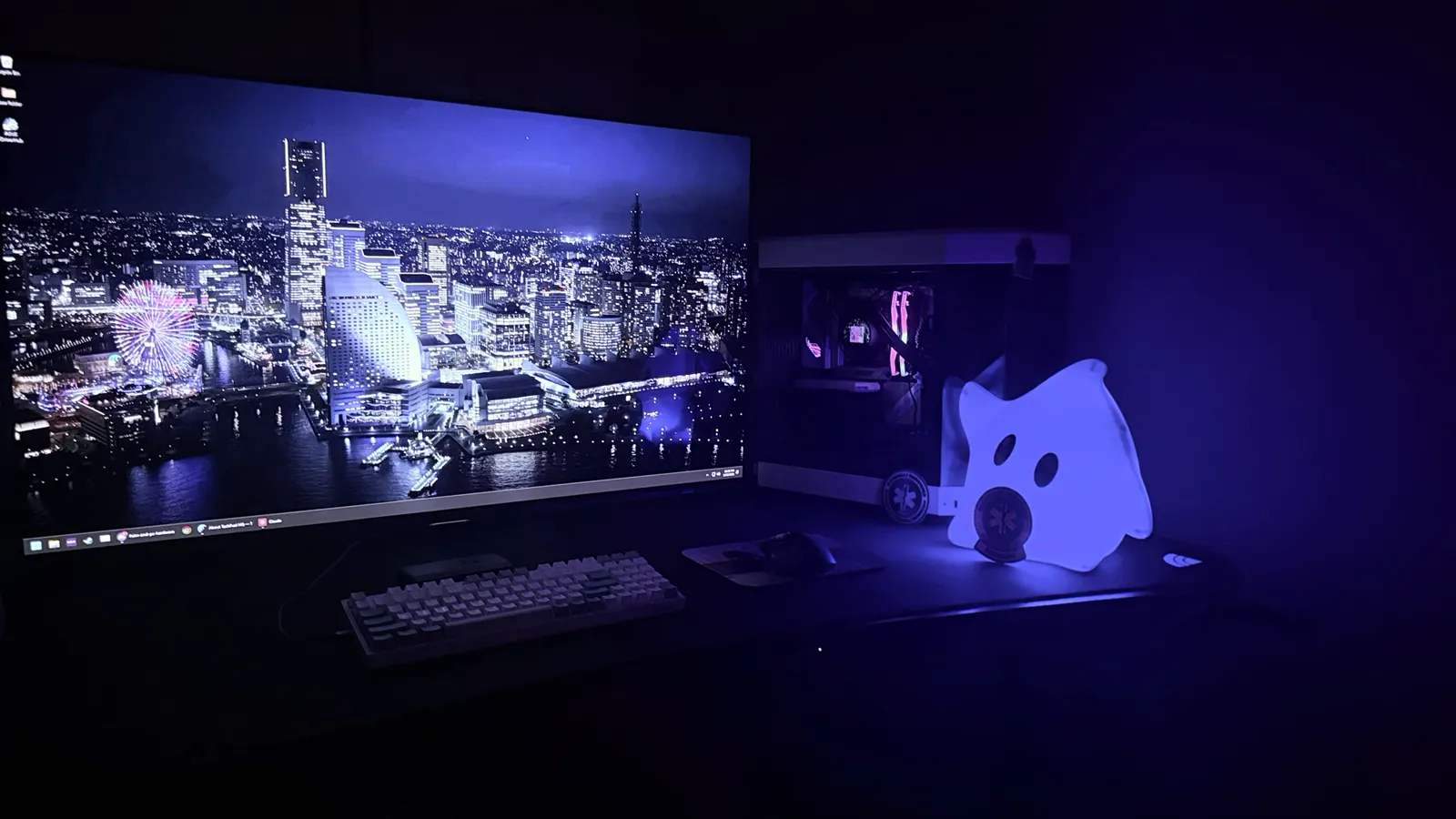
My hands-on context is the AORUS FO48U review. The LG and Samsung TV examples below use manufacturer specifications, not new TechFuelHQ panel tests. If you want two smaller work screens, the 27–32-inch homelab monitor guide addresses that different layout.
What OLED means for a computer screen
OLED means organic light-emitting diode: the image pixels emit their own light. An LCD uses a backlight.
LG’s OLED technology paper describes the self-lit design; its benefit does not remove the need to judge the exact screen’s text rendering, reflections, brightness behavior and care requirements. “OLED monitor” and “OLED TV” describe products built around that display technology, not an interchangeable set of ports and controls. A television may fit a big-screen game setup while a smaller monitor better fits a desk full of static applications. Use the actual dimensions and feature sheet rather than treating the panel acronym as a buying verdict.
What to set up before anything else: Game Mode
Use the TV’s documented low-latency game setting. LG’s Game Optimizer instructions explain the menu and note that activation can depend on the source signal. A label such as PC, Game Optimizer or ALLM is not proof that every image-processing option or desired signal mode has been configured correctly.
Check the picture first. Open fine desktop text. Then replay one game scene.
Confirm the refresh rate in Windows and inspect the TV’s signal information where available; if changing the input mode also changes scaling or refresh, restore a known starting point before comparing SDR with HDR so that you can tell which setting caused the difference. There is no universal latency figure here. A useful measurement names the television and firmware, together with its refresh rate and test method. A manufacturer’s pixel-response specification measures a different thing from the full input-to-display delay.
The DisplayPort problem
The LG C5 example is an HDMI television. If your desk depends on DisplayPort or a USB KVM, inspect the input list before buying; the FO48U’s DisplayPort and KVM are reasons it remains a different kind of product. Trace every connection. Start at the computer, follow any adapter or dock, then check the cable and TV input. An HDMI version number alone does not establish a particular 4K refresh rate, color format or VRR combination. An adapter also does not automatically preserve every feature of the source port.
Write the target mode down. The DisplayPort and HDMI bandwidth calculator helps compare the signal requirement, while the device manuals settle supported timings. On a laptop, use the specification for the exact USB-C or HDMI port; avoid a universal rule based only on the GPU family inside it.
VRR support: what to check
LG lists G-Sync and FreeSync Premium support for the C5. Its VRR setup instructions explain Game Optimizer and the source-dependent setting. Enable the corresponding GPU feature only after confirming that the TV and connection support it. Then compare one scene. If dark areas pulse when the frame rate changes, use the VRR flicker check. If the image splits during pans, use the screen-tearing guide. Neither symptom can be diagnosed from the HDMI label alone.
The sync choice also depends on the generation mode. DLSS Dynamic Multi Frame Generation has a specific V-Sync/limiter exception; the ordinary G-Sync cap recipe should not be copied blindly into that mode.
Size at a desk: the real constraint
I use the AORUS FO48U at 36–40 inches, which feels right for a 48-inch panel. At the same desk at 24-inch depth with the monitor at the back edge, 48 inches would be too close.
Treat that as one setup. Measure your eye-to-screen distance, the stand footprint and the full panel rectangle. The monitor-size calculator supplies width and height; it does not calculate a universally comfortable distance. A mount must also meet the exact display’s weight requirement, VESA mount and required clearance.
| Size class | What to resolve at the desk |
|---|---|
| 42 inches | Can you comfortably read the corners without moving the whole display or leaning back? |
| 48 inches | Is the deeper viewing position available while keeping keyboard and mouse usable? |
| 55 inches or larger | Is this a desk display or a shared room/media display? Mark its full outline before committing. |
The 42-inch C5 is the specific compact TV example used here. LG identifies OLED42C5PUA as a 2025 model, with 144 Hz capability for a compatible PC and G-Sync/FreeSync support. Check current stock and seller terms separately. For a larger example, Samsung’s 2025 S95F announcement lists 55-inch and larger sizes and up-to-165 Hz PC gaming support. Compare its exact size and connections with the C5 before using its higher refresh ceiling as a reason to buy.
Burn-in at a desk
Watch repeated static content. Taskbars and window edges count; so do logos or paused games. LG’s image-retention guidance identifies repeated static imagery and sustained high brightness; it distinguishes temporary retention from longer-lasting burn-in. Let the screen sleep when unused. Reduce unnecessary static exposure, use comfortable brightness for the room, and follow the exact model’s automatic-care routine. LG’s OLED manual explains why the television needs power available to complete its cleaning cycle after use. Do not apply one maker’s manual-refresh schedule to another panel.
No universal “80% brightness is safe” threshold follows from those instructions. Nor can a few good owner reports establish that every modern OLED has minimal wear after two years. The OLED census keeps each observation beside its panel type and use and explains why voluntary reports do not predict an individual display’s lifespan.
Smart TV features: bonus or annoyance
Check the TV’s input switching, wake behavior, software prompts and connected-device controls during the return period. A streaming platform may be useful in a shared room, but it does not substitute for a PC monitor’s USB switching or standby behavior.
Try a normal workday during the return period: switch to another input, let the screen sleep, wake the PC, and check that you can recover the intended desktop signal without a sequence you would resent repeating; those interactions depend on the exact television and firmware, so a specification table cannot settle them.
Make the choice from the actual desk
Choose the size and connection first, configure the intended signal, then test text and game behavior from your normal seat. Keep the panel-care tradeoff visible alongside the image benefits. A 144 Hz or 165 Hz product specification also says nothing about how fast your PC renders a particular game.
Audio is a separate choice. If the built-in speakers do not suit your placement, the PC-desk soundbar comparison starts with connection and fit rather than assuming every television needs the same accessory.
The October 11, 2026 technical update checks the linked LG C5 and Samsung S95F specifications and the setup and panel-care references above. It adds no new retail price capture or panel measurement. The earlier survey retains its original date below.
Specs from manufacturer product pages (LG, Samsung, Sony), accessed June 2026. A mid-June 2026 Amazon and Best Buy survey was completed, but its stored listing prices are no longer published. Use the paired live retailer links above for current offers. No panel measurements conducted by TechFuelHQ — for calibrated figures, see RTings and TFT Central.
Frequently asked questions
Is it bad to use an OLED TV as a PC monitor?
Do OLED TVs have DisplayPort?
What size OLED TV should I use as a PC monitor?
Will an OLED TV burn in if used as a PC monitor?
Can an OLED TV run at 4K 144Hz for PC gaming?
Sources and corrections
- Last updated
- Methodology
- See our methodology for research and review standards.
- Corrections
- Spotted an error or a stale number? Email contact@techfuelhq.com. Confirmed corrections are recorded here with the date and change.