 TechFuel HQ
By LK Wood IV · 2026-05-01 · 14 min read
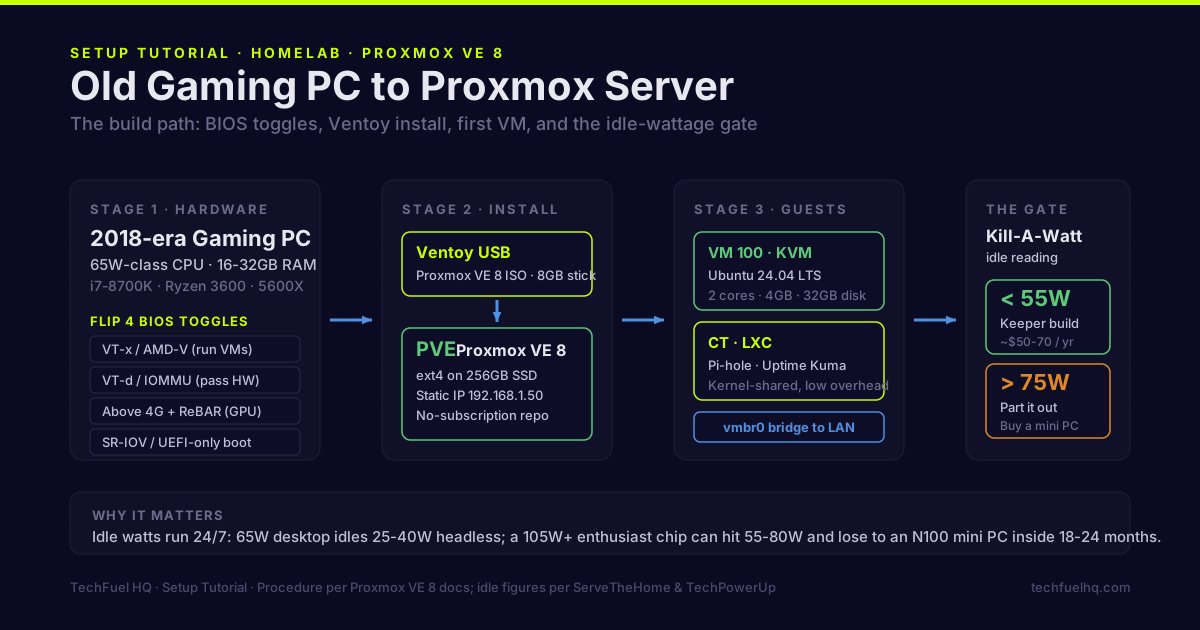
Key takeaways
- A Proxmox gaming server is realistic when the old desktop has 64-bit hardware virtualization, a supported wired NIC, enough RAM and storage for its planned guests, and acceptable idle power. Use the requirements guide for the sizing details.
- The build path: confirm VT-x/AMD-V and VT-d/IOMMU support, flip four BIOS toggles, install Proxmox VE 9.2 from a verified Ventoy USB, then pull a Kill-A-Watt idle reading.
- A 65W desktop CPU idles around 25–40W headless with the GPU pulled; under ~55W is a keeper, over ~75W means part it out for a mini PC instead.
- Skip this if your CPU is a 105W+ enthusiast part — idle power cost can exceed a used mini PC inside 18–24 months.
- Keep the GPU only if you want a Plex/Jellyfin transcode VM, a Windows gaming VM, or a local LLM container; otherwise pull it to save 8–25W at idle.
TL;DR — Verdict
A 2018-era gaming PC with a 65W-class CPU, 16–32GB of RAM, and a working NIC makes a credible Proxmox server in 2026. Skip it if your CPU is a 105W+ desktop part — idle power will eat the savings inside a year. The path: confirm virtualization flags, flip four BIOS toggles, install Proxmox VE 9.2 from a verified Ventoy USB, pull a Kill‑A‑Watt reading, and decide whether to keep the GPU. Over ~55W idle headless? Part it out and read the mini PC homelab guide instead. And if you want plain storage rather than a hypervisor, the same old box makes a fine dedicated NAS built from an old PC.
Who this is for
You have an old gaming PC build — i7‑8700K, Ryzen 3600, 5600X, that class of machine — sitting in a closet. You’d rather repurpose it than throw it out, and you’ve read the Proxmox vs TrueNAS vs Unraid breakdown and picked Proxmox over a paid or Windows-licensed hypervisor — the Proxmox vs ESXi comparison covers why that is the default call in 2026, and Proxmox vs Hyper-V does the same on the Microsoft side.
This guide turns that machine into a working Proxmox VE 9.2 host. It handles the repurposed-hardware decisions and then uses the current clean-install path. For the generic installer reference, including official media-writing options and update maintenance, use How to Install Proxmox VE in 2026.
Before you start: hardware sanity check
Run this list before you flash a single USB drive. Five minutes here saves a wasted weekend.
CPU virtualization support
Proxmox VE 9 needs a 64-bit Intel or AMD CPU with hardware virtualization enabled. VT-x or AMD-V is the host requirement; VT-d or AMD-Vi (IOMMU) is an additional requirement only when you plan to pass a GPU, NIC, or other PCIe device into a VM. The dedicated Proxmox hardware requirements guide separates the official minimum from practical RAM, storage, network, ZFS, and passthrough targets, so this page does not compete with it.
Boot a live Linux USB or run from your existing OS and check:
# Intel: look for vmx and (optionally) ept
grep -E 'vmx|svm' /proc/cpuinfo | head -1

# Confirm CPU model
lscpu | grep -E 'Model name|Virtualization'
If vmx (Intel) or svm (AMD) is present, you’re good. If not, the CPU is too old or virtualization is disabled in firmware — fixed next.
TDP / idle-power reality check
Make-or-break number. A homelab server runs 24/7. Idle watts × 8,760 hours × your kWh rate = annual cost of the box.
| CPU class (TDP) | Typical idle (headless, GPU pulled) | Annual cost @ $0.184/kWh (US residential avg, EIA May 2026) |
|---|---|---|
| 35W mobile (laptop CPU on a desktop board) | 12–20W | $19–32 |
| 65W desktop (i5-8400, 5600, 5600X) | 25–40W | $40–64 |
| 95W desktop (i7-8700K stock, 9700K) | 40–55W | $64–89 |
| 105W+ enthusiast (5800X3D, 7700X, 12700K) | 55–80W | $89–129 |
| 125W+ HEDT or 13/14th-gen K-class | 75–110W | $121–177 |
Decision callout — when NOT to do this: if your gaming PC has a 105W+ TDP CPU, skip this build. The idle wattage gap versus a modern N100/N305 mini PC is wide enough to pay for a new mini PC inside 18–24 months. Sell the old chip on r/hardwareswap and start there. Realistic idle figures are tracked in the long-running ServeTheHome low-power server roundups and the TechPowerUp CPU database.
NIC compatibility
Onboard NICs on most Z370/B450/B550/X570 boards are fine. Two gotchas:
- Realtek 2.5GbE (RTL8125) — works, but the in-tree driver has had link-flap issues for years. Proxmox forum has the standing fix (disable EEE, sometimes pin to gigabit). Plan an evening of fiddling, or drop in a $20 used Intel I225/I226.
- Killer NICs — Realtek/Intel rebrands. Usually fine; check the chipset under the marketing name.
Confirm what you have:
# List every PCI device with vendor/device IDs
lspci -nn | grep -iE 'ethernet|network'
GPU passthrough viability
Where the gaming PC actually pays off. If you want a Plex/Jellyfin transcode VM, a Windows gaming VM, or a local LLM container, the GPU is the reason you’re keeping this box instead of a mini PC. The full step-by-step passthrough setup (IOMMU kernel params, VFIO binding, NVIDIA Error 43 fix, ROM-Bar) is in the GPU Passthrough to a Proxmox VM guide.
Passthrough requires:
- CPU + chipset that exposes IOMMU groups cleanly (most consumer Intel Z-series and AMD X570/B550 boards do; B450 is hit-or-miss)
- UEFI boot, not legacy BIOS
- A GPU with a UEFI vBIOS (anything 2014+ — GTX 900 series and later, RX 400 series and later)
- SR-IOV or above-4G decoding enabled in BIOS for cleaner group separation
Once Proxmox is installed, you’ll verify groups with:
# After install — show how the IOMMU has split your devices
for d in /sys/kernel/iommu_groups/*/devices/*; do
  n=${d##*/iommu_groups/*/devices/}; g=${d%/devices/*}; g=${g##*/}
  printf 'IOMMU Group %s: %s\n' "$g" "$(lspci -nns "$n")"
done | sort -V
If the GPU shares a group with the chipset bridge or USB controllers, you’ll need the ACS override patch — out of scope here. The Proxmox PCI passthrough wiki is canonical.
Prerequisites
- An old gaming PC with a 65W-class (or smaller) CPU, 16GB+ RAM, working PSU
- A 256GB SATA SSD or NVMe for the Proxmox boot disk (don’t reuse a 10-year-old spinning drive)
- A spare 8GB+ USB stick for installer media
- Wired Ethernet to your switch
- A Kill‑A‑Watt or smart plug with wattage telemetry (for the before/after measurement)
- 60–90 minutes of uninterrupted time
Step 1 — Take your “before” wattage reading
Plug your gaming PC into the Kill‑A‑Watt with its current OS booted (Windows, idle desktop). Let it settle two minutes, then record the idle wattage along with your CPU and GPU model. This is your baseline.
If you want a record to compare against later, photograph the PC and the meter together so the digits are legible — but the number itself is what matters. You will take the same reading again in Step 10, and the difference between the two is your real, measured power saving. Don’t estimate it; without an actual before-and-after reading, any “saved X watts” figure is a guess.
Step 2 — Flip the BIOS toggles
Reboot, mash Delete or F2 to enter UEFI. Menu paths differ per vendor; the toggles don’t.
2a. Enable virtualization (VT-x / AMD-V)
Intel: Advanced → CPU Configuration → Intel Virtualization Technology → Enabled. AMD: Advanced → CPU Configuration → SVM Mode → Enabled. Without this, KVM won’t start. If your board’s menu labels differ, capture the full menu path on screen so you can confirm you found the right toggle.
2b. Enable VT-d / IOMMU (AMD-Vi)
Most-skipped setting. VT-x runs VMs; VT-d passes real hardware (GPU, NIC, USB controller) into a VM. Intel: Advanced → System Agent (SA) Configuration → VT-d → Enabled. AMD: Advanced → AMD CBS → IOMMU → Enabled (sometimes under NBIO). Different vendors bury this in different submenus, so note the breadcrumb at the top of the screen to be sure you’re on the right page.
2c. Above 4G Decoding + Resizable BAR
Required for GPU passthrough. Advanced → PCI Subsystem → Above 4G Decoding → Enabled. Re-Size BAR → Enabled (if available). On pre-2019 boards, Above 4G may be hidden until you flash a recent BIOS.
2d. SR-IOV (if your NIC supports it)
Intel I350/X550 add-in cards expose SR-IOV — virtual functions that let multiple VMs share the same NIC at near-line-rate. Advanced → PCI Subsystem → SR-IOV Support → Enabled. Consumer Realtek NICs don’t have it. Skip if missing.
2e. Boot mode + Secure Boot
Boot mode: UEFI only (CSM disabled). Secure Boot is supported out of the box on current Proxmox VE (since VE 8.1), so leave it enabled for a normal current install unless your specific firmware or add-in driver causes a boot problem. Disable it only when troubleshooting or when running the installer’s Memtest86+ option. Save and exit.
Step 3 — Build the Ventoy USB
- Install Ventoy to the USB stick (wipes it once).
- Download the current Proxmox VE 9.2 ISO. As of August 7, 2026, the x86-64 installer is 9.2-1, updated May 21, 2026. Verify its published SHA256 before copying it to the USB.
- Drag the ISO onto the USB partition. Done.
Next month you’ll want to boot Memtest86+ or a TrueNAS or Unraid installer to compare. Ventoy means no re-flash.
Step 4 — Install Proxmox VE 9.2
Use a rear USB 3 port (front-panel sometimes drops during install). Boot menu (F11/F12), pick USB, Ventoy menu → Proxmox ISO → “Boot in normal mode.”
Decisions that matter:
- Target disk: the SSD/NVMe you bought for this. Don’t install on a drive you care about.
- Filesystem:
ext4for a single-disk first install. ZFS only with two identical SSDs in mirror. ARC eats RAM — not worth it here unless you’ve already capped it. (DDR5 buyers see the DDR5 buying guide; this box is almost certainly DDR4.) - Network: hostname
pve.lan, static IP outside DHCP (e.g.,192.168.1.50), gateway, DNS. Static is mandatory.
Install. Five to eight minutes later it reboots to a console showing https://192.168.1.50:8006.
Step 5 — Post-install: fix the repos
Open https://192.168.1.50:8006. Accept the self-signed cert. Log in as root.
A fresh install enables the enterprise repository, which requires a subscription key. For a homelab, disable that deb822 source and add Proxmox’s documented no-subscription source for Debian 13 “Trixie”:
# Disable the enterprise source without deleting it.
# Add "Enabled: no" to the existing deb822 entry.
nano /etc/apt/sources.list.d/pve-enterprise.sources

# Add the documented VE 9 no-subscription source.
cat > /etc/apt/sources.list.d/proxmox.sources <<'EOF'
Types: deb
URIs: http://download.proxmox.com/debian/pve
Suites: trixie
Components: pve-no-subscription
Signed-By: /usr/share/keyrings/proxmox-archive-keyring.gpg
EOF

apt update
apt full-upgrade -y
You can make the same change in node → Updates → Repositories by disabling Enterprise and adding No-Subscription. Proxmox documents this repository for testing and non-production use and notes that its packages are not as heavily tested as the enterprise channel. The hardware-specific job of this page ends here; the generic Proxmox install and update reference covers routine updates and major-version upgrades.
Step 6 — Verify IOMMU is actually live
Reboot the host. Then:
# Should print a non-empty list of groups
dmesg | grep -e DMAR -e IOMMU
ls /sys/kernel/iommu_groups/ | wc -l
If dmesg shows IOMMU enabled and group count > 1, you’re good. Common miss: VT-d on, but CSM also on — which blocks IOMMU init on some boards.
Step 7 — Configure the network bridge
Proxmox auto-creates vmbr0 bound to your first NIC. For most builds that’s all you need. Second NIC? Add vmbr1 via Datacenter → node → System → Network → Create → Linux Bridge. Don’t overthink day one.
Verify:
# Show bridges and IPs
ip -br a
# Show the running bridge config
cat /etc/network/interfaces
Step 8 — Create your first VM
Upload an ISO (Ubuntu 24.04 LTS is a fine first guest) via local → ISO Images → Upload. Either click “Create VM,” or run it from the shell to see the moving parts:
# Create VM 100: 4 GB RAM, 2 cores, virtio NIC, 32 GB disk on local-lvm
qm create 100 \
  --name ubuntu-test \
  --memory 4096 \
  --cores 2 \
  --cpu host \
  --net0 virtio,bridge=vmbr0 \
  --scsihw virtio-scsi-single \
  --ostype l26

# Attach the ISO and a fresh disk
qm set 100 --ide2 local:iso/ubuntu-24.04.1-live-server-amd64.iso,media=cdrom
qm set 100 --scsi0 local-lvm:32,discard=on,ssd=1
qm set 100 --boot order='ide2;scsi0'

# Start it
qm start 100
Open Console. Install Ubuntu. Once up, install the QEMU guest agent (apt install qemu-guest-agent) and toggle the agent option in the UI.
LXC containers are lighter — kernel-shared, ideal for Pi‑hole, Uptime Kuma, a Tailscale exit node. The mini PC Proxmox guide covers the same pct commands; nothing changes for a gaming-PC host.
Step 9 — Pull the GPU (or don’t)
This is the fork in the road.
- Pull the GPU if your CPU has integrated graphics (Intel F-suffix chips don’t; most other 8th-gen+ Intel and AMD G-suffix do) and no VM needs GPU acceleration. Save 8–25W idle. Confirm with
lspci -nn | grep -i vgaafter pulling. - Keep the GPU if you want Plex/Jellyfin transcode, a Windows gaming VM via Looking Glass, or a local LLM container. The kit is already in the box.
Passthrough wiring: follow the Proxmox PCI Passthrough wiki — kernel-version-sensitive, wiki tracks current syntax.
Step 10 — Take the “after” measurement
Boot the machine headless — no monitor, no keyboard. Let Proxmox idle five minutes (the first couple of minutes have post-boot housekeeping that inflates the reading), then take the Kill‑A‑Watt reading. Record the watts, whether the GPU is still installed, and whether any VMs or containers are running, so your comparison is apples-to-apples with the Step 1 baseline.
Compare your after-reading to Step 1. Two outcomes:
- Under ~55W idle. Good build. Annual power cost in the $50–70 range. Keep going. Run the exact number through the Power & Cost Calculator to model your specific electricity rate and 3-year TCO.
- Over ~75W idle, even with GPU pulled. The CPU is the floor. Re-read the decision callout and consider a low-idle mini PC instead. The repurpose math doesn’t always win.
Expected outcome
When this is done you have:
- Proxmox VE 9.2 on a static IP, web UI reachable
- Community repo configured,
apt full-upgradeclean - IOMMU groups verified
- One Linux VM running with the QEMU guest agent
- A measured before/after wattage delta
- A known annual dollar cost to run the box, instead of an unknown one
That’s a working homelab host. Scale by adding LXC containers, more VMs, and — if storage becomes the next problem — re-evaluating against TrueNAS or Unraid for the NAS role.
Troubleshooting
Can’t reach https://192.168.1.50:8006. That address is only an example. It is
whatever static IP you chose in Step 4, on port 8006, and it only exists on your own
LAN (searching the address on the internet finds nothing, because it is a private
RFC 1918 address). Check three things in order: you are on the same network as the
server, you typed https:// (Proxmox does not answer plain http), and you clicked
through the browser’s self-signed-certificate warning rather than stopping at it. If
the console on the server shows a different IP than you expected, DHCP assigned one
before your static config took — log in on the console and read /etc/network/interfaces.
KVM virtualisation not available. VT-x/AMD-V off. Reboot, fix Step 2a.
No IOMMU detected. VT-d/AMD-Vi off, or CSM still on. Step 2b. Some boards also need intel_iommu=on or amd_iommu=on appended to the kernel cmdline in /etc/kernel/cmdline (systemd-boot) or /etc/default/grub (GRUB).
Realtek 2.5GbE link-flaps under load. Drop in an Intel I225/I226 card, or follow the disable-EEE workarounds on the Proxmox forum.
GPU passthrough boots black screen. GPU shares an IOMMU group with the chipset. Move it to a different PCIe slot wired to a different root port, or apply the ACS override patch (security-relevant — read the wiki first).
Idle wattage way higher than expected. Likely culprits, in order: GPU still installed, C-states disabled, RGB hardware drawing standby power, a 1000W+ PSU running at 3% load (PSUs are most efficient in the 30–60% band).
Swapping parts as you convert the donor PC? The PC Builder confirms what the existing case, board, and PSU can actually accept.
Once Proxmox is running: set up ZFS storage pools to get checksummed, snapshot-capable storage for your VMs. The Docker Compose starter stack gets NPM, Portainer, and Uptime Kuma running in an LXC. The Proxmox Backup Server guide covers off-site VM backups. If you’re keeping the GPU for AI or gaming passthrough, the GPU passthrough tutorial covers IOMMU grouping and the NVIDIA Error 43 fix.
Sources and methodology
Procedure refreshed against the live Proxmox VE 9.2 download, installation, system-administration, and repository documentation on 2026-08-07. TDP and idle figures attributed inline to ServeTheHome and TechPowerUp.
Primary sources cited:
- Proxmox VE PCI passthrough wiki — official documentation
- Proxmox VE installation docs — current VE 9.2 install reference
- Proxmox VE package repositories — current deb822
proxmox.sourcesentry for Debian 13 Trixie - Arch Wiki: PCI passthrough via OVMF — IOMMU/VFIO reference
- VFIO subreddit — community passthrough troubleshooting
- Phoronix virtualization benchmarks — Linux KVM performance data
Email corrections to hello@techfuelhq.com.
Frequently asked questions
Can I really use any old gaming PC as a server?
Do I need to buy a server CPU like a Xeon to do this?
Will Proxmox damage my gaming PC?
Should I leave the GPU in or pull it?
How much RAM do I really need?
What’s the difference versus running Proxmox on a mini PC?
When should I just give up and buy a mini PC?
Evidence ledger
- Last updated
- Methodology
- See our methodology for research and review standards. It draws on 9 cited sources, listed below, each checked against the original page on the date shown beside it.
- Sources
- Proxmox VE — Get Started / system requirements accessed 2026-08-07
- Proxmox VE — Downloads accessed 2026-08-07
- Proxmox Wiki — PCI(e) Passthrough accessed 2026-08-07
- Proxmox VE 9.2 Documentation (admin guide) accessed 2026-08-07
- Proxmox VE — Package Repositories accessed 2026-08-07
- Ventoy — official site accessed 2026-08-07
- TechPowerUp — CPU specifications database accessed 2026-05-02
- ServeTheHome — homelab and low-power server coverage accessed 2026-05-02
- Proxmox community forum accessed 2026-05-02
- Update log
- 2026-05-06 — Content update: 7 draft placeholders replaced with finalized content.
- 2026-05-06 — Content update: Sources lifted into evidence ledger; inline duplicate Sources / Methodology blocks removed.
- 2026-06-08 — EEAT cited-source rewrite: removed all operator artifact_required shortcodes (no first-party photos/measurements exist for current state). Rewrote the before/after measurement steps as pure reader instructions. TDP and idle figures attributed to ServeTheHome and TechPowerUp inline.
- 2026-08-07 — Freshness correction: replaced the obsolete Proxmox VE 8 / Debian 12 install and repository path with the current VE 9.2-1 / Debian 13 Trixie deb822 path; corrected Secure Boot guidance and narrowed hardware-requirement claims to the dedicated requirements page.
- 2026-08-23 — Machine-date consistency: the hand-maintained inline Article JSON-LD carried dateModified 2026-08-18T21:38 while the front-matter lastmod read 2026-08-20T03:10, so the page markup and the sitemap handed Google two different modification dates for the same URL. Both now carry the same stamp. Site audit 2026-08-23, finding SITE-02.
- Corrections
- Spotted an error or a stale number? Email hello@techfuelhq.com. Confirmed corrections are added to the update log above.