 TechFuel HQ
By LK Wood IV · 2026-06-12 · ~13 min read · St. Louis County, MO
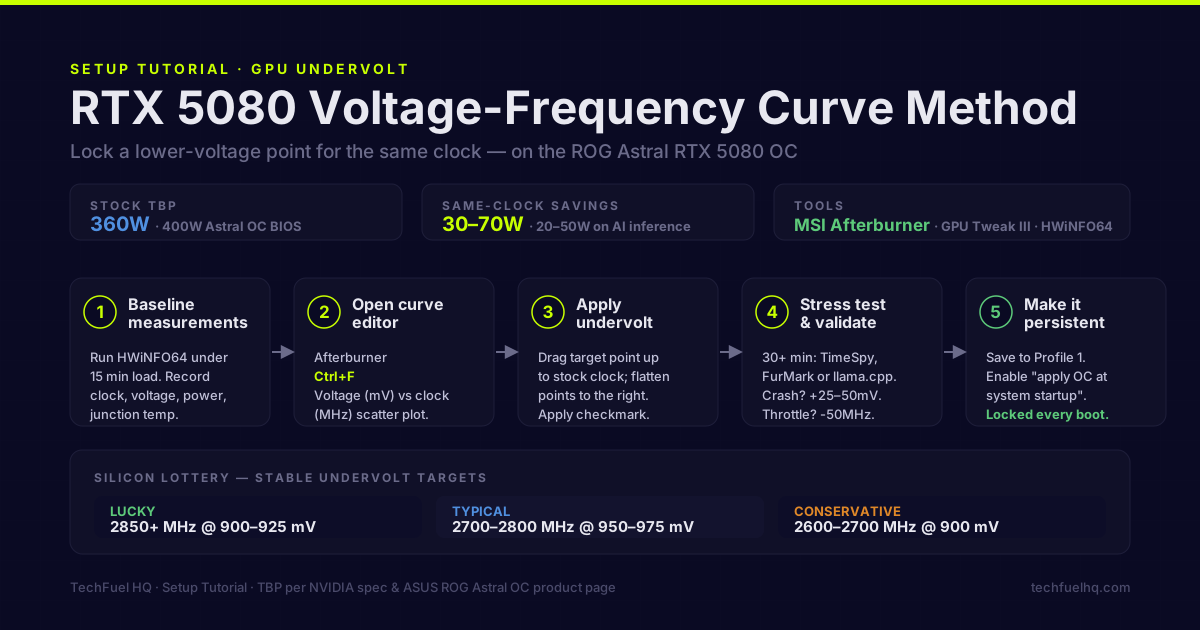
The RTX 5080 is a 360W card at NVIDIA’s spec. The ROG Astral OC variant I run draws up to ~400W in practice (450W VBIOS ceiling) on its high-performance BIOS. For gaming a few hours a night, that’s fine — the cooler handles it. For AI inference running 24/7, or for anyone who cares about acoustics, power cost, or long-term thermals, undervolting changes the equation without touching performance.
This guide covers the voltage-frequency curve methodology for undervolting the RTX 5080, what to expect, and the settings community results consistently converge on for the ROG Astral class of card. (On AMD’s RDNA 4 cards the process is different — it uses the Adrenalin driver instead of MSI Afterburner — so see the separate RX 9070 XT undervolt guide.) This is the NVIDIA worked example in our broader guide to undervolting your GPU.
Why undervolt instead of just setting a power limit
You can lower the RTX 5080’s power draw two ways: set a lower power limit in software, or find a lower-voltage operating point on the voltage-frequency curve.
Power limit reduction (e.g., 90% = 324W) tells the GPU to throttle when it hits that ceiling. The card will dynamically lower clock speeds until it stays under the limit. Simple, effective, but blunt — you’re letting the GPU decide how to trade off clock speed against power.
Voltage-frequency curve undervolting maps a specific voltage to a specific clock frequency and pins the GPU to that point. You find the lowest voltage at which the card is stable at your target clock, then lock it there. The result: same clock speed as stock, 30–70W lower power draw (depending on how far the silicon lottery went in your favor), and meaningfully lower temperatures.
For an always-on AI inference rig, the curve approach is better. Lower voltage = lower heat = cooler junction temperatures = longer-running silent fans = lower electricity cost. The Power & Cost Calculator shows exactly what 50W of savings means annually: at $0.184/kWh and 6 hours/day inference, 50W saved = 109.5 kWh/year = ~$20/year. Across 3 years, $60 back. California residential runs 33.25 cents (EIA Table 5.6.A, May 2026). Same saving, ~$36 a year.
Understanding the voltage-frequency curve
Modern NVIDIA GPUs (Turing and later) use a voltage-frequency table: for each voltage level, there’s a maximum boost clock the GPU will run at. Nvidia calls this the “boost algorithm” — the GPU samples temperature, power, and voltage and picks a point on the curve.
Stock behavior: the GPU slides up and down the curve dynamically, following the thermal and power constraints. Under sustained load, it finds an equilibrium — typically 50–100MHz below advertised boost clock, at a voltage somewhere in the middle of the curve.
Undervolted behavior: you find that equilibrium point, lower the voltage while keeping the frequency, and flatten the upper portion of the curve so the GPU can’t drift higher. The GPU runs locked to your chosen point instead of hunting dynamically.
The best silicon (good lottery results) can achieve 2800–2900 MHz at 900–950mV on RTX 5080. Average silicon typically settles 2700–2800 MHz at 950–1000mV. You find out where your card is during the scanning and testing process.
Tools
MSI Afterburner — works with all RTX 5080 cards regardless of manufacturer. The voltage-frequency curve editor is the primary undervolting interface. Download from msi.com/Landing/afterburner.
ASUS GPU Tweak III — for ROG/TUF/PRIME cards specifically. Has an OC Scanner that automatically finds a stable overclock curve. The manual curve editor works identically to Afterburner’s.
HWiNFO64 — for monitoring junction temperature, hotspot temperature, power draw, and clock speed under load. Run it alongside whatever workload you’re testing. Download from hwinfo.com.
Step 1: Baseline measurements
Before touching any settings, establish your baseline. Run HWiNFO64 and put the GPU under load:
- For gaming: run a GPU benchmark or play a demanding title for 15 minutes
- For AI inference: run your inference workload for 15 minutes
- For video encoding: run a long encode pass
Record from HWiNFO64:
- GPU Core Clock (sustained under load)
- GPU Core Voltage (sustained under load)
- GPU Power (total board power)
- GPU Temp (Junction / Hotspot) — more relevant than die temperature
These are your baselines. The goal of undervolting is to match or exceed the core clock at lower power and temperature.
Step 2: Open the voltage-frequency curve editor
In MSI Afterburner, click the curve editor button (or press Ctrl+F). You’ll see a scatter plot: X axis is voltage (mV), Y axis is clock frequency (MHz). Each point represents a voltage-frequency pair.
The curve looks like a staircase — it rises, plateaus, and flattens at the top where boost speeds cap out. The rightmost active point is where your card currently runs under stock boost.
Note your stock operating point. Under load, GPU-Z or HWiNFO shows your actual core voltage and clock. Find that point on the curve — it’s typically somewhere between 900mV and 1050mV.
Step 3: Apply the undervolt
Method: lock a point at lower voltage, pull the curve down above it.
- In the curve editor, find the voltage point slightly below where your GPU currently operates (e.g., if stock settles at 1000mV / 2750MHz, try 950mV)
- Click that point and drag it up to your target frequency (start with your stock sustained clock — e.g., 2750MHz)
- Select all points to the right of this point and drag them down below this frequency (this prevents the GPU from climbing to higher voltage/frequency pairs)
In Afterburner, the process:
- Press
Ctrl+Fto open curve - Find the voltage you want to test (e.g., 950mV on X axis)
- Click the point at 950mV, drag up to your target clock (say 2750 MHz)
- Click anywhere on the curve, then press
Ctrl+Ato select all, then drag all points down — except your locked point, which you shift-click to deselect
Click the checkmark in Afterburner to apply. The GPU will now target your locked voltage-frequency pair.
GPU Tweak III on the ROG Astral: the interface is slightly different but the principle is identical. Manual mode in the Performance Tuning tab → Voltage/Frequency Curve. Click your target voltage column, drag to your target frequency.
Step 4: Stress test and validate
Run your GPU workload for at least 30 minutes. Watch for:
- Crashes or driver resets — indicates the voltage is too low for that frequency. Raise voltage by 25–50mV and retry.
- Throttling below target clock — the frequency is too high for that voltage under thermal load. Lower target frequency by 50MHz.
- Stable at target — success. Record the power draw and temperature delta vs baseline.
Stability testing tools:
- 3DMark TimeSpy or Port Royal for gaming workloads
- FurMark for thermals and power-limit behavior only — it does NOT validate a curve undervolt. FurMark slams the power limit, which pushes the card down the V/F curve away from your locked point, so it can pass while games crash. Long sessions in demanding games (or Superposition loops) that hold the card at the locked clock are the real stability test.
- llama.cpp benchmark or Ollama with a large model for AI inference (this is the actual workload for an inference rig)
For the ROG Astral specifically: this card’s power delivery and VRM are overbuilt relative to even the 5080’s demands. The limiting factor in undervolting is the GPU die, not the card’s power delivery. Community results across hardware forums have shown the Astral typically requires less voltage to hit a given clock than reference-cooled variants — a benefit of the 3-slot cooler’s thermal headroom. The first-party benchmark numbers behind these clocks are in the ASUS ROG Astral RTX 5080 OC review, measured on the same card used for this guide.
Step 5: Make settings persistent
In MSI Afterburner:
- Click the save icon (disk icon in the profile row)
- Save to Profile 1 (or 2/3 if you want multiple configs)
- In Afterburner settings → General → check “Apply overclocking at system startup”
The profile applies on every boot. No manual action required.
For the ROG Astral on GPU Tweak III: GPU Tweak has a startup option in its settings to apply the saved profile at Windows boot.
Power limits and fan curve
While you’re in Afterburner, set a custom fan curve. The stock aggressive fan ramp on an RTX 5080 at high load is not quiet. With undervolting keeping junction temperatures lower, you can be more conservative:
- Below 60°C junction: 0% (fanstop)
- 60–70°C junction: 30–40%
- 70–80°C junction: 50–60%
- Above 80°C junction: 70–80% (should rarely reach this with undervolt)
The ROG Astral ships with a zero-RPM mode by default up to about 55°C. With undervolting, the card stays in zero-RPM mode longer.
What to expect in practice
Results vary by silicon lottery — no two RTX 5080 chips are identical. The range seen across community testing at hardware review sites:
- Lucky silicon: 2850+ MHz stable at 900–925mV
- Typical: 2700–2800 MHz stable at 950–975mV
- Conservative (all silicon): 2600–2700 MHz stable at 900mV
Power draw reduction depends on what voltage and frequency you end up at. Dropping from 1000mV to 925mV at the same frequency can yield 40–80W reduction in sustained GPU power consumption, depending on the workload’s power demand curve.
For AI inference specifically: LLM inference is memory-bandwidth bound, not shader-bound. The GPU core voltage doesn’t dominate power the way it does in gaming. A significant portion of inference power comes from GDDR7 and the memory controllers. Core undervolting still helps — it typically saves 20–50W on inference workloads depending on the model size and GPU utilization pattern.
Always-on AI inference setup
If you’re running the RTX 5080 as a local AI workstation running LLM inference around the clock, prioritize:
- Undervolt for sustained efficiency (as above)
- Set power limit to 85–90% of max as a backstop
- Set custom fan curve that keeps junction temp under 75°C continuously
- Monitor with HWiNFO64 + logging enabled — catch thermal drift over time
At 24/7 operation, 30W of sustained savings is roughly $48/year at $0.184/kWh — a $25 Kill-A-Watt meter pays for itself inside the first year, and everything after that is pure savings. If that is your actual workload, we measured the full picture in RTX 5080 performance per watt for 24/7 AI inference.
The ROG Astral RTX 5080 OC that I use for this testing is documented with photos and full spec sheet at the dataset page. The Power & Cost Calculator models what a GPU workstation node costs to run 24/7.
Frequently asked questions
Will undervolting void my RTX 5080 warranty?
How much performance do I lose from undervolting?
What tool should I use for RTX 5080 undervolting?
Is undervolting worth it if I already have a large AIO cooler?
What is the RTX 5080 stock TBP?
Evidence ledger
- Last updated
- Methodology
- See our methodology for research and review standards.
- Update log
- 2026-08-22 — Page updated.
- Corrections
- Spotted an error or a stale number? Email hello@techfuelhq.com. Confirmed corrections are added to the update log above.