
Leave it on where Windows shows the switch: NVIDIA GTX 10-series and newer, AMD RX 7000, Intel Arc B-Series. RTX 40 or 50 cards need it on for DLSS Frame Generation. AMD’s HAGS notes skip the RX 6000 and Intel excludes Arc A-Series, so no switch there is expected. Test off for stutter, VR hitching or VRAM pressure.
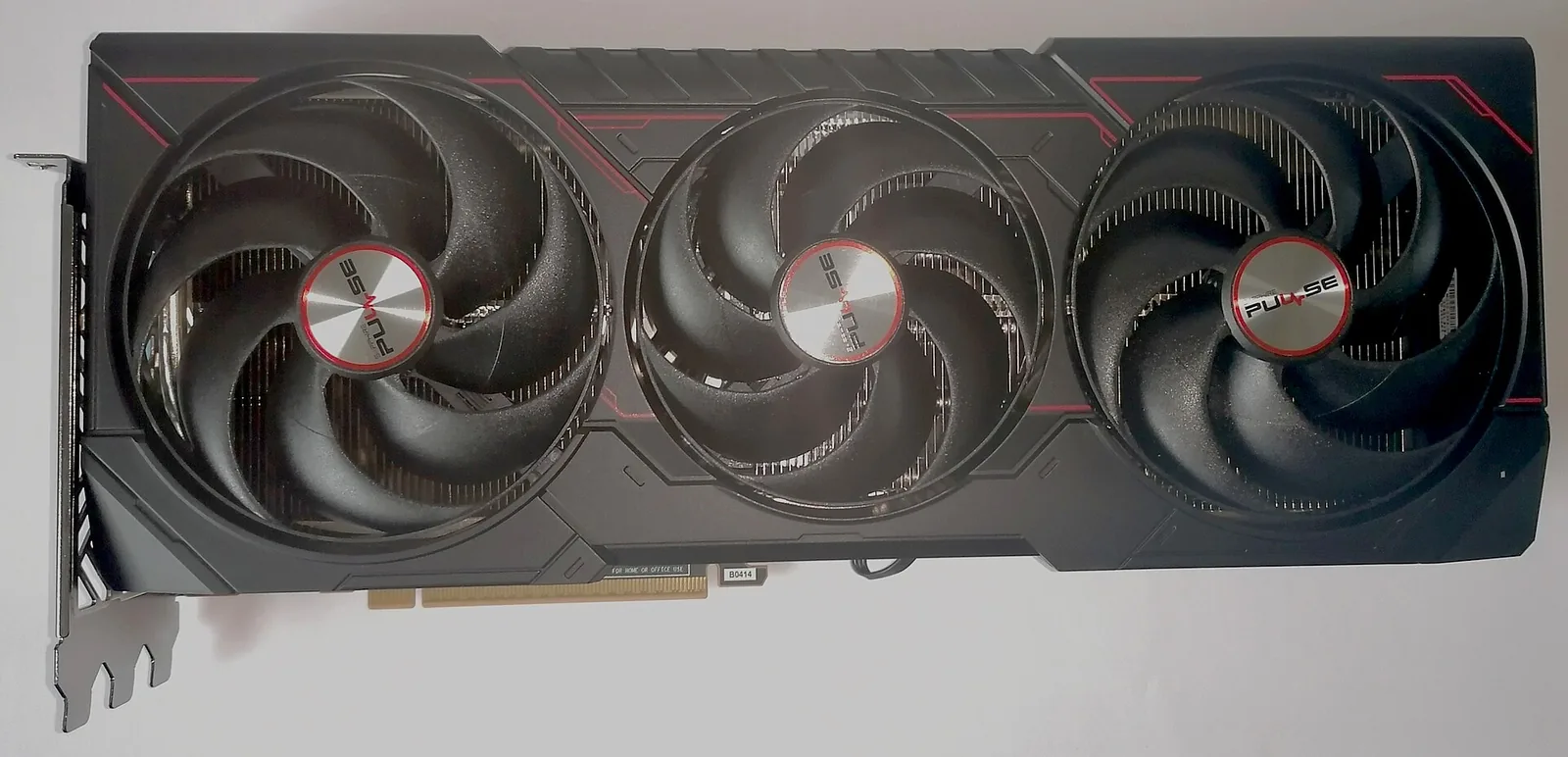
Leave it on. My RTX 5080 runs with it on under Windows 11 25H2 and driver 616.56, and on an RTX 40 or 50 card it has to stay that way: NVIDIA’s DLSS Frame Generation guide says the feature is unavailable when hardware-accelerated GPU scheduling (HAGS) is off. On older cards the switch changes little on average, though some games regressed or stuttered in tests (BabelTech Reviews 2022, PC Games Hardware 2020), and on some cards Windows never shows it. The table gives the answer by card, driver and Windows version.
HAGS on or off by GPU, driver and Windows version
Check your driver and Windows version first. The last column is what I would set.
| Your GPU | Does the switch appear? | Frame generation and HAGS | Set it |
|---|---|---|---|
| NVIDIA GTX 900 series and older | No. NVIDIA supports HAGS on Pascal (GTX 10) and later | No DLSS Frame Generation | Nothing to set |
| NVIDIA GTX 10, GTX 16, RTX 20 and RTX 30 | Yes. Support started with driver 451.48 (June 24, 2020) on Windows 10 version 2004 or later; use a driver that also supports your card | No DLSS Frame Generation: NVIDIA lists it for RTX 40 and 50 cards only. In games with FSR 3 frame generation, AMD warns that HAGS off can add tearing with VRR on and V-Sync off | Default on; test off if a game stutters or regresses |
| NVIDIA RTX 40 | Yes, with a driver that supports the card, on Windows 10 version 2004 or later | DLSS Frame Generation is unavailable with HAGS off | On |
| NVIDIA RTX 50 | Yes, with a driver that supports the card, on Windows 10 version 2004 or later | DLSS Frame Generation and Multi Frame Generation, same requirement; Dynamic Multi Frame Generation also needs driver 595.41 or newer | On |
| AMD Radeon RX 5600 and RX 5700 | AMD added it in the Adrenalin 20.5.1 Beta driver in 2020 | FSR 3 frame-generation games can run without HAGS; AMD’s AFMF support list starts at RX 6000 | On if the switch shows; off to test a VR headset |
| AMD Radeon RX 6000 (RX 6600 XT, 6700 XT and the rest) | Not in AMD’s HAGS announcements: the 20.5.1, 23.12.1 and 24.1.1 notes cover the RX 5600 and 5700, RX 7700 to 7900 and RX 7600 | Fluid Motion Frames supports the RX 6000 series and, like FSR 3 frame generation, runs without HAGS | Nothing to set; a missing switch is expected |
| AMD Radeon RX 7700, 7800 and 7900 | Adrenalin 23.12.1 or newer, on Windows 11 22H2 or newer | FSR 3 frame generation: HAGS off may add tearing with VRR on and V-Sync off | On |
| AMD Radeon RX 7600 | Adrenalin 24.1.1 or newer, on Windows 11 22H2 or newer | FSR 3 frame generation: same tearing note | On |
| AMD Radeon RX 9000 | AMD’s RX 9070 launch driver notes do not mention it; look for the switch | FSR 3 frame generation: same tearing note | On if it shows |
| Intel Arc B-Series | Yes, on Windows 11 22H2 and newer builds | XeSS frame generation: Intel’s developer guide lists Windows, DirectX 12 and a driver version, not HAGS | On |
| Intel Arc A-Series | No, not supported | XeSS frame generation still runs: Intel’s guide lists Alchemist cards | Nothing to set |
| Integrated graphics (Intel UHD and Iris Xe, AMD Ryzen APUs) | Intel’s HAGS article covers only Arc cards; AMD’s HAGS announcements cover only Radeon RX cards | FSR 3 and XeSS frame generation do not require HAGS; GPU support is a separate requirement | Nothing to set if it is missing |
The switch arrived with the Windows 10 May 2020 Update as “a user opt-in, but off by default option”, and it needs a WDDM 2.7 driver. NVIDIA’s Streamline guide gives that release as version 2004, build 19041. Nothing earlier has the switch. The same Microsoft post encouraged PC makers to ship new systems with it “turned on from the factory”, and CD PROJEKT RED’s support page says it is on by default in Windows 11. AMD and Intel list their newer cards for Windows 11 22H2 and newer only.
When the answer flips
Frame generation. On an RTX 40 or 50 card, NVIDIA’s Streamline guide is flat about it: “If any requirement is not met, DLSS-G will be unavailable”, and HAGS is one of the two requirements. Neither AMD’s nor Intel’s frame generation is documented as that strict in the sources I read. AMD’s FSR 3 page says that with VRR on and V-Sync off, running with HAGS disabled “may result in more tearing”, which argues for on. Tom’s Hardware reported in December 2023 that Fluid Motion Frames and FSR 3 frame generation both work without it, and Intel supports XeSS frame generation on Arc A-Series (Alchemist) cards, where Intel does not support HAGS at all. See frame generation explained for what generated frames do to latency.
VR. AMD’s 20.5.1 Beta notes warned that “VR headsets may not display content or may experience severe performance drops with Hardware Scheduling enabled.” In a SteamVR thread from November 2023, a user suggested owners check that HAGS is disabled when a headset stutters. If VR hitches and flat games do not, off is the first test.
Drivers. NVIDIA’s 451.48 driver, which added HAGS support, shipped with an open issue: video on the second display “lags/freezes while playing a game on the primary display if Hardware-accelerated GPU Scheduling is enabled.” AMD’s Fluid Motion Frames preview driver listed intermittent crashes during gameplay plus video playback with it enabled. If a stutter starts after a driver update, test a clean driver installation before attributing it to HAGS.
An 8 GB card without DLSS Frame Generation. XDA (April 27, 2026) turned HAGS off on an RTX 2070 Super: nearly 950 MB of VRAM freed and 3 to 5 average FPS lost; Cyberpunk 2077 held its textures and Stellar Blade stopped stuttering. The figure is Task Manager’s committed GPU memory on one card. If an 8 GB card is at its VRAM limit and is not using DLSS Frame Generation, off is worth a run.
What off costs on Windows 11. Microsoft’s driver documentation says Windows “currently requires GPU hardware scheduling to be enabled in order for basic hardware flip queue to be enabled on officially released drivers.” That queue, new in Windows 11 (WDDM 3.0), lets multiple future frames wait in the display controller’s queue so the CPU and parts of the GPU can drop to lower power states, “improving power efficiency of video playback scenarios on capable hardware.” Turn HAGS off and that goes too.
What the benchmarks show, and how old they are
Tom’s Hardware (June 25, 2020, driver 451.48) ran five games: with HAGS on, the RTX 2080 Ti on a Core i9-9900K was 0.03 percent slower on average and the GTX 1050 0.73 percent slower. PC Games Hardware (June 30, 2020) saw no change beyond its 1 to 2 percent measurement tolerance on an RX 5700 XT except in Wolfenstein: Youngblood, which gained clearly, and Red Dead Redemption 2 under Vulkan hitched every few frames with it on. BabelTech Reviews (May 3, 2022) ran 26 games on an RTX 3080 with driver 512.15 and Windows 11 21H2 and still would not recommend it for general use, because results were inconsistent from game to game. Puget Systems (July 21, 2023) found After Effects 3 to 10 percent faster with it on; on the RTX 4080, Blender GPU rendering ran 5 percent faster and V-Ray RTX about 5 percent slower.
None of those runs an RTX 40 or 50 card in games, or any Radeon newer than the RX 5700 XT. I have not measured HAGS off on my RTX 5080.
Microsoft expected as much. Its 2020 post said users “should not notice any significant changes”, because most applications hide scheduling costs through buffering. The gain Microsoft names is less load on the CPU, so look for it where the CPU is the limit; the PC Bottleneck Calculator estimates which side limits you at your resolution.
What it changes
Before HAGS, Windows scheduled every application’s GPU work from “a high-priority thread running on the CPU”. With it on, Windows “can now offload most of GPU scheduling to a dedicated GPU-based scheduling processor”, as Microsoft’s DirectX team put it in June 2020. Windows still decides which application gets priority; the moment-to-moment work moves onto the card. Microsoft called it “a significant and fundamental change to the driver model”, which is why it shipped off by default.
Where the switch is, and why it can be missing
Open Settings > System > Display > Graphics. Microsoft’s 2023 redesign of the Graphics page (first in Insider build 25281) put the switch under Advanced graphics settings and says it “will only appear if your system has one or more supporting GPUs and the necessary display drivers.” Windows 10 and Windows 11 builds from before the redesign show a Change default graphics settings link instead, the path NVIDIA’s guide still gives. If neither page has the switch, the table says why: the card, the driver or the Windows version. Restart after changing it.
How to test it on your own PC
Averages hide the problem, so compare frame times. Pick one repeatable scene, a built-in benchmark or the same 60-second route, and keep the driver, resolution and settings fixed. Log it three times with HAGS on and three times off in PresentMon or CapFrameX, restarting after each change, and compare average FPS, 1% lows and the spread of frame times. On an 8 GB card, note dedicated GPU memory in Task Manager too. On an RTX 40 or 50 the off runs cannot use DLSS Frame Generation, so test with it off in both. Keep whichever is smoother. As with DX12 vs DX11, smoothness lives in the lows. If one game stutters either way, rule out a launcher or anti-cheat fault before the scheduler.
Sources
- NVIDIA, Which NVIDIA GPUs support Hardware-accelerated GPU scheduling? (Pascal and later, Release 450 driver)
- NVIDIA, Release 450 driver 451.48 release notes, June 24, 2020 (HAGS support; open issue with video on a second display)
- NVIDIA Streamline, DLSS Frame Generation programming guide (requirements: HAGS, Windows 10 2004; Dynamic Multi Frame Generation driver 595.41)
- NVIDIA, DLSS (supported hardware: Frame Generation on RTX 50 and 40 Series)
- CD PROJEKT RED Support, How to enable DLSS Frame Generation (RTX 40, HAGS, on by default in Windows 11)
- AMD, Adrenalin 20.5.1 Beta release notes (RX 5600 and RX 5700; VR headset known issue), archived
- AMD, Adrenalin 23.12.1 release notes (RX 7900/7800/7700, Windows 11 22H2 and newer)
- AMD, Adrenalin 24.1.1 release notes (RX 7600)
- AMD, RX 9070 XT and RX 9070 launch driver release notes
- AMD, Fluid Motion Frames preview driver release notes (HAGS known issue)
- AMD, Fluid Motion Frames (supports the RX 6000 series)
- AMD GPUOpen, FidelityFX Super Resolution 3 (HAGS disabled may result in more tearing)
- Intel, Is Hardware-Accelerated GPU Scheduling Supported by Intel Arc Graphics? (Arc B-Series; not Arc A-Series)
- Intel, XeSS frame generation developer guide (requirements)
- Microsoft DirectX Developer Blog, Hardware Accelerated GPU Scheduling, June 30, 2020 (opt-in; OEMs encouraged to ship it on)
- Microsoft DirectX Developer Blog, Navigating the redesigned graphics settings page
- Microsoft Learn, Hardware flip queue (Windows 11, WDDM 3.0; video playback power efficiency)
- Tom’s Hardware, HAGS tested, June 25, 2020
- Tom’s Hardware, AMD adds HAGS support to some of its GPUs, December 6, 2023
- PC Games Hardware, Radeon hardware scheduling benchmark, June 30, 2020 (German)
- BabelTech Reviews, HAGS performance on Windows 11, May 3, 2022
- Puget Systems, HAGS and content creation performance, July 21, 2023
- XDA, I turned off HAGS and gained a gigabyte of VRAM, April 27, 2026
- Steam Community, SteamVR stutter troubleshooting (check HAGS is disabled)
Frequently asked questions
Should I turn hardware-accelerated GPU scheduling on or off?
Does DLSS Frame Generation require hardware-accelerated GPU scheduling?
What does hardware-accelerated GPU scheduling do?
Does hardware-accelerated GPU scheduling increase FPS?
Why would I ever turn hardware-accelerated GPU scheduling off?
Where is the hardware-accelerated GPU scheduling toggle in Windows 11?
Why is there no hardware-accelerated GPU scheduling option on my PC?
Sources and corrections
- Last updated
- Methodology
- See our methodology for research and review standards.
- Update log
- 2026-09-26 — Pre-cliff program pass. The capsule, TL;DR, FAQ and table said to turn HAGS on for ‘RX 6000-series and newer’; the HAGS lines in AMD’s release notes (20.5.1 Beta, 23.12.1, 24.1.1) cover the RX 5600, RX 5700, RX 7700/7800/7900 and RX 7600 and no RX 6000 card, so that line is gone. Added a decision table by GPU generation, driver and Windows version from NVIDIA’s 451.48 release notes and support article, AMD’s release notes, Intel’s support article and XeSS frame generation guide, and Microsoft’s DirectX blog and driver documentation. The DLSS Frame Generation requirement is now cited to NVIDIA’s Streamline guide (it was a game vendor’s page). The FPS section now carries dated tests (Tom’s Hardware and PC Games Hardware 2020, BabelTech Reviews 2022, Puget Systems 2023, XDA 2026). Cut: two forum claims whose threads no longer answer a script (the ROG forum returns 403; NVIDIA’s forum renders client-side), ‘current drivers assume it’, the ‘older or weaker GPUs, and some Unreal Engine titles’ line, and the Microsoft Q&A citation for the Settings path (an independent advisor’s answer), replaced by Microsoft’s 2023 Graphics-page redesign post.
- 2026-08-22 — Adversarial re-check of this section’s own correction. An earlier pass replaced a fabricated claim (that FSR 3 runs on shaders ‘rather than a dedicated optical-flow hardware block like NVIDIA’s RTX 40 cards use’, which GPUOpen does not say) with a sweep in the other direction: ’no OS-level HAGS gate documented anywhere I could find’. Re-fetched gpuopen.com 2026-08-22, 293,456 bytes: the page’s V-Sync table does carry a HAGS line, ‘Hardware Accelerated GPU Scheduling disabled may result in more tearing.’ Both the fabrication and the over-broad denial are gone; the page now says what AMD does and does not publish, and quotes the line that happens to support our own advice.
- 2026-08-22 — Gold-standard segment 10. Narrowed the frame-generation requirement to the one a source actually states. CD PROJEKT RED documents HAGS as a hard requirement for DLSS Frame Generation; no AMD source states an equivalent requirement, so the TL;DR, the intro, the bottom line and the meta description no longer claim one for AMD. The GPUOpen citation was rewritten to quote what that page says (FSR 3 adds Frame Interpolation and Optical Flow enhanced from AMD Fluid Motion Frames; those workloads run on the game presentation queue or an async queue) instead of the shaders-not-a-hardware-optical-flow-block comparison it does not make. Microsoft DirectX blog quotes and the WDDMv2.7 driver requirement re-verified verbatim 2026-08-22; the Settings > System > Display > Graphics > Change default graphics settings path re-verified against the cited Microsoft Learn answer the same day.
- 2026-08-14 — Repointed the CD PROJEKT RED citation from a URL that 301-redirected (…/2369/dlss-frame-generation-how-to-enable-hardware-accelerated-gpu-scheduling-1) to the canonical page it now resolves to (…/2369/how-to-enable-dlss-frame-generation). Re-verified the destination on 2026-08-14: it returns HTTP 200 and still contains the quoted sentence verbatim – ‘The DLSS Frame Generation requires a GeForce RTX 40 Series graphics card and Hardware-Accelerated GPU Scheduling being enabled in operating system’ – and additionally states ‘In Windows 11, this option is turned on by default,’ which independently corroborates this page’s repeated Windows-11-default claim. No claim text changed; only the citation target.
- Corrections
- Spotted an error or a stale number? Email contact@techfuelhq.com. Confirmed corrections are added to the update log above.