 TechFuel HQ
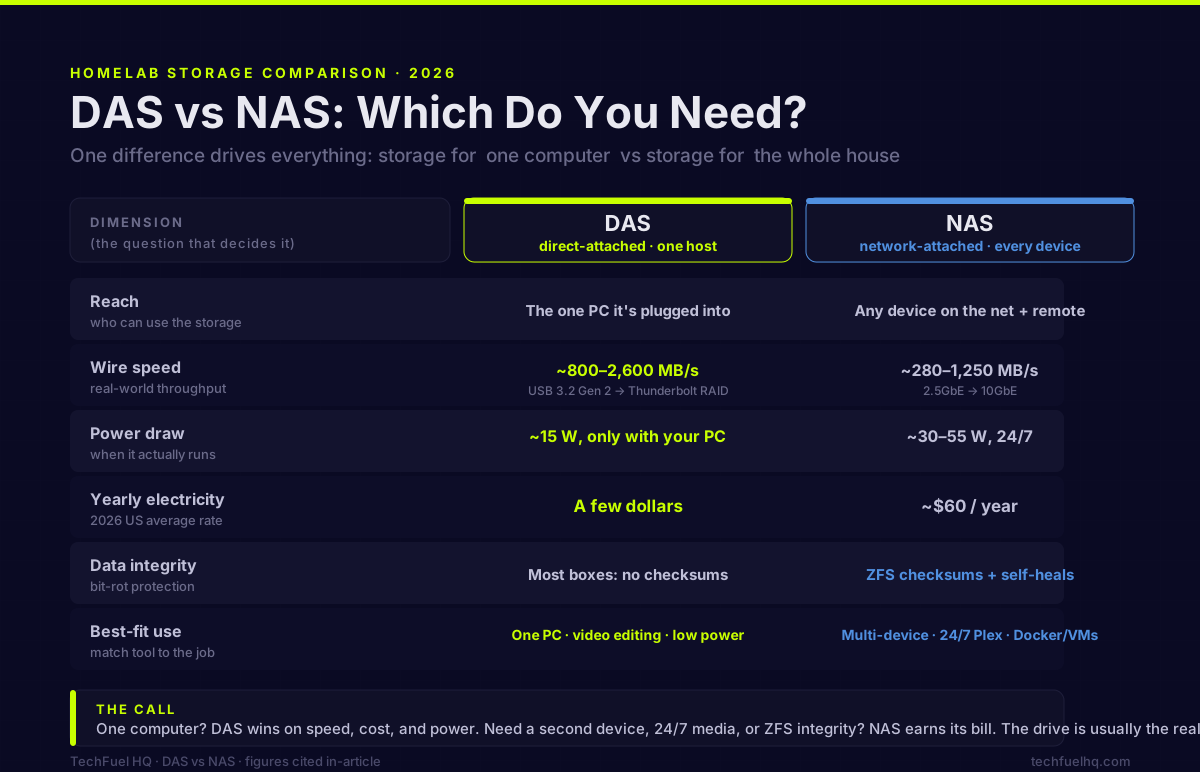
Ask one question: does more than one device need the storage? If no, meaning one PC to back up or a fast video-editing scratch volume, DAS wins on speed, price, and power, costing a few dollars a year. If yes, a NAS serves every device and remote viewers 24/7, near $64 a year.
TL;DR · DAS vs NAS in one screen
- DAS plugs into one computer and is only usable from that computer. NAS sits on the network and serves every device, plus remote.
- Speed: DAS wins on the wire. USB 3.2 Gen 2 does ~800-1,000+ MB/s; Thunderbolt RAID does 1,500-2,600 MB/s; even 10GbE tops out near 1,250 MB/s, and 2.5GbE near 280-295 MB/s.
- The drive is usually the real bottleneck. One 7,200 rpm HDD sustains ~120-290 MB/s, so it can't even fill 10GbE. You need several drives in RAID or SSDs first.
- Power: a NAS runs 24/7 at ~30-55 W (~$64/yr). A DAS only runs when your PC does, so it costs a few dollars a year.
- Data integrity: ZFS on a NAS checksums and self-heals bit rot. Most DAS boxes can't.
- Neither RAID nor ZFS is a backup. Run 3-2-1 on top of whichever you pick.
DAS vs NAS in 2026 - the one-sentence difference
Here is the whole thing in a sentence: a DAS (direct-attached storage) is drives connected straight to one computer with no network or operating system of their own, reachable only through the host it’s plugged into; a NAS (network-attached storage) is a small always-on computer that holds drives and shares them over the network to any device, independent of any single host (Wikipedia).
Everything else in this article follows from that one difference. DAS is faster and cheaper because it skips the network and the second computer. A NAS costs more and runs slower on the wire because it is a second computer on the network - and that’s exactly what makes it useful for things a DAS can’t do. The right answer depends entirely on whether you need the storage to be reachable by more than one machine.
What is DAS? (direct-attached storage, plain English)
A DAS is an enclosure full of drives that talks to your PC over a cable. The PC sees the drives almost as if they were internal. There’s no second operating system, no IP address, no login page - you plug it in and the drives appear in your file manager. An external USB hard drive is the simplest DAS. A four- or eight-bay enclosure with a hardware RAID controller is the same idea scaled up.
How DAS connects - USB 3.2, USB4/Thunderbolt, and SAS
The cable is what sets the ceiling, and in 2026 you have three tiers:
- USB 3.2. This is the common one. USB 3.2 Gen 2 (10 Gbps) external SSDs reach roughly 800-1,000+ MB/s in the real world, while the older USB 3.2 Gen 1 (5 Gbps, often still labeled “USB 3.0”) tops out around 400 MB/s (EverythingUSB).
- USB4 / Thunderbolt. Thunderbolt 4 guarantees a full 40 Gbps and 32 Gbps of PCIe bandwidth on every certified port; USB4 can reach 40 Gbps but isn’t guaranteed - some ports run at only 20 Gbps (BenQ). The bar keeps moving: the USB-IF published USB4 Version 2.0 (80 Gbps, with up to 120 Gbps in one direction asymmetrically) in September 2025, and Thunderbolt 5 mandates 80 Gbps plus 64 Gbps PCIe and 240 W power that USB4 2.0 leaves optional (Cable Matters).
- External SAS/SATA (JBOD). The route the homelab crowd uses for bulk disk. External SAS JBOD enclosures range from used enterprise units (a 6 Gb/s Dell MD1200 under $100, a 12 Gb/s refurbished MD1400 around $500 diskless) to new rackmount systems costing several thousand (TrueNAS forums). This is how you hang a pile of disks off a server and let the server’s own OS (often ZFS) manage them.
What DAS is good at (and what it can’t do)
DAS is fast, cheap, and simple. A TerraMaster D4-320 - a four-bay USB 3.2 Gen 2 enclosure - delivers up to 1,016 MB/s read and 960 MB/s write with four SSDs, takes drives up to 22 TB per bay, and has sold around the mid-$200s (TerraMaster). Step up to a Thunderbolt RAID box and the numbers climb hard: an OWC ThunderBay 4 hits about 1,527 MB/s for 4K/6K RAW editing, and the eight-bay ThunderBay 8 reaches about 2,586 MB/s, both with bundled SoftRAID for RAID 0/1/4/5/10 (OWC).
What it can’t do is the whole point: a DAS is only available through the one host it’s plugged into. Unplug it from your desktop, plug it into a laptop, and it’s the laptop’s drive now. No phone access, no second PC, no remote streaming. It’s storage for a computer, not for the house.
What is a NAS? (network-attached storage, plain English)
A NAS is a small dedicated computer - CPU, RAM, fans, an operating system - whose job is to hold drives and serve them over your network. Every device on the network can mount the same shares at the same time. Because it’s always on and reachable by IP, it can also run services: media servers, backups for multiple machines, Docker containers, remote access from outside the house.
How a NAS connects - 1GbE, 2.5GbE, and 10GbE
The network replaces the cable as the ceiling, and the tiers are:
- 1GbE: ~125 MB/s on paper, ~113 MB/s in real transfers.
- 2.5GbE: ~312 MB/s theoretical, ~280-295 MB/s real-world.
- 10GbE: near 1,250 MB/s on paper, sustaining well above 1,000 MB/s in practice (XDA).
In 2026, 2.5GbE is the practical default for a home NAS - it’s cheap, it’s on most new boards, and as the budget NAS builds guide lays out, it already exceeds what a spinning-disk array hands back. If you are weighing whether to jump straight to 10GbE instead, the 2.5GbE vs 10GbE decision guide lays out exactly when the faster tier is worth the money.
The NAS operating system and what it adds (apps, users, remote access)
The OS is the reason a NAS costs and consumes more than a DAS, and it’s also where the value lives. Because storage is reachable from any device on the network and often remotely, always-on services like Plex or Jellyfin become practical - the server holds the library and every TV, phone, and browser in the house reaches it (UGREEN). User accounts, scheduled multi-machine backups, snapshots, and Docker all live here too. If you’re deciding which OS runs that stack, the Proxmox vs TrueNAS vs Unraid backend guide breaks down the three serious options.
Performance head-to-head - the numbers that actually matter
Interface bandwidth vs real-world throughput
Stack the two side by side and DAS wins the raw-speed contest decisively:
| Path | Real-world throughput |
|---|---|
| USB 3.2 Gen 1 (5 Gbps) SSD | ~400 MB/s |
| USB 3.2 Gen 2 (10 Gbps) SSD | ~800-1,000+ MB/s |
| Thunderbolt 3/4 RAID (OWC ThunderBay) | ~1,527 MB/s (4-bay) to ~2,586 MB/s (8-bay) |
| 1GbE NAS | ~113 MB/s |
| 2.5GbE NAS | ~280-295 MB/s |
| 10GbE NAS | 1,000+ MB/s |
A direct cable beats a network at the same nominal speed because it skips the protocol overhead and the second computer in the middle. For pure single-machine throughput, DAS is the faster tool. Want to see how long a given transfer takes on your own link and drives? Run the numbers through the network transfer time calculator.
The drive is usually the bottleneck, not the cable or the network
Here’s the part most buyers skip. A single 7,200 rpm mechanical drive peaks at roughly 260-290 MB/s on its outer tracks and sags to about 120-160 MB/s on the inner ones (XDA). That means one spinning disk barely brushes 2.5GbE and comes nowhere near 10GbE - and it can’t fill a USB 3.2 Gen 2 cable either. Four to six drives striped in RAID can push 800 to over 1,000 MB/s on large sequential reads, and SSDs blow past that. So the interface tier only matters once your storage can keep up with it. For the spinning disks that fill most NAS bays, buy CMR NAS-rated drives and mind the $/TB — the best NAS hard drives guide covers the picks by use case. If you want fast single drives instead of striping, the best NVMe SSDs for a homelab guide covers which ones actually hold their rated speed.
When 10GbE is worth it and when it’s a trap
10GbE pays off in exactly two cases: a stripe of four or more drives in RAID, or an SSD/NVMe pool. With a couple of mechanical HDDs it’s wasted money - 2.5GbE already exceeds what those disks deliver, so the faster network just sits idle waiting on the platters. Buy the network tier your storage can saturate, not the one the spec sheet flatters.
Real cost - upfront and ongoing
Hardware: bare enclosures vs a NAS box (before drives)
A DAS enclosure is cheaper because it’s less machine. The four-bay TerraMaster D4-320 has sold around the mid-$200s; a used enterprise SAS JBOD can be had for under $100. A NAS adds a motherboard, CPU, RAM, and an OS license or a vendor markup on top of the same drive bays. You pay for the second computer because you’re getting a second computer.
Power draw and the yearly electricity bill
This is the gap people underestimate. A DAS only draws power when your PC is on and using it - an external HDD enclosure pulls about 15 W with a single 7,200 rpm drive and around 5 W empty (NASCompares). A NAS runs 24/7 by design. A full NAS platform idles around 30-40 W before drives, with each 3.5-inch disk adding about 5-7 W, so a three-drive NAS easily sits near 50-55 W idle; the Synology DS923+ is rated 35.51 W in access mode and 11.52 W in HDD hibernation (Synology spec via Connection).
In dollars: a device drawing 40 W continuously uses about 350 kWh per year, which at the $0.184/kWh US residential average (EIA Table 5.6.A, May 2026) is about $64/year; typical NAS units (20-60 W) cost roughly $32-97/year to run (the num8ers calculator will redo the arithmetic at your own rate). A DAS that only runs while your desktop runs costs a few dollars a year. Over a five-year life that difference is real money.
Expandability - adding capacity over time
Both scale, differently. A multi-bay DAS lets you fill empty bays or daisy-chain another enclosure; an external SAS JBOD is the classic “bolt more disks onto a server” move and scales to dozens of drives. A NAS expands by filling its bays and, on some platforms, attaching an expansion shelf - and because it’s a full OS, it can also grow into apps and VMs, not just capacity. If your endgame is “a lot of disks managed by one server,” SAS-attached DAS under a NAS/server OS is a common hybrid; you get the cheap bulk enclosure and the network features. To see how much usable space a given set of drives actually yields across RAID and ZFS levels — and how much you give up to redundancy — run them through the NAS & RAID storage calculator.
Data protection - RAID, ZFS, and why neither is a backup
RAID and ZFS on a NAS
Traditional RAID protects against one thing: a drive physically failing. It does nothing about bit rot - the silent corruption that creeps in from magnetic decay, cosmic rays, or firmware bugs. ZFS, common on NAS platforms like TrueNAS, checksums every block on write and verifies it on read, automatically repairing corruption from its redundant copies (Need To Know IT). Two caveats come with that power: ZFS needs raw drive access for its self-healing to work, so stacking a hardware RAID controller beneath it defeats the purpose, and TrueNAS treats ECC RAM as effectively non-negotiable because ZFS holds checksums in RAM during writes - a bit flip there can be written and then validated as correct.
RAID on a DAS
DAS RAID is a weaker story. Many DAS units offer no hardware RAID at all - the TerraMaster D4-320, for instance, relies on single-drive mode or third-party software RAID. The ones that do have a hardware controller (the Thunderbolt RAID boxes) can lock your array to that specific controller, so a dead enclosure can mean a stranded array until you source an identical unit. Neither path gives you ZFS-style block checksumming.
RAID is not a backup - the 3-2-1 rule
Say it on both sides of the aisle: RAID and RAIDZ provide redundancy and availability, not backup. They keep you online through a disk failure but will faithfully mirror an accidental deletion, a corrupted file, ransomware, theft, or a fire. The fix is the same regardless of DAS or NAS - the 3-2-1 rule: three copies of your data, on two types of media, with one copy offsite (MSP360).
Use-case decision guide
Pick DAS if…
- You only need to back up or expand one PC. If that’s the whole job, plugging a drive into that PC and scheduling automatic backups achieves the same result far more cheaply than a NAS (How-To Geek).
- You’re doing video editing and want a fast scratch/working volume - Thunderbolt RAID at 1,500-2,600 MB/s is hard to match over a network.
- You want the lowest power bill and don’t need always-on access.
- You value simplicity - no OS to maintain, no shares to configure.
Pick a NAS if…
- You need the storage reachable by multiple devices at once.
- You want a 24/7 Plex or Jellyfin server that TVs, phones, and remote viewers can all hit.
- You want to run Docker, VMs, or remote access.
- You want ZFS-grade data integrity with checksumming and self-healing.
Landed on NAS? The next decision is the operating system, and it changed more in the last year than most comparisons admit — Unraid vs TrueNAS vs OMV vs Proxmox covers the August 2026 state, prices included.
A note on Plex transcoding and CPU choice
If you go NAS for media, the CPU matters more than the badge. The Synology DS923+ uses an AMD Ryzen R1600 with no Intel Quick Sync, so it has no hardware video transcoding - software transcode only - which is why the Intel-Celeron-based DS224+ is the de facto entry-level Plex NAS (NASCompares). But check whether you even need transcoding first: modern smart TVs, phones, and Apple TVs Direct Play most files (the server just hands over the file), while older devices, web browsers, and slow remote connections are what trigger transcoding. If everything you own can Direct Play, the CPU question mostly evaporates - and if it can’t, the best GPU for Plex/Jellyfin transcoding guide covers offloading it.
The tradeoffs - bottom line
DAS is the faster, cheaper, lower-power tool for a single machine. NAS is the slower, pricier, always-on tool that serves the whole house and runs services. Neither is “better” - they answer different questions.
If you only ever touch the storage from one computer, a DAS plus a real backup routine is the smarter buy almost every time. The moment you need a second device, a 24/7 media server, or proper data integrity, a NAS earns its power bill. Before you size either one, run your drive count through the NAS & RAID storage calculator to see raw-versus-usable capacity across RAID levels - and whatever you land on, layer 3-2-1 backups on top. Redundancy is uptime; backups are safety. You want both.
Frequently asked questions
Is a NAS faster than a DAS?
Do I need 10GbE for my NAS?
How much does it cost to run a NAS 24/7 compared to a DAS?
Is RAID a backup?
Can a DAS protect my data the way ZFS on a NAS does?
I just want to run Plex/Jellyfin and back up my PC - which should I buy?
Evidence ledger
- Last updated
- Methodology
- See our methodology for research and review standards.
- Update log
- 2026-09-12 — Page updated.
- Corrections
- Spotted an error or a stale number? Email hello@techfuelhq.com. Confirmed corrections are added to the update log above.