
Proxmox VE 9.2’s official minimum is a 64-bit Intel or AMD CPU with VT-x or AMD-V, or supported 64-bit Arm, plus 1 GB of RAM for evaluation; the installer refuses a disk under 2 GB. Proxmox recommends 2 GB for the host plus each guest’s RAM. A few containers, Home Assistant and Jellyfin fit in 16 GB.
Contents
By LK Wood IV · Published 2026-06-19 · Updated 2026-10-10 · ~10 min read · St. Louis County, MO
Proxmox’s evaluation minimum boots the hypervisor and little else. Plan with the recommended tier. It tells you how memory adds up. Neither says what your services need. The workload table cites each published requirement it uses and labels my container and guest allocations separately.
The official minimum vs recommended requirements
Proxmox states its requirements in two places that mostly agree: the requirements page on proxmox.com and the System Requirements chapter of the admin guide. Where they differ, the table says so.
| Component | Minimum, for evaluation | Recommended | What I would plan for a homelab |
|---|---|---|---|
| CPU | 64-bit Intel or AMD with VT-x or AMD-V, on CPU and motherboard | The same | An Intel N150 for the stack below; check CPU and motherboard support |
| Arm | ARMv8-A or newer (admin guide); Armv9-A or newer (proxmox.com) | ARMv9-A; official on NVIDIA Grace and Vera, best effort elsewhere | I would choose x86 for a homelab; the Raspberry Pi is not supported |
| RAM | 1 GB, plus RAM for guests | 2 GB for the OS and Proxmox services, plus each guest’s RAM | 16 GB for the stack in the workload table |
| ZFS or Ceph | Not listed | About 1 GB more per TB of used storage | The ZFS rule below |
| Disk | A hard drive; the installer refuses one under 2 GB | Fast, redundant storage; SSDs with power-loss protection, consumer SSDs discouraged (admin guide) | One SSD to start; a second SSD or ZFS pool for guest disks when you can |
| Network | One NIC | Redundant gigabit NICs, more for storage or cluster traffic | One gigabit port |
| Passthrough | Not listed | IOMMU: Intel VT-d or AMD-Vi on CPU and motherboard | Only for a GPU, HBA or NIC handed to a VM |
Sources: the two Proxmox pages above and the installer’s disk check in pve-installer Block.pm, read September 26, 2026.
Two lines need a homelab reading. The admin guide says “SSDs with Power-Loss-Protection (PLP) are recommended for good performance. Using consumer SSDs is discouraged.” Proxmox’s ZFS chapter gives the reason for log devices: PLP drives “have much smaller commit latencies”. In a one-slot mini PC I would still run the consumer NVMe drive it came with, watch its wear with the SSD endurance calculator, and keep backups on another machine.
The other is Arm. Proxmox VE 9.2 for arm64 shipped August 5, 2026, fully supported on NVIDIA Grace and Vera servers and best effort on other UEFI ARMv9-A hardware. The admin guide is blunt about hobby boards: “Device-tree-only single-board computers, such as the Raspberry Pi, are not supported.” For a homelab the CPU question is still x86.
The disk floor is in the installer’s source, not on either requirements page. Proxmox/Sys/Block.pm stops with a “too small” error under 2 GB and asks you to accept “below recommended minimum space of 8 GB” under 8 GB. On an ext4 or XFS install the installer gives the root volume a quarter of the disk, up to 96 GiB, so a 256 GB SSD keeps most of its space for guests.
CPU: VT-x or AMD-V, and IOMMU for passthrough
On x86, Proxmox needs hardware virtualization: VT-x on Intel, AMD-V on AMD. Check that the CPU and the motherboard both list it. Then switch it on in the firmware; the mini PC setup guide has the menu paths for common boxes. The Proxmox FAQ gives the test: egrep '(vmx|svm)' /proc/cpuinfo.
Proxmox names no x86-64 level for the host. The VM CPU type is a separate setting. The qm manual says the backend default, kvm64, “works on essentially all x86_64 host CPUs”, and the web UI’s default for a new VM, x86-64-v2-AES, “requires a host CPU starting from Westmere for Intel or at least a fourth generation Opteron for AMD”. Westmere launched in 2010.
Handing a whole GPU, HBA or NIC to a VM also needs IOMMU, which Intel calls VT-d and AMD calls AMD-Vi. The CPU and the motherboard both have to support it, and it usually has to be switched on in the firmware (PCI passthrough). Check both before you buy.
RAM: how the total adds up
Start at 2 GB for the host and its services, then add every guest; a container gets 512 MB unless you set another figure (the memory default in pct.conf), so a handful of small services costs little. ZFS takes its own share, covered below.
If you are specifying memory for that host, ECC is worth the board. Confirm it is active.
Storage: SSD over capacity
For a homelab the layout that works is one SSD for Proxmox and a second SSD, or a ZFS pool, for guest disks. Spinning drives suit bulk media in a NAS guest. VM root disks go on an SSD. Proxmox wants either hardware RAID with a battery-backed cache or no RAID controller at all, and says “Neither ZFS nor Ceph are compatible with a hardware RAID controller.” Size endurance as well as capacity: the endurance calculator turns your daily host writes and the drive’s rated TBW into years.
Installer, boot and browser requirements
The CPU and RAM table leaves out a few things. They decide whether an install goes smoothly. They come from Proxmox’s Installation page and the System Requirements page, both read on 2026-10-10. Proxmox VE is Debian-based. The ISO is the recommended way in, and Proxmox calls installing on top of an existing Debian system an option for advanced users. The Installation page describes no other base distribution, so that page documents no Gentoo route.
- Boot media. Boot the installer from USB, and enable that boot option in the firmware. Before Proxmox VE 8.1, Secure Boot had to be disabled for the installer. The bundled memtest86+ option still needs Secure Boot off.
- Data on the target disks. All of it goes. The installer says all existing data on the selected drives is removed.
- Filesystem. ext4 is the default, and ext4 and XFS install on LVM. Btrfs is a technology preview. ZFS gives you software RAID. Proxmox says “ZFS on top of any hardware RAID is not supported and can result in data loss.”
- Old or very new graphics hardware. If the graphical installer fails, the terminal UI installer is the fallback. If boot hangs, add the
nomodesetkernel parameter from the boot menu. - After install. Browse to port 8006 on the host and log in as root using Linux PAM authentication. Then configure an update repository, since the Enterprise repository needs a subscription key.
- Browsers. The web interface supports Firefox (a release from the current year or the latest ESR), Chrome, Edge and Safari. On a phone it shows a touch-based interface.
- A quick benchmark. The bundled
pveperftool gives a rough CPU and disk reading on an installed host. Proxmox calls it quick and general, and recommends more detailed I/O tests.
The ZFS RAM rule, verified
The Proxmox ZFS on Linux wiki sets the numbers:
- ZFS “depends heavily on memory, so you need at least 8GB to start.”
- The sizing rule is 2 GiB base + 1 GiB per TiB of storage. An 8 TiB pool wants about 10 GiB for the ARC.
- Since Proxmox VE 8.1 the installer caps the ARC at 10% of host RAM, clamped to 16 GiB, in
/etc/modprobe.d/zfs.conf. Before 8.1 the ARC followed ZFS’s own default, 50% of RAM or 62.5% from ZFS 2.3.0. - To set your own cap, put
options zfs zfs_arc_max=8589934592(8 GiB) in/etc/modprobe.d/zfs.conf. On a ZFS root, also runupdate-initramfs -u -k all. Then reboot.
The “1 GB per TB” line on the requirements page is the short form of the same rule. The installation page gives another shorthand: “4GB plus 1GB RAM for each TB RAW disk space.” This page uses the ZFS wiki’s 2 GiB base. Either way, ZFS memory sits on top of guest memory. If you are choosing between ZFS, TrueNAS and Unraid as the storage layer, the storage backend comparison covers the tradeoffs.
Proxmox’s “at least 8GB to start” is the line I would hold. Under 8 GB, install on ext4 or LVM-thin. ZFS on a starved host spends memory the guests needed and still cannot cache the pool. Proxmox recommends “high quality ECC RAM” for ZFS; for a learning box non-ECC is fine, and for data you would miss I would buy ECC.
What each workload adds
Published requirements come first. Each cell says what its figure sizes: a whole machine, an installed system, a VM or a container. Where a maker does not publish the needed figure, the table labels the Proxmox container default or my own container and guest allocations separately.
| Workload | CPU and hardware | RAM | Disk | Source |
|---|---|---|---|---|
| Proxmox itself | 64-bit x86 with VT-x or AMD-V | 2 GB recommended; 1 GB evaluation minimum | Installer refuses under 2 GB, warns under 8 GB | Proxmox installer |
| Small container: Pi-hole, AdGuard Home, a reverse proxy, Vaultwarden | Shares the host’s kernel and cores | 512 MB, the container default; Pi-hole lists 512 MB for its installed system | Pi-hole: 2 GB minimum, 4 GB recommended free space for its installed system | pct.conf Pi-hole |
| Home Assistant OS VM | 2 vCPUs; a Zigbee or Z-Wave USB stick passed through if you use one | 2 GB | None listed; its Unraid steps default the disk to 32 GB | Home Assistant |
| Jellyfin or Plex in a container | Recommended Intel iGPU platforms: Jellyfin lists the N100, Pentium Gold G7400, Core i5-11400 and newer, and says 7th- to 10th-gen chips “are still perfectly capable”; Plex asks for a Core i3 or faster | Jellyfin: 8 GB for the whole machine, and “4GB may be enough” for a Linux server without a GUI; Plex: 4 GB is “typically more than sufficient” for the whole machine; I give the container 2 GB | Jellyfin: 100 GB SSD for the OS, its files and the transcode cache on the whole machine; media on other storage | Jellyfin Plex |
| NAS VM (TrueNAS) | Any x86-64 CPU; recommended where possible: the disks or the whole controller passed through, which needs VT-d or AMD-Vi | 8 GB minimum, inside the VM | 20 GB SSD boot device in the general minimum; its virtualization notes allow one or more 8 GB or larger boot devices; two identically sized data disks | TrueNAS |
| GPU passthrough VM | IOMMU on CPU and motherboard, on in the firmware; a free PCIe slot for the card | What the guest OS needs; I count the whole allocation as used | What the guest OS needs; I size it like any other VM | Proxmox setup guide |
The common stack adds up small: three containers at 512 MB, Home Assistant at 2 GB and my 2 GB Jellyfin container allocation total 5.5 GB for guests. Add Proxmox’s 2 GB reserve and the budget is 7.5 GB. A 16 GB box has 8.5 GB left on ext4/LVM; an 8 GB box has just 0.5 GB. These sums budget allocations. Measure peak use on your own machine. The Jellyfin allocation is my starting point, separate from its published whole-machine requirements above.
Put Proxmox itself on a ZFS mirror with the current installer’s 10% ARC cap and a 16 GB host reserves another 1.6 GB for cache. That leaves 6.9 GB after this stack and the host reserve. The Docker RAM planner shows its own bands for those four container apps. That link omits Home Assistant because the Docker planner’s 512–1,024 MB band is below Home Assistant OS’s published 2 GB VM requirement.
TrueNAS changes the sum. Its 8 GB minimum takes the 7.5 GB stack to 15.5 GB, so a box that runs both wants 32 GB. TrueNAS also says a virtualized install “is not safe for regular deployment of TrueNAS when storing production or critical data”. For files I would miss, I would run the NAS on its own box (budget NAS builds) and keep Proxmox for the services.
Open the workload in the capacity planner
Each link fills all eight inputs. Change the host to match your machine. The result counts identical guests fitting its RAM and vCPU budgets. Other services are excluded.
| Preset | Host and storage | Allocation per guest | Calculator result |
|---|---|---|---|
| Small container | 16 GB, 6 cores, ext4/LVM | 0.5 GB, 1 vCPU | 28 by RAM; 6 by CPU; 6 guests |
| Home Assistant OS VM | 16 GB, 6 cores, ext4/LVM | 2 GB, 2 vCPUs | 7 by RAM; 3 by CPU; 3 guests |
| Home Assistant with host ZFS | 16 GB, 6 cores, ZFS with 1.6 GB ARC | 2 GB, 2 vCPUs | 6 by RAM; 3 by CPU; 3 guests |
| TrueNAS learning VM | 32 GB, 6 cores, ext4/LVM on the host | 8 GB, 2 vCPUs | 3 by RAM; 3 by CPU; 3 guests |
All four reserve 2 GB for Proxmox and use a 1:1 vCPU budget. The small-container 0.5 GB comes from Proxmox’s 512 MB default; Pi-hole also specifies 512 MB. Its 1 vCPU is my planning choice. Home Assistant specifies both 2 GB and 2 vCPUs. TrueNAS supplies the 8 GB minimum. I chose its 2 vCPU starting allocation. That CPU count is not a vendor minimum. Sources rechecked October 4, 2026.
For the ZFS link, 16 − 2 − 1.6 leaves 12.4 GB for guests, so the RAM limit is floor(12.4 / 2) = 6. Six physical cores divided by two vCPUs gives a CPU limit of three at the chosen 1:1 ratio. The planner selects the lower count. Its result label says “Practical maximum,” but that arithmetic does not reserve a host CPU core or predict performance, disk throughput, transcoding or passthrough compatibility. Leave operating headroom for those jobs.
I would budget one TrueNAS learning VM. A count of three says only that three allocations fit. That link models ext4/LVM on the Proxmox host; TrueNAS’s own ZFS cache lives inside its guest allocation. If the host also uses ZFS, select it and enter the host’s actual ARC cap separately. The tool uses the entered percentage directly, so adjust it if the installer’s 16 GiB ceiling applies to a larger host.
For a mixed machine, keep the 5.5 GB guest sum above and add the actual allocations of extra VMs. Do not add the table’s maximum counts together. Every row spends the same host resources again.
For the Jellyfin row, the transcoding GPU guide has the codec support table for each Intel generation.
Best hardware for Proxmox: a checklist from the requirements
Proxmox publishes requirements, not a list of approved models, so the checklist below turns each requirement into a buying check. Proxmox itself recommends high-quality server hardware in production, and a cluster with HA guests to limit the damage from a failed host. For a homelab, check these lines before you buy:
- CPU and board. Both must list Intel VT-x or AMD-V. If a GPU, HBA or NIC goes to a VM, both must also list IOMMU (VT-d or AMD-Vi). Confirm the firmware exposes the setting.
- Memory. Budget 2 GB for the host plus every guest, then ZFS cache if the host uses ZFS. The workload table above shows how it adds up.
- Boot and VM storage. Choose SSDs, with power-loss protection if you can afford it. Pick either hardware RAID with a battery-backed cache or a plain HBA or NVMe layout for ZFS. Do not put ZFS or Ceph behind a hardware RAID controller.
- Network. One network card meets the minimum. Proxmox’s recommended tier is redundant gigabit NICs, with more for storage or cluster traffic.
- Architecture. Choose x86 for a homelab. Arm is fully supported only on NVIDIA Grace and Vera servers and best effort on other UEFI ARMv9-A hardware. The Raspberry Pi is not supported.
- The exact machine. Search for your specific RAID controller, NIC and NVMe drive with the Proxmox kernel version in mind. There is no compatibility list to consult. The 9.2 installer caveat further down is an example.
Real boxes that meet these lines follow, with measured idle draw.
Boxes that fit, and who measured the idle
I may earn a commission if you buy through these affiliate links. As an Amazon Associate I earn from qualifying purchases.
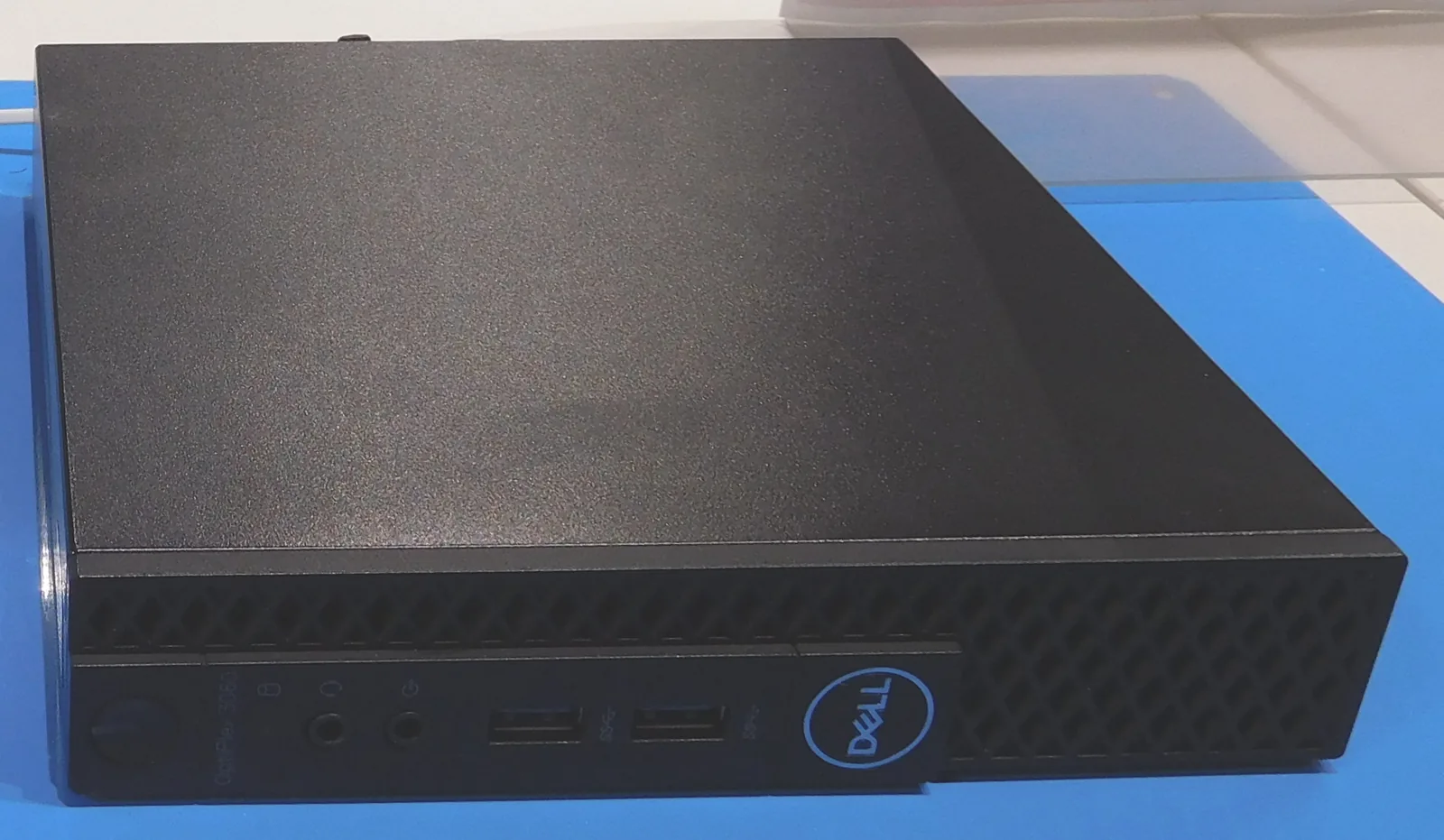
- An Intel N150 mini PC covers the first four rows, and Jellyfin lists “Intel 12th gen or above N series platforms” for low-power servers. ServeTheHome metered a CWWK N150 box at 10–11W idle at the wall. Search AmazonLink checked 2026-09-26 Search NeweggLink checked 2026-09-26
- A used HP EliteDesk 800 G4 Mini with an i5-8500T does the same with six cores. ServeTheHome measured it at 11–12W idle. Its 8th-gen iGPU is off Jellyfin’s buying list and still transcodes. Search AmazonLink checked 2026-09-26 Search NeweggLink checked 2026-09-26
- The Minisforum MS-01 has two 10GbE SFP+ ports and a PCIe x16 slot. scottstuff.net measured 13.2W idle on the i5-12600H under Ubuntu with no card fitted.
- For a GPU passthrough VM, I would choose a tower with room for the card. My own Ryzen 7 7800X3D and RTX 5080 tower idles at 80–100W at the wall on a Kill-A-Watt (idle-power table), against 10–11W for the N150 box.
Prices and the used 1-litre comparison are in the mini PC guide.
What Proxmox VE 9 changes
Proxmox VE 9.0 shipped August 5, 2025 on Debian 13 “Trixie” with kernel 6.14. Version 9.1 followed on November 19, 2025 with kernel 6.17, and 9.2, the current release, on May 21, 2026 with kernel 7.0 on Debian 13.5. The x86 requirements are the ones the 8.x admin guide lists, word for word on memory and storage; 9.2 added the 64-bit Arm alternative. Proxmox VE 8 reached its end of life in August 2026, a month after Debian 12 did (support lifecycle table). New builds start on 9.2.
A fresh 9.2 install has one catch. The 9.2 ISO ships kernel 7.0.2-6, which “has compatibility issues with RAID controllers using the megaraid_sas drivers and certain NVMe drives in JBOD mode”; kernel 7.0.14-15 fixes it. On an affected machine Proxmox’s advice is to install from the 9.1 ISO and upgrade to 9.2 afterwards (9.2 known issues). Upgrading an 8.x box is a different job. Read the 8 to 9 upgrade gotchas first.
Sources
- Proxmox VE requirements: both tiers, the 1 GB per TB line, “Alternatively, 64-bit Arm (Armv9-A or newer processor)”. Read 2026-09-26.
- Proxmox VE System Requirements, from the 9.2 admin guide: the ARMv8-A evaluation minimum, the PLP recommendation, “Using consumer SSDs is discouraged”, the Raspberry Pi line and IOMMU. Read 2026-09-26 and again 2026-10-10, when the browser list and
pveperfwere added to this page. - Proxmox VE Installation: boot media, Secure Boot before 8.1, filesystem choices, the ZFS-on-hardware-RAID warning,
nomodeset, port 8006 and the ZFS memory shorthand. Read 2026-10-10. - pve-installer
Proxmox/Sys/Block.pm: the 2 GB and 8 GB disk limits (git HEAD of 2026-09-11). The installation chapter: root and swap sizing. - Proxmox VE Roadmap, last edited 2026-09-23: release dates and kernels for 9.0, 9.1, 9.2 and 9.2 for arm64, the 9.2 ISO kernel issue, and the Westmere launch year.
- Proxmox ZFS on Linux: “at least 8GB to start”, 2 GiB + 1 GiB/TiB, the 10% ARC cap since 8.1,
zfs_arc_max, PLP for log devices, ECC. - Proxmox VE FAQ: the
vmx/svmcheck and the support lifecycle table (VE 8: Debian EOL 2026-07, Proxmox EOL 2026-08). - qm manual and pct manual, 9.2.12: VM CPU types and the container memory default. System administration chapter: Proxmox VE’s kernel is based on Ubuntu’s.
- Proxmox VE 8.x installation chapter, admin guide 8.4.0: the same x86 requirements, including the PLP line.
- PCI(e) Passthrough: IOMMU requirements.
- Pi-hole prerequisites, Home Assistant on Linux, Jellyfin hardware selection, Plex Media Server requirements and the TrueNAS hardware guide (last modified 2026-09-11): the workload rows. Read 2026-09-26.
- Proxmox forum, “What is the maximum hardware capacity supported by Proxmox?”: staff answer of 2021-02-17, edited 2025-01-16, on core and memory limits.
- Proxmox VE 9.0 press release: August 5, 2025, Debian 13, kernel 6.14.
- Idle figures: ServeTheHome’s CWWK N150 and EliteDesk 800 G4 Mini reviews, scottstuff.net on the MS-01, and the site’s idle-power table for the tower. Minisforum’s MS-01 specifications support the network and expansion details.
Sizing a specific box? The Proxmox capacity planner counts how many VMs and containers your RAM, cores and ZFS cache allow. Deciding between containers and full VMs for each service? The LXC vs VM guide has the decision tree. Ready to install? The Proxmox mini PC setup walkthrough goes from USB stick to first VM.
Frequently asked questions
What are the minimum requirements for Proxmox?
What are the Proxmox CPU requirements?
vmx or svm flag in /proc/cpuinfo. Check support for the exact CPU and motherboard before buying. Proxmox names no x86-64 level for the host, but the web UI’s default VM CPU type, x86-64-v2-AES, needs Intel Westmere (2010) or a fourth-generation AMD Opteron or newer. Passing a GPU or NIC to a VM also needs IOMMU (Intel VT-d or AMD-Vi) on the CPU and the board. Since August 5, 2026 Proxmox also builds for 64-bit Arm, officially on NVIDIA Grace and Vera servers; the Raspberry Pi is not supported.What are the Proxmox minimum requirements for storage?
Do you need a GPU to run Proxmox?
What are the Proxmox 9 minimum requirements?
How much RAM do I need for Proxmox?
Is 32 GB of RAM enough for Proxmox?
How much disk space does Proxmox VE need?
Is there a Proxmox hardware compatibility list?
What is the maximum RAM and CPU count Proxmox supports?
Sources and corrections
- Last updated
- Methodology
- See our methodology for research and review standards.
- Update log
- 2026-10-10 — Added an installer, boot and browser requirements section (with a note that the Installation page documents no Gentoo route), a buying checklist that maps Proxmox’s requirement lines to hardware choices, and the installer page’s ZFS memory shorthand next to the ZFS wiki rule. Read the System Requirements and Installation wiki pages on 2026-10-10. No figures elsewhere on the page changed.
- 2026-08-14 — Corrected the VE 8.4 support-window sentence and its citation. The page read ‘its maintenance window closes around August 2026’ – forward-looking and vague (‘around’) for a date that has now arrived – and the sources list attributed that window to the VE 9.0 press release. Full-text retrieval of that press release on 2026-08-14 found no support-window, EOL, or lifecycle statement anywhere in it (its only occurrence of ‘2026’ is the copyright footer). The real primary source is Proxmox’s support lifecycle table at pve.proxmox.com/wiki/FAQ, which lists VE 8 as Debian 12 Bookworm, first release 2023-06, Debian EOL 2026-07, Proxmox EOL 2026-08. Claim re-pointed to that table and stated as reached rather than approaching. The VE 9.2 / May 21 2026 / kernel 7.0 claims on this page were spot-checked and left unchanged: download.proxmox.com lists no ISO newer than proxmox-ve_9.2-1.iso, Last-Modified Thu, 21 May 2026.
- 2026-08-22 — I re-verified this page on 2026-08-22. (1) The CPU requirement was x86-only on this page; Proxmox’s requirements page now reads ‘CPU: 64bit (Intel 64 or AMD64). Alternatively, 64-bit Arm (Armv9-A or newer processor)’ and the roadmap lists ‘Proxmox VE 9.2 for 64-bit ARM (arm64)’, released 05 August 2026, as the first non-x86 release (NVIDIA Grace/Vera). The table CPU row, the CPU section and the CPU FAQ now carry the Arm alternative, scoped as enterprise-only. (2) The byline ‘Updated 2026-07-03’ was stale against the 2026-08-14 correction and this edit; I re-stamped it. I re-confirmed live the same day: ZFS wiki ARC default ‘10 % of the host memory, clamped to a maximum of 16 GiB’ with ‘Before Proxmox VE 8.1 … 62.5% starting on ZFS 2.3.0 or 50% for older versions’, the 2 GiB + 1 GiB/TiB rule and the zfs_arc_max example; FAQ lifecycle row ‘Proxmox VE 8 | Debian 12 (Bookworm) | 2023-06 | 2026-07 | 2026-08’; roadmap 9.2 (21 May 2026, kernel 7.0, Debian 13.5) and 9.1 (19 Nov 2025, kernel 6.17); the 9.0 press release (05 Aug 2025, Debian 13 Trixie, kernel 6.14.8-2); Jellyfin docs ‘QSV - Preferred on mainstream GPUs’ and ‘Broadwell (5th gen Core) and newer’.
- 2026-09-26 — I added ‘What each workload adds’, a sizing table that cites the maker’s published requirement where one exists and labels the container and guest allocations that are my own reasoning. It adds up the common stack and carries the mini PC guide’s credited idle figures. I fixed the disk answer: the installer refuses under 2 GB and warns under 8 GB (pve-installer Block.pm), and the 32 GB figure had no source. I fixed the storage recommendation: the admin guide recommends power-loss-protection SSDs and discourages consumer SSDs. I fixed the Arm minimum: the admin guide says ARMv8-A, proxmox.com says Armv9-A, and the Raspberry Pi is not supported. The page now states VE 8 end of life as past, and I added the 9.2 ISO kernel caveat for megaraid_sas and NVMe JBOD. I cut the unsourced N100 stream counts, the 30-60 MB container figure, an unlinked forum quote, two trust sentences, and the illustrative RAM chart. I read every passage on 2026-09-26. After a review the same day, I labelled vendor figures with what they size; added Jellyfin’s 4 GB headless figure; made the Home Assistant disk cell say no minimum is listed; added the ZFS-root initramfs step to the zfs_arc_max instruction (ZFS wiki); corrected ’now says’ and ‘did not change’, because the x86 requirements match the 8.4.0 admin guide, which already carried the PLP line; fixed an unsourced copy-on-write claim and the endurance calculator’s description; separated TrueNAS’s general and virtualized boot-device figures; linked the MS-01 feature claim to Minisforum; and narrowed the Docker planner link to entries whose sizing does not conflict with the page.
- 2026-09-28 — The GPU passthrough line carries my own tower: Ryzen 7 7800X3D and RTX 5080, 80-100W at the wall on my Kill-A-Watt, against 10-11W for the N150 box.
- 2026-10-04 — Added complete capacity-planner links for individual small-container, Home Assistant and TrueNAS profiles, including a Home Assistant ZFS variant. Each link sets all eight supported inputs; displayed counts remain individual guests. Re-read Proxmox’s host reserve, container memory default and ARC cap, Pi-hole’s 512 MB requirement, Home Assistant’s 2 GB/2 vCPU minimum, Jellyfin’s whole-machine memory guidance and TrueNAS’s 8 GB minimum. CPU allocations without a vendor minimum are labelled planning choices. Added an explicit common-stack memory budget and clarified that the planner’s single-profile counts cannot be added together. Preset results are calculations, not measured application capacity.
- Corrections
- Spotted an error or a stale number? Email contact@techfuelhq.com. Confirmed corrections are recorded here with the date and change.