 TechFuel HQ
Pin ghcr.io/goauthentik/server:2024.12 rather than latest, because Authentik ships YEAR.MONTH releases whose schema migrations can strand you mid-upgrade. Four containers (server, worker, postgres:16, redis) idle near 420 MB. First boot spends 60-90 seconds migrating, and the one-time setup URL on 9443 stops working afterwards. Without SMTP, password resets fail silently.
By LK Wood IV · 2026-06-17 · ~15 min read · St. Louis County, MO
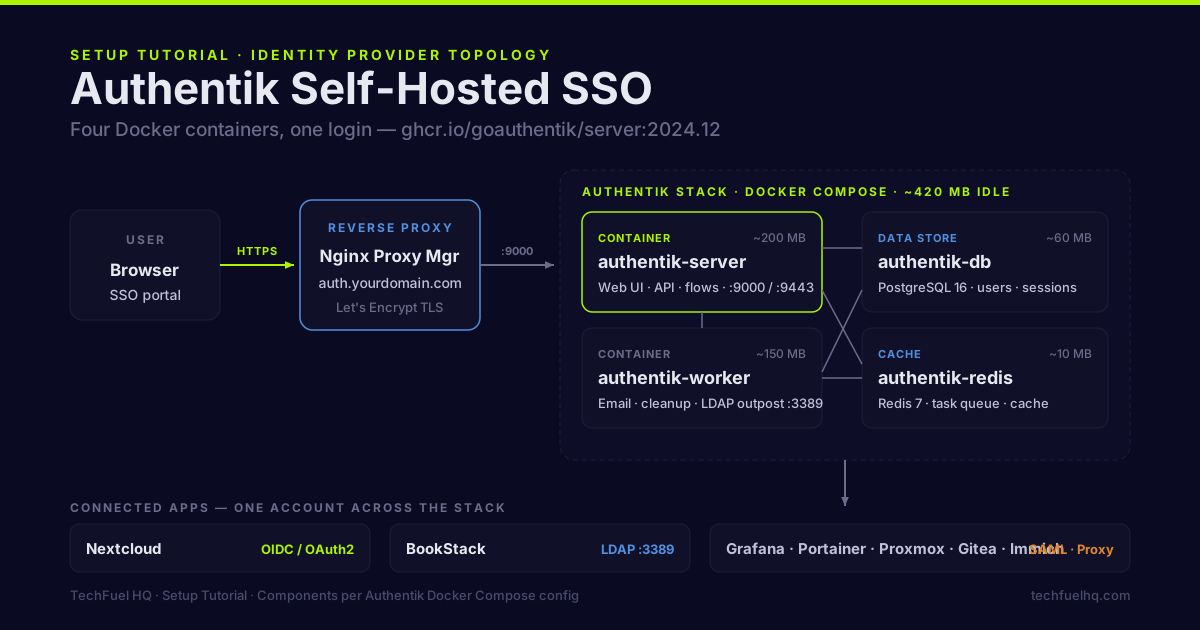
Once you have ten self-hosted services running, the per-app account problem becomes real. Nextcloud has one username/password. BookStack has another. Portainer has a third. Grafana has a fourth. If you add family members or collaborators, you’re creating accounts across every app separately.
Authentik solves this with a single login that every other app delegates to. It runs in Docker, supports every authentication protocol your apps need, and the free tier covers everything a homelab will ever use. (Still deciding between Authentik and the lighter Authelia? Authelia vs Authentik compares footprint, protocol coverage, and which one actually does single logout — then come back here to build Authentik.)
What Authentik gives you
- Single sign-on (SSO): one login for Nextcloud, BookStack, Grafana, Portainer, Gitea, Immich, and any other OIDC/SAML/LDAP-capable app
- LDAP provider: apps that can’t do OIDC (or are easier to configure with LDAP) connect via Authentik’s built-in LDAP server
- MFA: TOTP, WebAuthn/passkeys, Duo — configurable per application and per user group
- User self-enrollment: users can reset their own passwords, enroll MFA devices, and manage sessions through the Authentik user portal
- Outpost proxy: protect apps that have no built-in auth at all (add authentication in front of any web UI)
The Authentik model
Before deploying, understand three concepts:
Providers: define the protocol connection — OIDC/OAuth2, SAML, LDAP, or Proxy. Each external app needs a Provider with the right protocol for how it authenticates.
Applications: tie a Provider to an entry in the Authentik portal (name, icon, launch URL). Users see a list of Applications in their portal; clicking an Application authenticates them to that service.
Flows: sequences of stages (authentication prompts, MFA, consent, enrollment) that run when a user logs in, enrolls, or resets their password. Authentik ships with sensible default flows.
Stack requirements
Authentik has more dependencies than most self-hosted apps:
| Container | Role |
|---|---|
authentik-server | Main web UI, API, authentication flows |
authentik-worker | Background tasks (email, cleanup, LDAP outpost) |
authentik-db | PostgreSQL — user accounts, sessions, configuration |
authentik-redis | Task queue and cache |
Total idle RAM: approximately 420 MB combined. Authentik is heavier than BookStack or Paperless-ngx at idle, which reflects the complexity of the task it handles.
Directory layout
mkdir -p /opt/authentik/media /opt/authentik/certs /opt/authentik/custom-templates
Docker Compose
services:
  authentik-db:
    image: postgres:16
    container_name: authentik-db
    restart: unless-stopped
    environment:
      POSTGRES_DB: authentik
      POSTGRES_USER: authentik
      POSTGRES_PASSWORD: CHANGE_THIS_DB_PASSWORD
    volumes:
      - /opt/authentik/db:/var/lib/postgresql/data
    healthcheck:
      test: ["CMD-SHELL", "pg_isready -U authentik"]
      interval: 10s
      timeout: 5s
      retries: 5

  authentik-redis:
    image: redis:7-alpine
    container_name: authentik-redis
    restart: unless-stopped
    command: --save 60 1 --loglevel warning

  authentik-server:
    image: ghcr.io/goauthentik/server:2024.12
    container_name: authentik-server
    restart: unless-stopped
    command: server
    depends_on:
      authentik-db:
        condition: service_healthy
      authentik-redis:
        condition: service_started
    environment:
      AUTHENTIK_REDIS__HOST: authentik-redis
      AUTHENTIK_POSTGRESQL__HOST: authentik-db
      AUTHENTIK_POSTGRESQL__USER: authentik
      AUTHENTIK_POSTGRESQL__PASSWORD: CHANGE_THIS_DB_PASSWORD
      AUTHENTIK_POSTGRESQL__NAME: authentik
      AUTHENTIK_SECRET_KEY: CHANGE_THIS_SECRET_KEY
      AUTHENTIK_EMAIL__HOST: smtp.yourdomain.com
      AUTHENTIK_EMAIL__PORT: 587
      AUTHENTIK_EMAIL__USE_TLS: "true"
      AUTHENTIK_EMAIL__USERNAME: authentik@yourdomain.com
      AUTHENTIK_EMAIL__PASSWORD: your-smtp-password
      AUTHENTIK_EMAIL__FROM: authentik@yourdomain.com
    volumes:
      - /opt/authentik/media:/media
      - /opt/authentik/custom-templates:/templates
    ports:
      - "9000:9000"
      - "9443:9443"

  authentik-worker:
    image: ghcr.io/goauthentik/server:2024.12
    container_name: authentik-worker
    restart: unless-stopped
    command: worker
    depends_on:
      authentik-db:
        condition: service_healthy
      authentik-redis:
        condition: service_started
    environment:
      AUTHENTIK_REDIS__HOST: authentik-redis
      AUTHENTIK_POSTGRESQL__HOST: authentik-db
      AUTHENTIK_POSTGRESQL__USER: authentik
      AUTHENTIK_POSTGRESQL__PASSWORD: CHANGE_THIS_DB_PASSWORD
      AUTHENTIK_POSTGRESQL__NAME: authentik
      AUTHENTIK_SECRET_KEY: CHANGE_THIS_SECRET_KEY
    volumes:
      - /opt/authentik/media:/media
      - /opt/authentik/custom-templates:/templates
      - /var/run/docker.sock:/var/run/docker.sock
Three values to set before starting:
AUTHENTIK_SECRET_KEY: generate withopenssl rand -hex 32AUTHENTIK_POSTGRESQL__PASSWORDandPOSTGRES_PASSWORD: must match- SMTP settings: required for password reset and email verification flows; without SMTP, those flows fail silently
Pinning the version: use a specific version tag (2024.12) rather than latest. Authentik uses a YEAR.MONTH release format; major updates can change configuration and database schema. Check release notes before updating.
First start
cd /opt/authentik
docker compose up -d

# Watch the server start (takes 60-90 seconds first run for database migration)
docker compose logs -f authentik-server
Wait for the log line Starting web server before navigating to the UI.
Initial admin setup: navigate to https://your-host-ip:9443/if/flow/initial-setup/ — this URL only works on the first run. Create the admin account here. After setup, the initial-setup flow is disabled.
Reverse proxy with NPM
Add Authentik to Nginx Proxy Manager:
- Domain:
auth.yourdomain.com - Forward to:
authentik-server:9000 - SSL: Let’s Encrypt
In NPM Advanced tab:
proxy_set_header X-Forwarded-For $proxy_add_x_forwarded_for;
proxy_set_header X-Forwarded-Proto https;
client_max_body_size 10M;
Update AUTHENTIK_URL in your compose environment to https://auth.yourdomain.com after setting up the proxy. Authentik uses this URL in redirect URIs for OAuth2 flows.
Configure your first OIDC application: Nextcloud
Nextcloud is one of the best test applications for Authentik because it has mature OIDC support. This also fills in your user accounts with a real test.
Step 1: Create an OIDC Provider in Authentik
- Authentik Admin → Applications → Providers → Create
- Select: OAuth2/OpenID Connect Provider
- Name:
Nextcloud - Client ID: auto-generated (copy for later)
- Client Secret: auto-generated (copy for later)
- Redirect URIs:
https://nextcloud.yourdomain.com/apps/oidc_login/oidc(exact URL for the Nextcloud OIDC app) - Sub Mode: Based on username (default is fine)
- Save
Step 2: Create an Application
- Admin → Applications → Applications → Create
- Name:
Nextcloud - Provider: select
Nextcloud(from step 1) - Launch URL:
https://nextcloud.yourdomain.com - Icon: upload a Nextcloud logo (optional)
- Save
Step 3: Configure Nextcloud
In Nextcloud:
- Install the
oidc_loginapp via Nextcloud → Apps → search “OpenID Connect Login” - Add to
config/config.php:
'oidc_login_provider_url' => 'https://auth.yourdomain.com/application/o/nextcloud/',
'oidc_login_client_id' => 'CLIENT_ID_FROM_AUTHENTIK',
'oidc_login_client_secret' => 'CLIENT_SECRET_FROM_AUTHENTIK',
'oidc_login_auto_redirect' => false,
'oidc_login_button_text' => 'Log in with Authentik',
'oidc_login_scope' => 'openid email profile',
'oidc_login_end_session_redirect' => false,
After adding the config, Nextcloud shows an “Authentik” button on the login page. Clicking it redirects to Authentik, authenticates, and returns to Nextcloud with the user session.
Configure BookStack with LDAP
BookStack’s SAML2 and LDAP support are both good. LDAP is simpler to configure and doesn’t require understanding SAML assertion mapping. Authentik’s built-in LDAP provider serves BookStack accounts directly.
Step 1: Create an LDAP Provider in Authentik
- Admin → Applications → Providers → Create → LDAP Provider
- Name:
LDAP - Bind Flow: default
- Search Group: create a group called
homelab-ldap— all users in this group are visible over LDAP - Save
Step 2: Create an Application for the LDAP Provider
- Admin → Applications → Applications → Create
- Name:
LDAP - Provider: select
LDAP - No Launch URL needed — LDAP isn’t a browser flow
- Save
Step 3: Create an LDAP Outpost
- Admin → Applications → Outposts → Create
- Name:
LDAP Outpost - Type: LDAP
- Select the LDAP Application
- Save
The LDAP Outpost binds to port 3389 on the Authentik worker container (or a dedicated outpost container for more advanced setups). For a simple homelab setup, the embedded outpost (running inside the worker) is sufficient.
Step 4: Configure BookStack
In your BookStack Docker Compose environment:
AUTH_METHOD: ldap
LDAP_SERVER: authentik-worker
LDAP_PORT: 3389
LDAP_BASE_DN: "DC=ldap,DC=goauthentik,DC=io"
LDAP_DN: "cn=ldapservice,DC=ldap,DC=goauthentik,DC=io"
LDAP_PASS: your-authentik-service-account-password
LDAP_USER_FILTER: "(&(objectClass=person)(uid={user}))"
LDAP_FOLLOW_REFERRALS: "false"
The LDAP_BASE_DN format is Authentik’s internal LDAP tree. The LDAP_DN is a bind user — create a service account in Authentik for this purpose (a user with a known password that BookStack uses to search the LDAP directory).
Add MFA for specific applications
Authentik’s MFA is configured per-flow, not per-user. To require TOTP for all logins:
- Admin → Flows & Stages → Stages → Create → Authenticator TOTP Stage
- Add a Stage Binding in the default authentication flow after the password stage
To require MFA only for specific applications (e.g., Proxmox access but not BookStack):
- Create a new authentication flow specifically for high-security apps
- Include the MFA stage in that flow
- Configure the Proxmox Application to use this high-security flow instead of the default
This is where Authentik’s model shows its depth — granular security policies without per-app code.
User management
Create users: Admin → Directory → Users → Create
Or enable self-enrollment: Admin → Flows → create an enrollment flow and bind it to your Authentik tenant.
User groups: Admin → Directory → Groups → Create
Groups control which Applications users can access. Create groups per tier of access (e.g., homelab-admin, homelab-read, family) and configure Application policy to allow specific groups.
Password reset: Authentik ships with a recovery flow by default. Users navigate to the Authentik login page, click “Forgot password,” and receive an email with a reset link. This requires SMTP configuration.
Backup
Authentik’s data lives in PostgreSQL. Back up with:
docker compose exec authentik-db pg_dump -U authentik authentik \
  > /opt/authentik/backup/authentik-$(date +%Y%m%d).sql
Also back up /opt/authentik/media/ — this contains uploaded files (icons, certificates).
For encrypted LDAP connections or custom TLS certificates, back up /opt/authentik/certs/ as well.
Resource usage
| Container | Idle RAM |
|---|---|
| authentik-server | ~200 MB |
| authentik-worker | ~150 MB |
| authentik-db | ~60 MB |
| authentik-redis | ~10 MB |
| Total | ~420 MB |
Peak RAM during login storms or during MFA enrollment flows can reach 600–700 MB combined. For a homelab with 16+ GB RAM, this is negligible.
Updating Authentik
Authentik updates can include database migrations. Always check the release notes before updating a major version (e.g., 2024.10 → 2024.12).
# Update the version in your compose file first
# Then:
docker compose pull
docker compose up -d
docker compose logs -f authentik-server
Watch for any migration errors in the server log on startup. Authentik handles migrations automatically on startup; no manual migration command needed for minor updates.
Authentik connects to the other services in the self-hosted stack. The Nextcloud AIO setup guide covers the Nextcloud side of OIDC integration. The BookStack Docker guide covers LDAP configuration for BookStack users. The Vaultwarden guide covers the password manager you’ll want for managing all your service credentials before SSO replaces per-service logins. The Nginx Proxy Manager guide covers the HTTPS reverse proxy that Authentik requires. For external access via Tailscale, the Tailscale guide covers connecting all services over the same WireGuard mesh.
Sources
- Authentik documentation – official reference for the Applications, Providers, Flows, and Policies model
- Authentik LDAP provider – official details for the built-in LDAP provider that BookStack binds to
- BookStack documentation – official admin reference for BookStack’s LDAP and SAML authentication options
- Docker Compose documentation – official reference for the multi-container Compose file used to run the Authentik stack
Frequently asked questions
What is Authentik and what does it replace?
Does Authentik require a domain and SSL?
What apps can Authentik connect to?
Is Authentik hard to set up?
What is the difference between an Authentik Application and a Provider?
Does Authentik have multi-factor authentication?
Evidence ledger
- Last updated
- Methodology
- This tutorial was written and edited by Lowell K. Wood IV in St. Louis County, MO. Specs, prices, commands, and version numbers are drawn from the official vendor, reseller, and project documentation current on the date above, and were verified before publishing. First-person hardware claims appear only where the article shows a verifiable artifact — a photo, receipt, or measurement — or links to the TechFuelHQ Open Bench Datasets. Every fact is human-verified against its cited source before publishing; AI assists with first-draft structure and source-gathering, not with the verdict. Full editorial standard: methodology.
- Update log
- 2026-07-25 — Last reviewed and updated.
- Corrections
- Spotted an error or stale price? Email hello@techfuelhq.com. Confirmed corrections are added to the update log above.