 TechFuel HQ
A systemd timer fires restic backup to Backblaze B2 nightly at 03:00 with RandomizedDelaySec=900, then forget –keep-daily 7 –keep-weekly 4 –keep-monthly 6 prunes to at most 17 snapshots. Storage runs $0.00695/GB/month, about $1.39 for 200GB. Credentials sit in /etc/restic/b2.env at chmod 600; lose RESTIC_PASSWORD and the repository is unrecoverable. A healthchecks.io ping surfaces silent failures.
By LK Wood IV · 2026-06-04 · ~13 min read · St. Louis County, MO
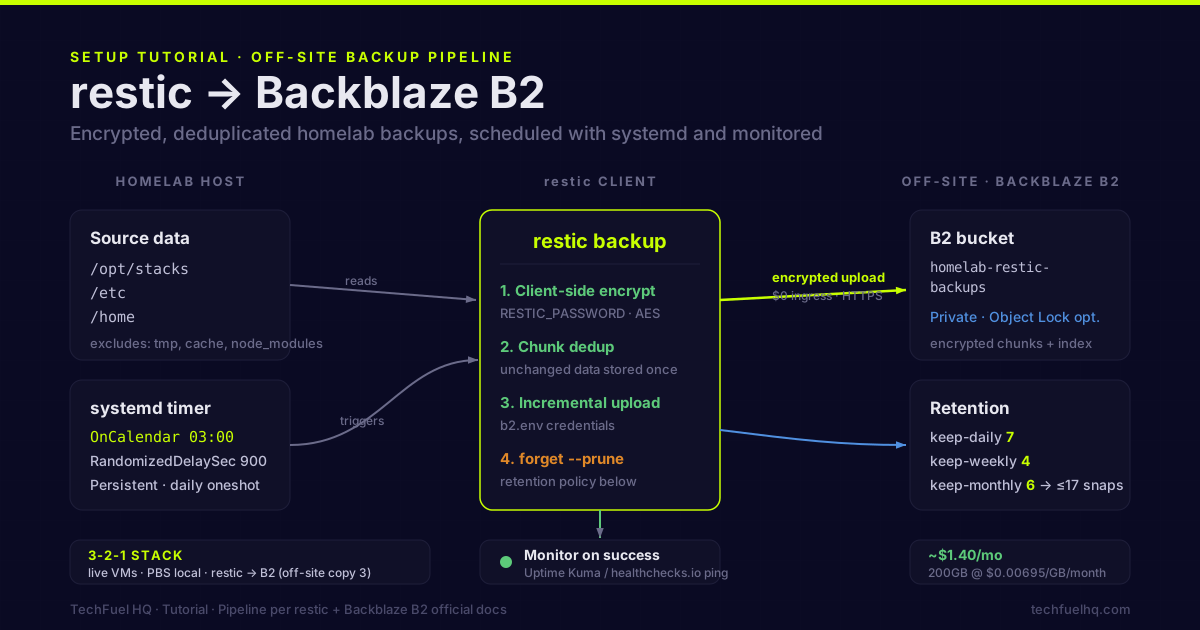
A backup that doesn’t run automatically doesn’t run. A backup that isn’t off-site doesn’t protect you from physical disasters. A backup you haven’t tested restoring from might not actually work. This guide sets up restic — the best homelab backup tool available — with Backblaze B2 as the off-site destination, automated scheduling via systemd, and monitoring so you know when backups fail.
Why restic
restic is a fast, encrypted, deduplicated backup tool written in Go. It:
- Encrypts everything client-side before upload — Backblaze can’t read your data
- Deduplicates at the chunk level — backing up files that haven’t changed costs nothing after the first backup
- Handles incremental backups natively — no need to manage “full” vs “differential” schedules
- Compresses since v0.14.0 — the old “restic has no compression” line is years out of date
If you’re still choosing a tool rather than deploying one, restic vs Borg vs Kopia decides it by where your backup lands — restic and Kopia write straight into a bucket, Borg needs its own binary at the far end.
- Supports many backends — B2, S3, SFTP, Wasabi, local filesystem, and more
- Has no backup agent required on the destination — just the restic binary on your machine and credentials to the remote
Step 1: Install restic
# Debian/Ubuntu
apt install -y restic

# Or download the binary directly. restic's release assets are version-stamped,
# so there is no "latest" filename — check github.com/restic/restic/releases and
# substitute the current version for 0.19.1 below.
wget https://github.com/restic/restic/releases/download/v0.19.1/restic_0.19.1_linux_amd64.bz2
bzip2 -d restic_0.19.1_linux_amd64.bz2
mv restic_0.19.1_linux_amd64 /usr/local/bin/restic
chmod +x /usr/local/bin/restic

# Verify
restic version
Step 2: Set up Backblaze B2
- Create a Backblaze account at backblaze.com
- Create a bucket: Buckets → Create a Bucket
- Bucket name:
homelab-restic-backups-yourname(must be globally unique) - Files in Bucket: Private
- Default Encryption: Enabled (optional — restic encrypts anyway, but defense in depth)
- Object Lock: Optional — enables immutable storage, protects against ransomware deleting backups
- Bucket name:
- Create an Application Key: App Keys → Add a New Application Key
- Name:
restic-homelab - Allow access to: only the bucket you created
- Type of Access: Read and Write
- Note the
keyIDandapplicationKey— they’re shown once
- Name:
Step 3: Create the environment file
Store your credentials in a protected file — not in scripts or cron commands:
mkdir -p /etc/restic
chmod 700 /etc/restic

cat > /etc/restic/b2.env << 'EOF'
B2_ACCOUNT_ID=your-keyID-here
B2_ACCOUNT_KEY=your-applicationKey-here
RESTIC_REPOSITORY=b2:homelab-restic-backups-yourname:/
RESTIC_PASSWORD=your-strong-backup-password-here
EOF

chmod 600 /etc/restic/b2.env
The repository password (RESTIC_PASSWORD) encrypts all your backup data. If you lose it, your backup data is permanently inaccessible. Store this password:
- In your password manager (Vaultwarden/Bitwarden)
- In a physical printout stored somewhere safe
- NOT only on the machine you’re backing up
Step 4: Initialize the repository
source /etc/restic/b2.env
restic init
You should see:
created restic repository abc123def at b2:homelab-restic-backups-yourname:/
This creates the repository structure in your B2 bucket. It stores encrypted keys and an index in the bucket root.
Step 5: First backup
Test with a manual backup of a small directory first:
source /etc/restic/b2.env

# Back up a single directory
restic backup /opt/stacks/vaultwarden/data

# Check what was backed up
restic snapshots
You should see a snapshot entry with the date, hostname, and paths backed up.
For a homelab, back up:
- Docker service data directories:
/opt/stacks/*/data - Configuration files:
/etc/ - Home directories:
/home/ - Anything in
/opt/you care about
restic backup \
  /opt/stacks \
  /etc \
  /home \
  --exclude "*.tmp" \
  --exclude "**/cache/**" \
  --exclude "**/node_modules/**"
The --exclude flags keep temporary files out of the backup. Add more excludes for large directories you don’t need to back up (video files, ISO images).
Step 6: Automate with systemd
Create two files: a service (what to run) and a timer (when to run it).
# /etc/systemd/system/restic-backup.service
[Unit]
Description=Restic backup to Backblaze B2
After=network-online.target
Wants=network-online.target

[Service]
Type=oneshot
EnvironmentFile=/etc/restic/b2.env
ExecStart=/usr/bin/restic backup \
  /opt/stacks \
  /etc \
  /home \
  --exclude "*.tmp" \
  --exclude "**/cache/**" \
  --exclude "**/node_modules/**" \
  --verbose
ExecStartPost=/usr/bin/restic forget \
  --keep-daily 7 \
  --keep-weekly 4 \
  --keep-monthly 6 \
  --prune
StandardOutput=journal
StandardError=journal
# /etc/systemd/system/restic-backup.timer
[Unit]
Description=Run Restic backup daily at 3am

[Timer]
OnCalendar=*-*-* 03:00:00
Persistent=true
RandomizedDelaySec=900

[Install]
WantedBy=timers.target
The RandomizedDelaySec=900 adds a random 0–15 minute delay to the scheduled time. This prevents all your nodes from hammering B2 at exactly 3:00:00am simultaneously.
Enable and start:
systemctl daemon-reload
systemctl enable --now restic-backup.timer

# Verify timer is active
systemctl list-timers restic-backup.timer
Run it manually to confirm it works:
systemctl start restic-backup.service
journalctl -u restic-backup.service -f
Step 7: Retention policy
The restic forget --prune command in the service removes old snapshots based on your retention policy. The settings above keep:
--keep-daily 7    → one snapshot per day for the last 7 days
--keep-weekly 4   → one per week for the last 4 weeks
--keep-monthly 6  → one per month for the last 6 months
This gives you granular recovery for recent data and longer-term recovery points. After 6 months, only one snapshot per month is kept.
Total snapshots over 6 months: at most 7 + 4 + 6 = 17 snapshots. Because of deduplication, the actual storage cost depends on how much data changed between backups — unchanged files across all 17 snapshots are stored only once.
Adjust the retention to match your needs and your B2 storage budget.
Step 8: Monitor — know when backups fail
Silent backup failures are more dangerous than no backup at all — they create false confidence.
Option A: Uptime Kuma push monitor. Add this to the end of your systemd service to ping Uptime Kuma on success:
ExecStartPost=/usr/bin/curl -fsS \
  "https://uptime.yourdomain.com/api/push/YOUR-PUSH-KEY?status=up&msg=restic+OK"
If the service fails before reaching ExecStartPost, or if the curl itself fails, Uptime Kuma doesn’t receive the push and alerts you.
Option B: healthchecks.io (free tier). healthchecks.io is a service designed specifically for this: you ping a URL after each successful backup, and it alerts you if the ping stops coming. The free tier covers 20 checks.
# Add to ExecStartPost:
/usr/bin/curl -fsS https://hc-ping.com/YOUR-UUID
Check backup status manually:
source /etc/restic/b2.env
restic snapshots    # list all snapshots
restic check        # verify repository integrity
Run restic check weekly. It downloads metadata and verifies chunk hashes — it will catch a corrupt repository before you need a restore.
Step 9: Test a restore
Do this before you need it:
source /etc/restic/b2.env

# List snapshots
restic snapshots

# Restore a specific file to a temp directory
restic restore latest \
  --target /tmp/restic-test-restore \
  --include /opt/stacks/vaultwarden/data/db.sqlite3

# Verify the file is there and readable
ls -la /tmp/restic-test-restore/opt/stacks/vaultwarden/data/
sqlite3 /tmp/restic-test-restore/opt/stacks/vaultwarden/data/db.sqlite3 ".tables"
Do a full directory restore to verify your most important data at least monthly.
Advanced: backing up Proxmox PBS datastores
If you’re running Proxmox Backup Server for VM/LXC backups, you can use restic to push PBS datastore contents to B2 as the off-site layer:
# /etc/systemd/system/restic-pbs.service
[Unit]
Description=Restic backup of PBS datastore to B2
After=pve-storage-local.mount

[Service]
Type=oneshot
EnvironmentFile=/etc/restic/b2-pbs.env
ExecStart=/usr/bin/restic backup /mnt/backup-drive/pve-backups \
  --tag pbs-datastore
ExecStartPost=/usr/bin/restic forget \
  --tag pbs-datastore \
  --keep-daily 3 --keep-weekly 2
This gives you a 3-2-1 stack:
- Copy 1: live Proxmox VMs on the production host
- Copy 2: PBS local backup
- Copy 3: restic → B2 (off-site, encrypted)
Bandwidth and cost estimate
For a homelab with 200GB of unique backup data, after the initial upload:
- Initial B2 upload: 200GB × $0 (B2 doesn’t charge upload bandwidth) = $0
- Monthly storage: 200GB × $0.00695 = $1.39/month
- Monthly incremental upload: if 5GB changes per day × 30 days = 150GB new data, but after deduplication maybe 3GB/month net new = ~$0.02/month extra
- Total B2 cost: ~$1.40–1.70/month
For 100GB of backup data: ~$0.70/month. Off-site encrypted backup for less than a cup of coffee. The bill from B2 is the easy part — the other cost is your own connection, so if you are on a metered plan, weigh that first seed upload against your household’s normal monthly volume with the data usage calculator.
The Proxmox Backup Server guide covers the PBS layer (copy 2 in the 3-2-1 stack). This guide covers copy 3. Together they complete a full 3-2-1 backup strategy — see that page for what the three copies are and why RAID isn’t one of them.
Sources
- restic documentation – official reference for backup, retention, check, and restore commands
- restic: preparing a new repository – official guide to the Backblaze B2 backend and required environment variables
- Backblaze B2 application keys – official docs for creating the bucket-scoped key restic authenticates with
- Healthchecks.io documentation – official reference for the dead-man’s-switch ping that alerts on missed backups
Frequently asked questions
Why use restic instead of rclone, borgbackup, or duplicati?
How much does Backblaze B2 cost?
Is restic backup data readable without restic?
How do I restore a single file from a restic backup?
Can I back up a running database with restic?
Evidence ledger
- Last updated
- Methodology
- This tutorial was written and edited by Lowell K. Wood IV in St. Louis County, MO. Specs, prices, commands, and version numbers are drawn from the official vendor, reseller, and project documentation current on the date above, and were verified before publishing. First-person hardware claims appear only where the article shows a verifiable artifact — a photo, receipt, or measurement — or links to the TechFuelHQ Open Bench Datasets. Every fact is human-verified against its cited source before publishing; AI assists with first-draft structure and source-gathering, not with the verdict. Full editorial standard: methodology.
- Update log
- 2026-07-25 — Last reviewed and updated.
- Corrections
- Spotted an error or stale price? Email hello@techfuelhq.com. Confirmed corrections are added to the update log above.