 TechFuel HQ
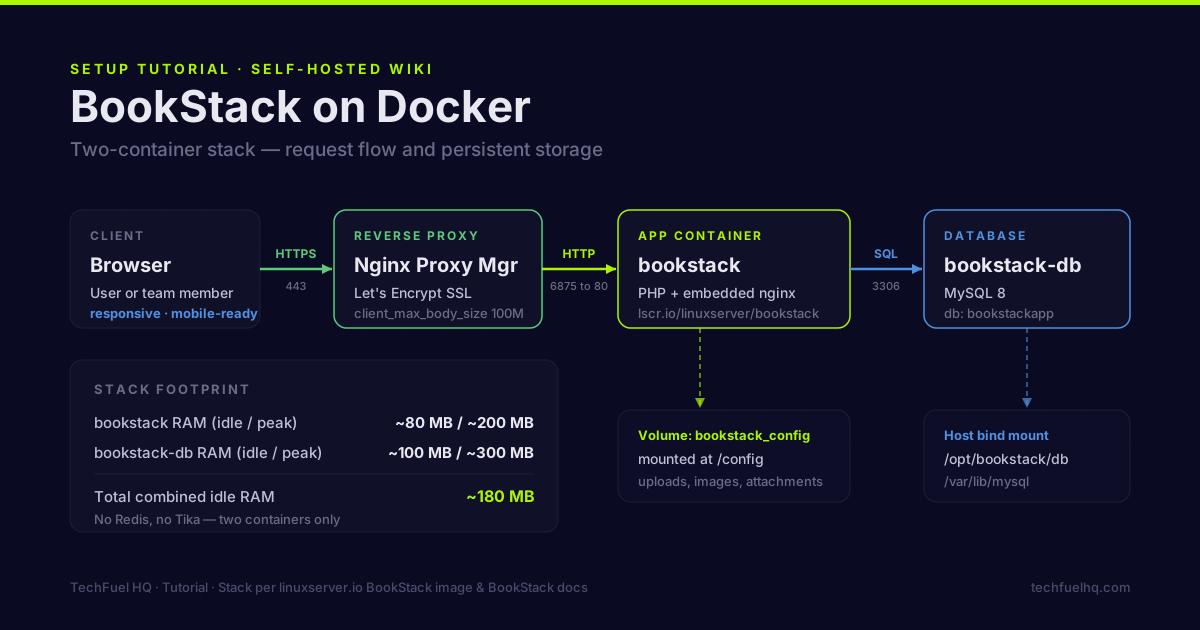
Three values must be right before the first compose up: APP_URL, a database password identical in both services, and an APP_KEY from php artisan key:generate –show. The stack is the linuxserver.io image on 6875 plus MySQL 8, roughly 180 MB idle. Change admin@admin.com immediately, and set client_max_body_size 100M or uploads return 413.
By LK Wood IV · 2026-06-13 · ~12 min read · St. Louis County, MO
BookStack is what Notion should be if Notion didn’t keep adding features that slow it down and charge $8–16/user/month for the privilege. It’s a structured wiki — Shelves, Books, Chapters, Pages — that runs on a small Docker stack and handles the documentation and knowledge base workload for most homelab and small-team use cases. For the adjacent problem of capturing and organizing saved links and articles rather than authoring your own docs, a self-hosted bookmark manager is the better-fit tool. And for paper you scan rather than text you write — bills, statements, contracts — Paperless-ngx OCRs and tags it into a searchable archive instead.
The full stack is two containers: BookStack + MySQL. No Redis, no Tika, no companion services required. This is one of the simpler self-hosted setups.
Stack overview
| Container | Role |
|---|---|
bookstack | PHP application, web interface |
bookstack-db | MySQL 8 — BookStack database |
Total idle RAM: approximately 180 MB combined. BookStack is PHP-backed with an nginx server embedded in the linuxserver.io Docker image.
Directory layout
mkdir -p /opt/bookstack/db
BookStack’s uploaded files and configuration are managed through Docker volumes. The MySQL data directory needs a dedicated path on the host.
Docker Compose
services:
  bookstack-db:
    image: mysql:8
    container_name: bookstack-db
    restart: unless-stopped
    environment:
      MYSQL_ROOT_PASSWORD: CHANGE_THIS_ROOT_PASSWORD
      MYSQL_DATABASE: bookstackapp
      MYSQL_USER: bookstack
      MYSQL_PASSWORD: CHANGE_THIS_DB_PASSWORD
    volumes:
      - /opt/bookstack/db:/var/lib/mysql
    healthcheck:
      test: ["CMD", "mysqladmin", "ping", "-h", "localhost"]
      interval: 10s
      timeout: 5s
      retries: 5

  bookstack:
    image: lscr.io/linuxserver/bookstack:latest
    container_name: bookstack
    restart: unless-stopped
    depends_on:
      bookstack-db:
        condition: service_healthy
    environment:
      PUID: 1000
      PGID: 1000
      TZ: America/Chicago
      APP_URL: https://wiki.yourdomain.com
      DB_HOST: bookstack-db
      DB_PORT: 3306
      DB_USER: bookstack
      DB_PASS: CHANGE_THIS_DB_PASSWORD
      DB_DATABASE: bookstackapp
      APP_KEY: CHANGE_THIS_32CHAR_KEY
    volumes:
      - bookstack_config:/config
    ports:
      - "6875:80"

volumes:
  bookstack_config:
Three values to set before starting:
APP_URL— the full URL you’ll access BookStack from (used for links and OAuth callbacks)APP_KEY— generate with:docker run --rm lscr.io/linuxserver/bookstack php artisan key:generate --showMYSQL_PASSWORDandDB_PASS— must match
Timezone list: see IANA timezone database. Use the format Region/City.
First start
cd /opt/bookstack
docker compose up -d

# Check logs — database migration runs on first startup (takes 30-60 seconds)
docker compose logs -f bookstack
Wait for the log line Server Running at... before accessing the UI.
Default login credentials:
- Email:
admin@admin.com - Password:
password
Change the admin password immediately — Settings → Users → Admin → Edit.
Change the admin email to your actual email address while in that settings panel. BookStack uses the email address for password reset flows, so a placeholder email locks you out of recovery.
Reverse proxy with HTTPS
Point Nginx Proxy Manager at bookstack:80 (container name + port 80) or your host IP at port 6875.
In NPM’s Proxy Host:
- Forward hostname:
bookstack(if NPM is on the same Docker network) or host IP - Forward port:
80 - Enable SSL with Let’s Encrypt
- Advanced tab:
client_max_body_size 100M;
proxy_set_header X-Forwarded-For $proxy_add_x_forwarded_for;
The client_max_body_size 100M covers large file attachments and image uploads. Without it, uploads over the default NPM limit return a 413 error.
For NPM to reach the BookStack container by name, both must be on the same Docker network. Add a shared network to your compose file:
networks:
  proxy:
    external: true

services:
  bookstack-db:
    networks:
      - proxy
  bookstack:
    networks:
      - proxy
Where proxy is the external network your NPM instance uses. Full network setup is in the Nginx Proxy Manager guide.
Organization structure
BookStack uses a four-level hierarchy:
Shelves (top-level categories)
  └── Books (collections within a shelf)
        └── Chapters (optional groupings within a book)
              └── Pages (individual documents)
This structure works well for homelab documentation:
Shelf: Homelab
  Book: Proxmox
    Chapter: Setup
      Page: Initial Install
      Page: VM Templates
      Page: ZFS Pool Configuration
    Chapter: Services
      Page: n8n Setup
      Page: Jellyfin Setup
  Book: Networking
    Page: VLAN Configuration
    Page: DNS Hosts
    Page: Firewall Rules

Shelf: Personal
  Book: Finances
  Book: Recipes
  Book: Projects
Chapters are optional — a Book can contain Pages directly without Chapters for smaller collections.
Importing existing notes
From Notion: use Notion’s export feature (Settings → Export Content → Markdown & CSV). The exported Markdown files import into BookStack via a bulk-create script or one by one via the Markdown editor. BookStack’s page API supports programmatic creation if you want to automate the import.
From Confluence: Confluence exports to HTML. The Confluence to BookStack migration script (community project, not affiliated with BookStack) handles the structural conversion.
From plain Markdown files: paste directly into BookStack’s Markdown editor. The Markdown editor supports pasting and immediately renders a preview.
User management
Default BookStack uses email/password authentication with self-registration (disabled by default). For a personal homelab instance, single admin account with registration disabled is the right setup.
Disable registration: Settings → Security → Disable Registration → Save
Invite-only access: Settings → Users → Invite User (sends email with temporary link)
For a setup where other family members or team members need access, the invite flow is cleaner than sharing a password. Each user gets their own account, their own preferences (Markdown vs WYSIWYG, dark/light theme), and their own reading history.
LDAP authentication (optional)
If you’re running an LDAP server (FreeIPA, Authentik, Keycloak) for unified authentication across self-hosted services:
environment:
  AUTH_METHOD: ldap
  LDAP_SERVER: ldap://your-ldap-server:389
  LDAP_BASE_DN: "dc=yourdomain,dc=com"
  LDAP_DN: "cn=bookstack,ou=service-accounts,dc=yourdomain,dc=com"
  LDAP_PASS: your-service-account-password
  LDAP_USER_FILTER: "(&(uid={user})(objectClass=person))"
  LDAP_FOLLOW_REFERRALS: "false"
With LDAP enabled, users log in with their LDAP credentials and BookStack creates local accounts automatically on first authentication. The LDAP_USER_FILTER uses {user} as a placeholder for the username entered at login.
Backups
BookStack requires backing up two things:
1. Database dump:
docker compose exec bookstack-db mysqldump \
  -u bookstack -pCHANGE_THIS_DB_PASSWORD bookstackapp \
  > /opt/bookstack/backup-$(date +%Y%m%d).sql
2. Uploaded files (images, attachments):
The BookStack config volume (bookstack_config) contains all uploads and the application configuration. Back up the volume path:
docker run --rm \
  -v bookstack_config:/data \
  -v /opt/bookstack/backup:/backup \
  alpine tar czf /backup/bookstack-files-$(date +%Y%m%d).tar.gz /data
For automated off-site backup of these exports, the restic backup guide covers the B2 pipeline. Schedule both the database dump and volume tar to run nightly before the restic backup job.
Restore:
# Restore database
docker compose exec -T bookstack-db mysql \
  -u bookstack -pCHANGE_THIS_DB_PASSWORD bookstackapp \
  < /opt/bookstack/backup-20260613.sql

# Restore volume
docker run --rm \
  -v bookstack_config:/data \
  -v /opt/bookstack/backup:/backup \
  alpine tar xzf /backup/bookstack-files-20260613.tar.gz -C /
Resource usage
| Container | Idle RAM | Peak RAM |
|---|---|---|
| bookstack | ~80 MB | ~200 MB |
| bookstack-db | ~100 MB | ~300 MB |
| Total | ~180 MB | ~500 MB |
Peak RAM occurs during search index rebuilds (after importing many pages) or when multiple users are editing simultaneously. On a shared homelab host with 32+ GB RAM, BookStack is negligible overhead.
CPU usage at idle: near zero. During a page load: brief spikes under 5% on a modern host. PHP-backed apps are CPU-efficient for read-heavy workloads.
Updating BookStack
docker compose pull
docker compose up -d
The linuxserver.io image runs BookStack’s database migrations automatically on container startup. No manual migration step for minor updates.
For major version updates, check the BookStack changelog for migration notes before pulling the new image tag.
Common problems
“APP_URL does not match the request URL”: The APP_URL in your compose environment doesn’t match the URL in your browser. Update APP_URL to the exact URL you access BookStack at, including scheme and domain. Restart the container after changing.
413 Request Entity Too Large on file uploads: NPM body size limit. Add client_max_body_size 100M; to the NPM Advanced configuration for this proxy host.
Email not sending: BookStack won’t send password reset emails without SMTP configuration. Add to your compose environment:
MAIL_DRIVER: smtp
MAIL_HOST: smtp.yourdomain.com
MAIL_PORT: 587
MAIL_ENCRYPTION: tls
MAIL_USERNAME: bookstack@yourdomain.com
MAIL_PASSWORD: your-smtp-password
MAIL_FROM: bookstack@yourdomain.com
For a homelab without a mail server, Gmail with an app password works: use smtp.gmail.com:587 with your Gmail address and a Google App Password (not your main Gmail password).
BookStack is item #11 in the 12 best self-hosted apps guide — covers how it fits alongside the other apps in a full homelab stack. The Docker Compose starter stack tutorial covers the NPM, Portainer, and Uptime Kuma layer that BookStack runs alongside. For off-site backup of your wiki content, the restic backup guide handles automated exports to Backblaze B2. The Vaultwarden setup guide covers the password manager you’ll want alongside BookStack for storing service credentials.
Sources
- BookStack documentation – official admin and user reference for the Shelves/Books/Chapters/Pages model and editors
- BookStack LDAP authentication – official guide for the LDAP environment variables and group sync
- LinuxServer.io BookStack image – official docs for the container image and its environment parameters used in this guide
- Nginx Proxy Manager guide – official docs for the reverse proxy and Let’s Encrypt SSL in front of BookStack
- Docker Compose documentation – official reference for the two-container Compose file
Frequently asked questions
What is BookStack and how is it different from Notion or Confluence?
Does BookStack support Markdown?
Can BookStack use existing LDAP or Active Directory accounts?
How do I back up BookStack?
mysqldump -u bookstack -p bookstack > bookstack-$(date +%Y%m%d).sql. Uploaded files (images, attachments): the storage/uploads/ directory inside the BookStack container’s data volume. Both should be included in any off-site backup schedule. A full restore requires only the database dump and the uploads directory — no special export format needed.Can BookStack be accessed from outside my home network?
Does BookStack have a mobile app?
Evidence ledger
- Last updated
- Methodology
- This tutorial was written and edited by Lowell K. Wood IV in St. Louis County, MO. Specs, prices, commands, and version numbers are drawn from the official vendor, reseller, and project documentation current on the date above, and were verified before publishing. First-person hardware claims appear only where the article shows a verifiable artifact — a photo, receipt, or measurement — or links to the TechFuelHQ Open Bench Datasets. Every fact is human-verified against its cited source before publishing; AI assists with first-draft structure and source-gathering, not with the verdict. Full editorial standard: methodology.
- Update log
- 2026-07-25 — Last reviewed and updated.
- Corrections
- Spotted an error or stale price? Email hello@techfuelhq.com. Confirmed corrections are added to the update log above.