 TechFuel HQ
Nginx Proxy Manager fronts everything on 80, 443 and 81; behind it sit Portainer, Uptime Kuma on 3001, Gitea on 3000 with SSH 2222, and Watchtower. All five join the external network from docker network create proxy, one compose file each under /opt/stacks/. WATCHTOWER_LABEL_ENABLE true updates only labeled containers at 4am. Roughly 250 MB idle.
By LK Wood IV · 2026-05-24 · ~16 min read · St. Louis County, MO
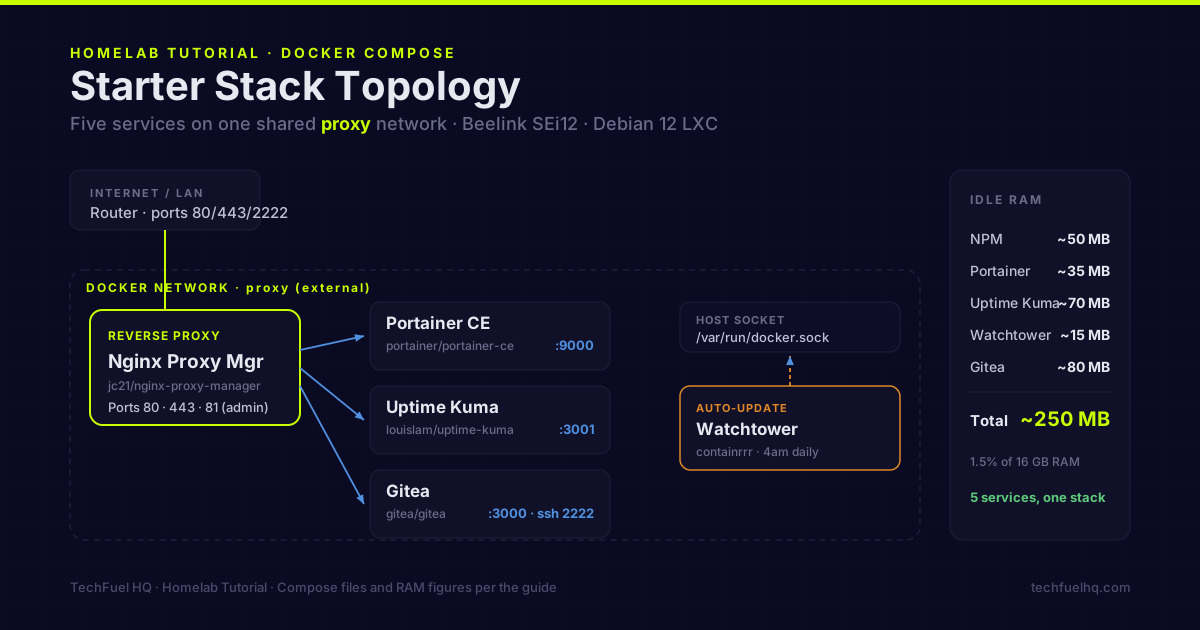
Every homelab running Docker ends up with the same core services: a reverse proxy to route traffic, something to visualize running containers, a way to know when services are down, and automatic updates. This guide covers the stack I actually run, with working compose files you can drop in and use.
The philosophy here: keep it simple, keep it small, make it observable. Every service in this stack has a defined purpose, and nothing runs “just because.”
The stack
| Service | Purpose | Image |
|---|---|---|
| Nginx Proxy Manager | Reverse proxy + Let’s Encrypt GUI | jc21/nginx-proxy-manager |
| Portainer CE | Container management UI | portainer/portainer-ce |
| Uptime Kuma | Uptime monitoring + alerting | louislam/uptime-kuma |
| Watchtower | Automatic container updates | containrrr/watchtower |
| Gitea | Self-hosted Git | gitea/gitea |
This is not an exhaustive list of what you can self-host. It’s the operational layer — the services that make running everything else easier.
Prerequisites
- Debian 12 LXC or VM on Proxmox with Docker installed (not sure which host setup? Start with Proxmox vs Docker: what to run where)
- Docker + Docker Compose plugin:
curl -fsSL https://get.docker.com | sh
# verify
docker compose version
- A domain name for services you want HTTPS on (even a free one from DuckDNS works)
Directory structure
Before writing any compose files, set up a consistent directory structure:
mkdir -p /opt/stacks/{npm,portainer,uptime-kuma,watchtower,gitea}
Each service gets its own directory under /opt/stacks/. Stack definition lives there; persistent data lives in a data/ subdirectory.
Shared Docker network
All services that need to talk to each other (especially the reverse proxy and the services it proxies) need to be on the same Docker network:
docker network create proxy
Every compose file in this guide attaches to this proxy network. The reverse proxy can reach other containers by service name — no hardcoded IPs.
Nginx Proxy Manager
Nginx Proxy Manager gives you a web UI for managing nginx virtual hosts, SSL certificates, and access lists — without editing nginx config files.
# /opt/stacks/npm/docker-compose.yml
services:
  app:
    image: jc21/nginx-proxy-manager:latest
    container_name: nginx-proxy-manager
    restart: unless-stopped
    ports:
      - "80:80"
      - "443:443"
      - "81:81"     # NPM admin UI
    volumes:
      - ./data:/data
      - ./letsencrypt:/etc/letsencrypt
    healthcheck:
      test: ["CMD", "/usr/bin/check-health"]
      interval: 10s
      timeout: 3s
    networks:
      - proxy

networks:
  proxy:
    external: true
cd /opt/stacks/npm
docker compose up -d
First login at http://host-ip:81:
- Default email:
admin@example.com - Default password:
changeme - Change both immediately
From here, every new service you add gets a proxy host in NPM pointing to service-name:port on the proxy network. NPM handles Let’s Encrypt renewal automatically.
Port forward 80 and 443 on your router to this host’s LAN IP for public access. If you’re Tailscale-only, skip port forwarding — set up Caddy instead and use Tailscale HTTPS certificates.
Portainer CE
Portainer gives you a web UI to start, stop, inspect, and log into running containers without SSHing into the host.
# /opt/stacks/portainer/docker-compose.yml
services:
  portainer:
    image: portainer/portainer-ce:latest
    container_name: portainer
    restart: unless-stopped
    volumes:
      - /var/run/docker.sock:/var/run/docker.sock
      - ./data:/data
    networks:
      - proxy
    labels:
      - "com.centurylinklabs.watchtower.enable=true"

networks:
  proxy:
    external: true
cd /opt/stacks/portainer
docker compose up -d
Portainer listens on port 9443 (HTTPS) and 9000 (HTTP). Add a proxy host in NPM pointing to portainer:9000 for a clean portainer.yourdomain.com URL.
Set up your admin account on first run — Portainer disables the setup wizard after 5 minutes of inactivity, so do it immediately.
Uptime Kuma
Uptime Kuma monitors your services and alerts when they go down — via push notifications, Discord, Slack, email, or dozens of other channels. That’s uptime monitoring; for the hardware side — CPU, RAM, disk, and temperatures — Beszel vs Netdata vs Glances compares the lightweight resource monitors that pair with it.
# /opt/stacks/uptime-kuma/docker-compose.yml
services:
  uptime-kuma:
    image: louislam/uptime-kuma:1
    container_name: uptime-kuma
    restart: unless-stopped
    volumes:
      - ./data:/app/data
    networks:
      - proxy
    labels:
      - "com.centurylinklabs.watchtower.enable=true"

networks:
  proxy:
    external: true
cd /opt/stacks/uptime-kuma
docker compose up -d
Uptime Kuma listens on port 3001. After adding a proxy host, go through the setup wizard:
- Create your admin account
- Add monitors for each service — use HTTP(s) monitors for web services, TCP port monitors for non-HTTP services
- Add a notification channel (Telegram and Discord are the easiest for homelab alerting)
- Set up push monitors for scheduled tasks — your PBS backup script hits a Kuma push URL after completion; if Kuma doesn’t receive a push within the window, it alerts
The push monitor pattern is the most underused feature. It inverts the monitoring model: instead of Kuma checking if your service is up, your service tells Kuma it ran successfully. Cron jobs, backup scripts, and batch tasks become monitorable without exposing ports.
Watchtower
Watchtower watches for new image versions and updates containers automatically.
# /opt/stacks/watchtower/docker-compose.yml
services:
  watchtower:
    image: containrrr/watchtower:latest
    container_name: watchtower
    restart: unless-stopped
    volumes:
      - /var/run/docker.sock:/var/run/docker.sock
    environment:
      WATCHTOWER_SCHEDULE: "0 0 4 * * *"    # 4am daily
      WATCHTOWER_CLEANUP: "true"             # remove old images after update
      WATCHTOWER_LABEL_ENABLE: "true"        # only update containers with label
      WATCHTOWER_NOTIFICATIONS: "slack"      # or "email", "telegram", etc.
      WATCHTOWER_NOTIFICATION_SLACK_HOOK_URL: "https://hooks.slack.com/..."
    networks:
      - proxy

networks:
  proxy:
    external: true
The WATCHTOWER_LABEL_ENABLE: "true" setting means Watchtower only updates containers that have the com.centurylinklabs.watchtower.enable=true label — which is why those labels are in the Portainer and Uptime Kuma compose files above. This prevents Watchtower from blindly updating everything, including services you want to update manually.
For services where you want to review updates before they apply (Vaultwarden, Home Assistant, anything with a database migration), do not add the Watchtower label. Pull and update those manually:
cd /opt/stacks/service-name
docker compose pull
docker compose up -d
Gitea
Gitea is a self-hosted Git service — GitHub-like UI, issue tracker, pull requests, and CI via Gitea Actions. Runs on a single container with SQLite for a homelab. (Deciding between Gitea and its community fork? See Forgejo vs Gitea 2026: which self-hosted Git to pick.)
# /opt/stacks/gitea/docker-compose.yml
services:
  gitea:
    image: gitea/gitea:latest
    container_name: gitea
    restart: unless-stopped
    environment:
      USER_UID: "1000"
      USER_GID: "1000"
      GITEA__database__DB_TYPE: sqlite3
      GITEA__database__PATH: /data/gitea/gitea.db
      GITEA__server__DOMAIN: git.yourdomain.com
      GITEA__server__SSH_DOMAIN: git.yourdomain.com
      GITEA__server__HTTP_PORT: "3000"
      GITEA__server__ROOT_URL: https://git.yourdomain.com/
      GITEA__server__SSH_PORT: "2222"
      GITEA__server__SSH_LISTEN_PORT: "2222"
    volumes:
      - ./data:/data
    ports:
      - "2222:2222"    # SSH for git push
    networks:
      - proxy

networks:
  proxy:
    external: true
HTTP access goes through NPM on port 3000. SSH git operations use port 2222 (forward this on your router if you want git push to work from outside).
On first run, Gitea shows an installation wizard. Confirm the settings match your environment variables, then create the admin account.
Backup strategy for this stack
Back up each service’s data directory:
# Add to PBS backup or a backup script
/opt/stacks/npm/data
/opt/stacks/portainer/data
/opt/stacks/uptime-kuma/data
/opt/stacks/gitea/data
If your Docker host is an LXC backed by PBS, the entire container (including /opt/stacks) is covered by PBS’s container backup. That’s the simplest path — configure PBS backups for the LXC and every service on it is automatically covered.
For individual service backups without PBS: stop the container, tar the data directory, copy to NAS, start the container. The downtime is typically under 5 seconds.
Resource usage (all services running)
On a Debian 12 LXC with nesting enabled on a Beelink SEi12:
| Service | RAM (idle) |
|---|---|
| NPM | ~50 MB |
| Portainer | ~35 MB |
| Uptime Kuma | ~70 MB |
| Watchtower | ~15 MB |
| Gitea | ~80 MB |
| Total | ~250 MB |
This entire operations stack uses less RAM than a single idle Debian VM. On a mini PC with 16GB RAM, these five services consume 1.5% of available memory. Add them without concern.
What to add next
These five services are the foundation. Common additions to this stack:
- Vaultwarden — password manager
- Immich — self-hosted photo library (see the Immich Google Photos migration guide)
- Jellyfin — media server; dedicated guide covers Intel QSV, NVIDIA, and AMD hardware transcoding config. For audiobooks and podcasts, AudioBookshelf is the lighter companion — one container, per-user progress sync
- n8n — workflow automation (Zapier replacement); runs on the same proxy network and can call any LAN service
- Nextcloud AIO — file sync + calendar + contacts (heavier than most; 4GB RAM floor)
- Home Assistant — home automation (better in its own Proxmox VM setup)
- Self-hosted team chat — Matrix (Synapse) and Rocket.Chat both ship Docker Compose files that drop onto this same proxy network; see the self-hosted Discord alternatives comparison for which one fits a community versus a workplace
Running these on a mini PC homelab? The Power & Cost Calculator shows what all of this costs in electricity. To plan RAM across your full stack before committing, the Docker Homelab RAM Planner lets you check every service you want and see idle vs. peak totals with host sizing advice. To give each service a clean subdomain with HTTPS instead of port numbers, the Nginx Proxy Manager guide covers NPM setup, wildcard Let’s Encrypt certs, and DNS challenge for services that aren’t publicly exposed.
Sources
- Docker Compose documentation – official reference for compose files, services, networks, and volumes.
- Nginx Proxy Manager guide – official setup for the reverse proxy with Let’s Encrypt SSL.
- Portainer documentation – official docs for the container management UI.
- Uptime Kuma wiki – official docs for monitors, notifications, and Docker install.
- Watchtower documentation – official reference for automatic container image updates and label/schedule options.
- Gitea installation with Docker – official compose-based install and environment variable configuration.
Frequently asked questions
Should I run Docker in an LXC container or a VM on Proxmox?
How do I update all containers at once?
Where should I store compose files and persistent data?
How do I add a new service to the reverse proxy?
Can I use Podman instead of Docker?
Evidence ledger
- Last updated
- Methodology
- This tutorial was written and edited by Lowell K. Wood IV in St. Louis County, MO. Specs, prices, commands, and version numbers are drawn from the official vendor, reseller, and project documentation current on the date above, and were verified before publishing. First-person hardware claims appear only where the article shows a verifiable artifact — a photo, receipt, or measurement — or links to the TechFuelHQ Open Bench Datasets. Every fact is human-verified against its cited source before publishing; AI assists with first-draft structure and source-gathering, not with the verdict. Full editorial standard: methodology.
- Update log
- 2026-07-25 — Last reviewed and updated.
- Corrections
- Spotted an error or stale price? Email hello@techfuelhq.com. Confirmed corrections are added to the update log above.