
HAOS ships as a qcow2 disk image rather than an ISO, so create an empty q35 VM with OVMF UEFI, download and validate the exact current release asset, then import /tmp/haos_ova-
Contents
By LK Wood IV · Published 2026-05-31 · Updated 2026-10-10 · ~15 min read · St. Louis County, MO
Running Home Assistant on dedicated hardware (a Pi, an old NUC) made sense five years ago. If you already have a Proxmox homelab, there is no reason for a second machine.
Looking for a HAOS ISO for a Proxmox Home Assistant install? The short answer: HAOS has no ISO. You import a disk image instead, and the steps below show how.
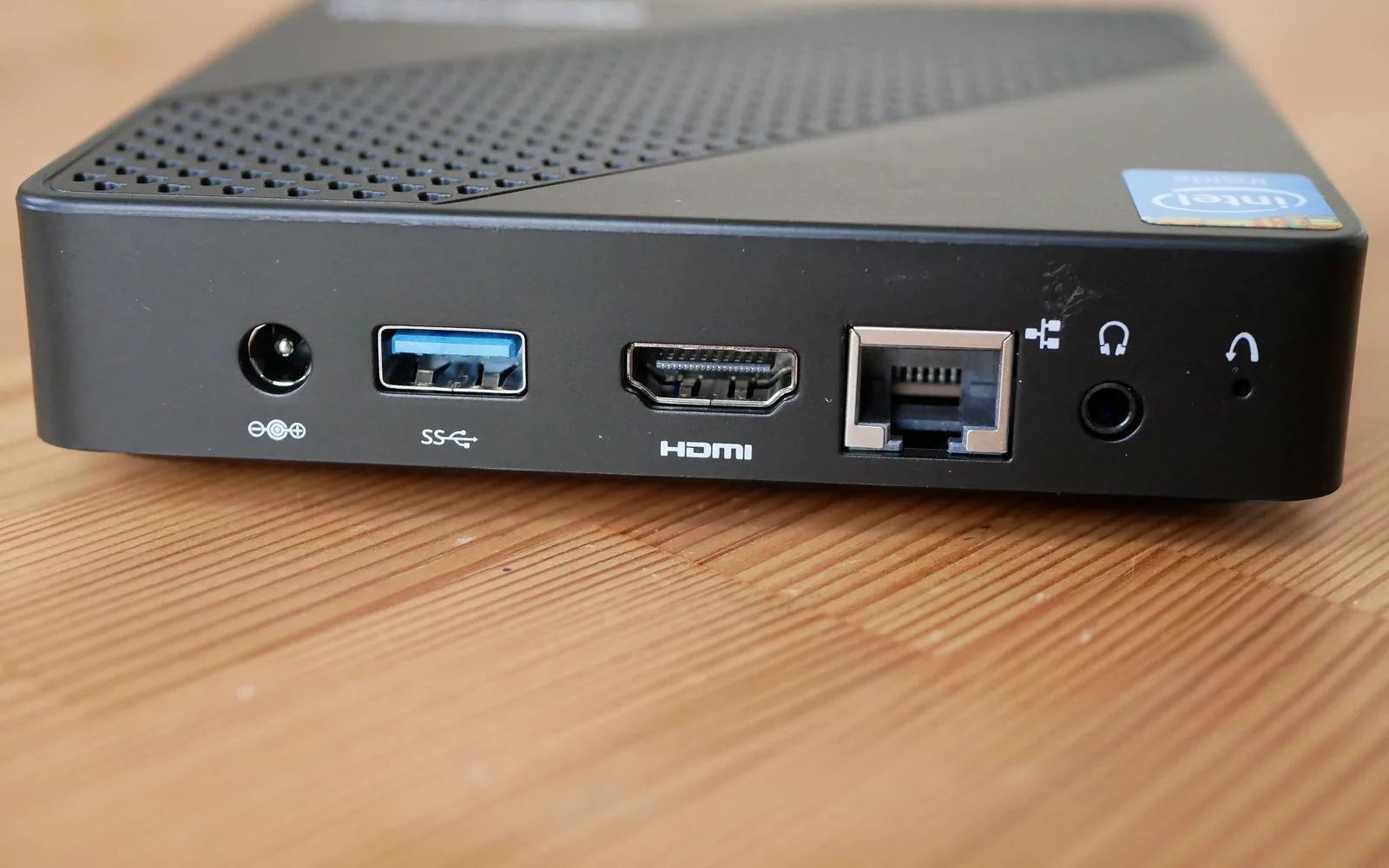
If you don’t have a homelab yet and just want a dedicated box for Home Assistant, start with our best mini PC for Home Assistant guide and come back here to install it.
A HAOS VM on Proxmox gets the HAOS update path, Supervisor, and the official App store.
Home Assistant documents 2 vCPU and 2 GB RAM as the minimum for this VM route. Actual use depends on the integrations and Apps you add.
This guide installs Home Assistant OS as a Proxmox VM. That is the documented KVM/Proxmox method, and it gets you Supervisor and Apps. Home Assistant Container is also supported, but it has no Supervisor or Apps. This guide stays with HAOS in a VM.
Why VM, not LXC
The LXC vs VM decision applies here clearly. Home Assistant OS is a full operating system, not a service. It runs its own kernel, manages its own update cycle, and orchestrates multiple internal containers via Supervisor.
The official documentation provides a KVM/Proxmox VM image. It does not document HAOS as a Proxmox LXC installation.
If you want a container, use the official Home Assistant Container image in Docker, with the tradeoff that it has no Supervisor or Apps. Use the HAOS VM when you want the managed appliance experience covered here.
Is there a HAOS ISO for Proxmox?
No. Home Assistant does not publish an installer ISO for HAOS. The alternative installation page, read on 2026-10-10, offers VM images for VirtualBox (.vdi), KVM/Proxmox (.qcow2) and VMware (.ova). Its own VirtualBox steps say to leave the ISO field blank. The generic x86-64 page says HAOS has no integrated installer, and the only ISO it mentions is an Ubuntu live USB used to write the image to a disk.
The release assets confirm it. The GitHub API listed these x86-64 files for HAOS 18.3 on 2026-10-10, with no .iso among them:
| File | Use |
|---|---|
haos_ova-18.3.qcow2.xz | KVM/Proxmox VM disk. This guide imports it. |
haos_ova-18.3.ova | VMware |
haos_ova-18.3.vdi.zip | VirtualBox |
haos_ova-18.3.vmdk.zip, haos_ova-18.3.vhdx.zip | Other virtual disk formats |
haos_generic-x86-64-18.3.img.xz | Generic x86-64 disk image for writing to a drive in a physical machine |
That is why the VM wizard below uses “Do not use any media”. The disk arrives later through an import. Release numbers change, so use the version the download step resolves rather than 18.3.
Step 1: Download the HAOS disk image
Go to home-assistant.io/installation/alternative and download the KVM/Proxmox image. As of 2026 this is a .qcow2 file, a pre-built disk image for QEMU.
Or download directly to your Proxmox host:
# SSH into Proxmox host
set -euo pipefail
cd /tmp

# Get the latest release metadata. curl exits nonzero on API or HTTP errors.
RELEASE_JSON=$(curl --fail --silent --show-error --location \
  https://api.github.com/repos/home-assistant/operating-system/releases/latest)
HAOS_VERSION=$(printf '%s\n' "$RELEASE_JSON" \
  | sed -n 's/.*"tag_name": *"\([^"]*\)".*/\1/p' \
  | head -n 1)

# Stop before downloading or importing if the API response has no release tag.
if [ -z "$HAOS_VERSION" ]; then
  echo "No HAOS release tag found; use the official download page instead." >&2
  exit 1
fi

HAOS_ASSET="haos_ova-${HAOS_VERSION}.qcow2.xz"
HAOS_URL="https://github.com/home-assistant/operating-system/releases/download/${HAOS_VERSION}/${HAOS_ASSET}"
curl --fail --show-error --location --output "$HAOS_ASSET" "$HAOS_URL"

# Reject a missing, empty, or corrupt archive before the VM import step.
test -s "$HAOS_ASSET"
xz --test "$HAOS_ASSET"
xz --decompress "$HAOS_ASSET"
test -s "${HAOS_ASSET%.xz}"
If this block stops, do not import a wildcard left in /tmp from an earlier attempt. Use the official download page, note the exact release filename, and confirm the downloaded .qcow2 is present before continuing.
Step 2: Create the VM in Proxmox
In the Proxmox web UI, click Create VM:
General tab:
- Node: your Proxmox host
- VM ID: choose a free ID (e.g., 200)
- Name:
home-assistant
OS tab:
- Select “Do not use any media” (we’ll import the disk image instead of booting from ISO)
System tab:
- Machine:
q35 - BIOS:
OVMF (UEFI)— HAOS requires UEFI - For the UI route, check “Add EFI Disk” → storage: local-lvm (or your preferred storage), and uncheck Pre-Enroll keys.
- Home Assistant requires a non-Secure-Boot OVMF image for this route. Proxmox’s pre-enrolled-keys option enables Secure Boot by default.
- If you will use the shell alternative below, leave “Add EFI Disk” unchecked here.
- QEMU Guest Agent: enabled — this matches Home Assistant’s official KVM example, which adds the guest-agent channel
Disks tab:
- Delete the default disk that was created (we’ll import our own)
CPU tab:
- Sockets: 1
- Cores: 2 minimum; increase this only to meet the requirements of the Apps you run
- Type:
host— lets the VM use your CPU’s full instruction set
Memory tab:
- 2048 MB minimum; increase it when the workload’s own requirements call for more
Network tab:
- Bridge: vmbr0 (your main LAN bridge)
- Model: VirtIO
Click Finish — do NOT start the VM yet. Open Options, set Start at boot to Yes, and confirm QEMU Guest Agent is enabled.
If you deliberately left “Add EFI Disk” unchecked in the wizard, you can now create the EFI variables disk from the Proxmox shell before the first boot:
qm set 200 --efidisk0 local-lvm:1,efitype=4m,pre-enrolled-keys=0
Replace 200 and local-lvm with this VM’s ID and storage. Run this only after Finish has created that VM. Do not run it if the wizard already created an EFI disk.
Proxmox documents STORAGE_ID:SIZE_IN_GiB for allocating the EFI variables volume and notes that the size value is ignored for this disk. pre-enrolled-keys=0 is the explicit no-pre-enrolled-keys state.
Step 3: Import the HAOS disk
SSH into Proxmox and import the downloaded image into the VM you just created. Replace 200 with your VM ID and local-lvm with your storage:
# Run this in the same shell used for the download so HAOS_VERSION is exact.
qm importdisk 200 "/tmp/haos_ova-${HAOS_VERSION}.qcow2" local-lvm
If you opened a new shell, replace ${HAOS_VERSION} with the exact release tag you downloaded. Do not use a wildcard when more than one HAOS image may be in /tmp.
qm importdisk is an alias for qm disk import, which takes <vmid> <source> <storage> and an optional --format of qcow2, raw or vmdk (Proxmox qm manual, read 2026-10-10).
Proxmox’s VM documentation also shows a one-step form that creates and attaches the disk in a single command. It uses STORAGE_ID:0 with the import-from parameter, for example qm set 9000 --scsi0 local-lvm:0,import-from=/path/to/image. If you use it, point it at the extracted .qcow2. Either way, you end with the disk on scsi0.
The importdisk route creates a new disk in the storage. Back in the Proxmox web UI:
- Go to the VM → Hardware
- You’ll see an “Unused Disk” entry — click it → Edit
- Set Bus/Device to
SCSI(scsi0) — this matches Home Assistant’s official KVM example - Enable Discard (for SSD/NVMe storage)
- Click Add
Now set the boot order:
- VM → Options → Boot Order
- Enable
scsi0and move it to position 1 - Disable any other boot devices
Step 4: First boot and initial setup
Start the VM and watch the boot sequence in the Proxmox web console. Initial setup can take longer while HAOS prepares the system and downloads updates; wait for the console to report that the instance is ready rather than using a fixed timer.
Find the IP address. HAOS uses DHCP by default. Check your router’s DHCP table for a device named homeassistant, or watch the console. HAOS prints its IP when fully booted.
Home Assistant’s onboarding guide (read 2026-10-10) says HAOS is usually at http://homeassistant.local/, with http://homeassistant.local:8123/ as the fallback. The first visit shows a “Preparing Home Assistant” page that downloads the latest version, which can take a while. With the guest agent running, qm guest cmd 200 network-get-interfaces on the Proxmox host lists the VM’s interfaces and addresses.
Open a browser to http://homeassistant-ip:8123. You’ll see the Home Assistant onboarding wizard:
- Create your account. Save the username and password somewhere safe, because the owner credentials cannot be recovered.
- Set your home location. This sets the time zone, unit system and currency.
- Choose your data-sharing setting. Sharing is off by default.
- HA will discover devices on your network automatically. Review them and add what’s yours.
On a fresh install you can also restore from a backup at this step, which the recovery table below uses.
After onboarding, go to Settings → System → Updates and apply any pending updates. HAOS manages its own OS updates separately from HA Core updates.
Step 5: USB device passthrough (Zigbee/Z-Wave)
If you have a Zigbee coordinator (Sonoff Zigbee 3.0 Dongle Plus, HUSBZB-1, Aeotec Z-Stick) or Z-Wave stick connected to your Proxmox host, pass it through to the HA VM.
Identify the device on the host:
lsusb
Find your coordinator in the list and note the vendor:product ID. That ID names the USB-serial chip inside the stick.
For example, 1a86:55d4 is the CH9102 bridge on the Sonoff Zigbee 3.0 Dongle Plus V2 (ZBDongle-E). The original Dongle Plus (ZBDongle-P) carries a Silicon Labs CP2102N and shows up as 10c4:ea60 (Zigbee2MQTT adapter docs). Use whichever your own lsusb prints.
Pass through in Proxmox:
- VM → Hardware → Add → USB Device
- If the device has a unique vendor/product ID, select Use USB vendor/product ID so a physical port move does not change the mapping
- If two attached devices share the same vendor/product ID, select the required host bus/port instead so Proxmox can distinguish them
- Click Add
Restart the VM, then configure the radio with the matching stack:
- Zigbee with Zigbee2MQTT: set up an MQTT broker first. Then add
https://github.com/zigbee2mqtt/hassio-zigbee2mqttunder Settings → Apps → App store → Repositories, as Zigbee2MQTT’s official Home Assistant repository requires, and install its stable App. In the Zigbee2MQTT configuration, use the coordinator’s persistent path under/dev/serial/by-id/. - Z-Wave: follow Home Assistant’s Z-Wave integration setup. It requires the Z-Wave adapter, a Z-Wave server (the Z-Wave JS App on HAOS), and the integration. Do not configure a Z-Wave stick in Zigbee2MQTT.
A path such as /dev/ttyACM0 or /dev/ttyUSB0 can change when USB devices enumerate in a different order.
Step 6: Configure external backups
HAOS has its own encrypted backup system. A backup stored only inside the VM is lost with that VM or its storage, so configure an external or off-site backup location before calling the installation finished.
NAS via SMB/CIFS:
- Home Assistant → Settings → System → Backups
- Configure a network backup location → SMB share on your NAS
- Enable automatic daily backups, Home Assistant’s documented recommendation
- Download the emergency kit and store it separately; it contains the key needed to restore encrypted backups
Add a second layer with scheduled Proxmox Backup Server or vzdump backups of the whole VM. A Proxmox snapshot is useful as a short-lived local rollback point before a change, but it is not an independent backup and does not protect against loss of the underlying storage.
Ready for recovery
Finish these checks before moving on to remote access:
| Check | Passing state | Why it matters |
|---|---|---|
| Restart behavior | Start at boot is Yes, the QEMU guest agent is enabled, and Proxmox shows agent-reported guest details | HAOS returns after a Proxmox host reboot and Proxmox can coordinate guest state. |
| Home Assistant backup | Automatic daily backups go to an external or off-site location | The application backup remains available if the VM storage fails. |
| Encryption material | The emergency kit is downloaded and stored separately | It contains the key needed to decrypt the backup during recovery. |
| Whole-VM protection | PBS or vzdump runs on a schedule; snapshots are labeled temporary/local | A VM backup and an HA backup cover different recovery needs; a local snapshot is not either one. |
| Restore route | On a replacement HAOS install, choose restore during onboarding, verify the target has more free space than the source currently uses, select the backup, enter its key, and do not refresh while it restores | This turns a stored backup into a documented recovery procedure. |
| USB identity | Use vendor/product only when unique, bus/port for duplicate IDs, and the radio’s /dev/serial/by-id/... path inside Zigbee2MQTT or Z-Wave JS | The intended radio remains identifiable after a reboot or USB re-enumeration. |
Step 7: Remote access
Nabu Casa (Home Assistant Cloud, becoming Home Assistant Link on December 2, 2026). The managed option was $6.50/month or $65/year in the US when checked October 2, 2026, excluding sales tax. It includes remote access and Google/Alexa integration and supports Home Assistant development.
Tailscale App. For free remote access through Tailscale, install the Tailscale App from the Home Assistant App store. After installing and authorizing, your HA instance gets a Tailscale IP. It is then reachable from anywhere on your tailnet. No port forwarding or external domain is required.
Install it: Settings → Apps → App store → search “Tailscale”
The Tailscale App handles the key exchange and keeps the tunnel running. Combined with your existing Tailscale homelab setup, HA is another device on your tailnet.
NGINX Proxy Manager. If you want a proper domain with HTTPS: add a proxy host in NPM pointing to the HA VM’s LAN IP on port 8123. Enable Let’s Encrypt. In HA’s configuration.yaml:
http:
  use_x_forwarded_for: true
  trusted_proxies:
    - 192.168.1.x  # NPM container's LAN IP
Increasing VM disk size
HAOS’s disk image presents a 32 GB virtual disk by default (Home Assistant’s alternative-install docs: “The default is 32 GB”, checked 2026-09-26). If you’re using Apps that store data (Frigate with video, Music Assistant with a library, or large recorder databases), you’ll need more. Frigate is the one that gets away from people — the Frigate NVR storage calculator turns camera count, resolution, codec, and retention into an actual figure before you size the disk.
Resize the virtual disk in Proxmox. The current command is qm disk resize; qm resize is an alias:
qm disk resize 200 scsi0 +32G
Reboot HAOS after increasing the virtual disk, then confirm the larger capacity under Settings → System → Repairs → System information before relying on the added space.
Resource expectations
The official 2 vCPU and 2 GB RAM figures are minimum allocations. They are not a promise about steady-state use. Start there for a small installation. Raise CPU, memory or disk only when the Apps and integrations you run need it.
An NVR, a large recorder database and a music library are separate workloads with their own requirements.
This guide does not claim a bare-metal performance percentage, a fixed update time, zero USB overhead, or a measured power difference: those depend on the host, storage, radio, and workload, and no matching hardware benchmark was run for this article. Use the Power & Cost Calculator with measurements from your own host if electricity cost is part of the decision.
Next steps
- Set up remote access to the Home Assistant dashboard with Tailscale or WireGuard.
- Pair Zigbee and Z-Wave devices with the Zigbee and Z-Wave integration guide.
- Turn device states into triggers, conditions, and actions with the Home Assistant automations guide.
- Add local voice control with the fully local LLM voice guide.
Sources
- Home Assistant: Alternative installation methods – official source for the KVM/Proxmox qcow2 disk image and the list of VM image formats. Read 2026-10-10.
- Home Assistant: Generic x86-64 – no integrated HAOS installer; the
.img.xzis written to a drive. Read 2026-10-10. - Home Assistant: Onboarding –
homeassistant.localaddresses and the onboarding steps. Read 2026-10-10. - Proxmox VE
qmmanual –qm disk importand theqm importdiskalias,import-fromon a disk, andqm guest cmdcommands. Read 2026-10-10. - HAOS 18.3 release assets (GitHub API) – x86-64 asset names, no
.iso. Read 2026-10-10. - Home Assistant OS GitHub releases – official release artifacts and version numbers for the HAOS image.
- Proxmox VE QEMU/KVM Virtual Machines – official reference for VM creation, q35/OVMF, importdisk, and boot order.
- Proxmox VE
qmmanual – EFI variables disk syntax andpre-enrolled-keysSecure Boot behavior. - Proxmox VE QEMU/KVM Virtual Machines: USB passthrough – official vendor/product and host bus/port behavior.
- Proxmox VE backup and restore – whole-VM backup and restore.
- Home Assistant common tasks: backups and restore – automatic backups, emergency kit, and onboarding restore.
- Home Assistant 2026.2 release notes – Add-ons were renamed Apps.
- Zigbee2MQTT adapter settings – persistent
/dev/serial/by-id/...paths. - Zigbee2MQTT Home Assistant repository – MQTT prerequisite and stable App repository installation.
- Home Assistant Z-Wave integration – Z-Wave adapter, server/App, and integration requirements.
- Nabu Casa Link pricing and Cloud becomes Link announcement – US pricing and the December 2, 2026 rename schedule checked 2026-10-02.
Frequently asked questions
Why use a VM instead of an LXC for Home Assistant?
Can I use a Zigbee or Z-Wave USB stick with Proxmox Home Assistant?
How do I back up Home Assistant on Proxmox?
What are the minimum VM resources for HAOS?
Does this installation method support Home Assistant Supervisor and Apps?
Sources and corrections
- Last updated
- Methodology
- See our methodology for research and review standards.
- Corrections
- Spotted an error or a stale number? Email contact@techfuelhq.com. Confirmed corrections are recorded here with the date and change.