 TechFuel HQ
Cloud n8n bills $20 a month and caps executions; the self-hosted stack has neither limit, running n8nio/n8n pinned to 1.87.0 with postgres:16-alpine on a private n8n-internal network. Proxy port 5678 through Nginx Proxy Manager with Websockets on. Back up ./n8n/config, or saved credentials never decrypt.
By LK Wood IV · 2026-06-09 · ~11 min read · St. Louis County, MO
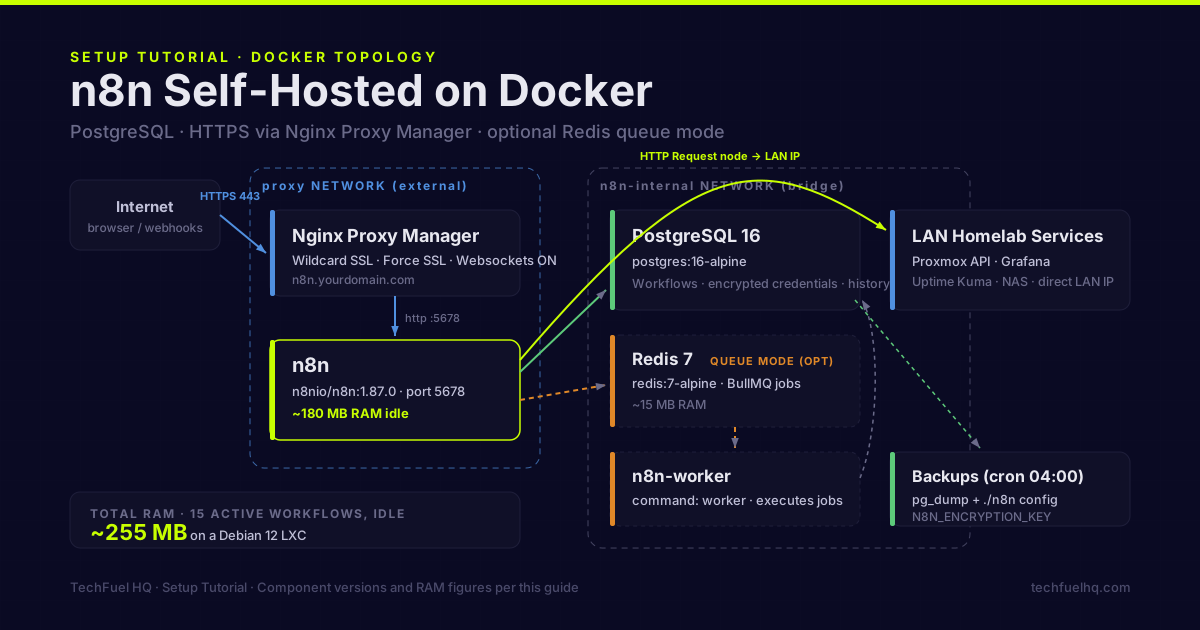
n8n is a workflow automation tool with 400+ integrations — the self-hosted alternative to Zapier, Make, and IFTTT. The hosted version charges per workflow execution. Self-hosted runs on your own machine with no execution limits, full access to internal services, and no data leaving your network.
This guide sets up n8n with PostgreSQL, persistent storage, HTTPS via Nginx Proxy Manager, and automated backups.
What you’ll have at the end
- n8n running in Docker with PostgreSQL as the database
- Accessible at
n8n.yourdomain.comwith valid HTTPS - Automatic backups of the n8n database and workflows
- Ready to connect to internal homelab services (Proxmox API, Grafana, Home Assistant)
Prerequisites
- Docker installed and running on your homelab host
- Nginx Proxy Manager already set up with a wildcard SSL cert (or you’ll use direct IP access)
- A
proxyDocker network (created by the NPM guide):docker network create proxy
Step 1: Docker Compose setup
mkdir -p /opt/stacks/n8n && cd /opt/stacks/n8n
Create the compose file with n8n and PostgreSQL:
# /opt/stacks/n8n/docker-compose.yml
services:
  postgres:
    image: postgres:16-alpine
    container_name: n8n-postgres
    restart: unless-stopped
    environment:
      POSTGRES_USER: n8n
      POSTGRES_PASSWORD: ${DB_PASSWORD}
      POSTGRES_DB: n8n
      PGDATA: /var/lib/postgresql/data/pgdata
    volumes:
      - ./postgres:/var/lib/postgresql/data
    networks:
      - n8n-internal
    healthcheck:
      test: ["CMD-SHELL", "pg_isready -U n8n"]
      interval: 5s
      timeout: 5s
      retries: 5

  n8n:
    image: n8nio/n8n:latest
    container_name: n8n
    restart: unless-stopped
    depends_on:
      postgres:
        condition: service_healthy
    environment:
      # Database
      DB_TYPE: postgresdb
      DB_POSTGRESDB_HOST: postgres
      DB_POSTGRESDB_PORT: 5432
      DB_POSTGRESDB_DATABASE: n8n
      DB_POSTGRESDB_USER: n8n
      DB_POSTGRESDB_PASSWORD: ${DB_PASSWORD}
      # Server config
      N8N_HOST: n8n.yourdomain.com
      N8N_PORT: 5678
      N8N_PROTOCOL: https
      WEBHOOK_URL: https://n8n.yourdomain.com/
      # Security
      N8N_BASIC_AUTH_ACTIVE: "true"
      N8N_BASIC_AUTH_USER: ${N8N_BASIC_AUTH_USER}
      N8N_BASIC_AUTH_PASSWORD: ${N8N_BASIC_AUTH_PASSWORD}
      # Timezone
      GENERIC_TIMEZONE: America/Chicago
      TZ: America/Chicago
    volumes:
      - ./n8n:/home/node/.n8n
    networks:
      - n8n-internal
      - proxy

networks:
  n8n-internal:
    driver: bridge
  proxy:
    external: true
Create the environment file:
cat > .env << 'EOF'
DB_PASSWORD=generate-a-strong-password-here
N8N_BASIC_AUTH_USER=admin
N8N_BASIC_AUTH_PASSWORD=another-strong-password-here
EOF

chmod 600 .env
Create the data directories:
mkdir -p ./postgres ./n8n
Start the stack:
docker compose up -d

# Watch logs to confirm startup
docker compose logs -f n8n
On first startup, n8n runs database migrations which takes 30–60 seconds. You’ll see “Workflow manager is now running” when it’s ready.
Access n8n at http://your-host-ip:5678 or configure NPM to serve it at https://n8n.yourdomain.com.
Pin the n8n version — before going to production, pin to a specific tag:
image: n8nio/n8n:1.87.0 # check latest at hub.docker.com/r/n8nio/n8n/tags
This prevents surprise breaking changes from :latest upgrades.
Step 2: Configure Nginx Proxy Manager
In NPM → Add Proxy Host:
- Domain:
n8n.yourdomain.com - Scheme:
http - Forward hostname:
n8n(container name, on the proxy network) - Port:
5678 - Websockets Support: ON (n8n uses websockets for the editor)
- SSL: wildcard cert, Force SSL on
Visit https://n8n.yourdomain.com — you should see the n8n login with basic auth.
Step 3: First login and owner account
After the basic auth challenge, n8n shows an account setup page. Create the owner account — this is separate from the basic auth and is your n8n admin account. Use a strong password distinct from the basic auth.
Disable n8n’s built-in basic auth once you’re behind NPM with SSL and access lists — or keep it as a second layer of auth. Your choice.
Step 4: Connect your first integration
n8n’s integration list is at the bottom-left “Credentials” section. To connect a service:
- Click “Add Credential” → search for your service (Gmail, Slack, GitHub, Airtable, etc.)
- Follow the OAuth flow or paste the API key
- Credentials are stored encrypted in the PostgreSQL database
Connecting to homelab services:
n8n can reach any LAN IP directly. In an HTTP Request node:
- URL:
http://192.168.1.2:8006/api2/json/nodes(Proxmox API) - Authentication: Header Auth with
Authorization: PVEAPIToken=user@pam!name=token-value(pamis the default Proxmox login backend)
This works because n8n is running inside your LAN — the request goes directly to Proxmox without any internet hop.
Step 5: Example workflows
Workflow 1: Notify when a Proxmox VM stops (via Grafana alert webhook)
- Trigger: Webhook (n8n generates a URL you paste into Grafana Alertmanager)
- Node: IF → check if alert status is “firing”
- Node: Send notification to Discord/Telegram/email
Workflow 2: Daily Homelab health summary
- Trigger: Schedule → daily at 8am
- HTTP Request:
http://uptime-kuma:3001/api/status-page/...→ get service status - HTTP Request: Proxmox API → get VM/LXC status
- Function: format the data into a summary
- Notification: send to Discord/Telegram
Workflow 3: Auto-backup trigger after Immich import
- Trigger: Webhook (call from an immich-go post-import script)
- Execute Command node: run your restic backup script
- Notification: send completion status to Slack
Step 6: Queue mode (optional, for reliability)
Queue mode offloads workflow execution to separate worker processes via Redis. This prevents the main n8n process from being blocked by long-running workflows and recovers from crashes without losing in-progress jobs.
Add Redis to the compose file:
  redis:
    image: redis:7-alpine
    container_name: n8n-redis
    restart: unless-stopped
    networks:
      - n8n-internal
    volumes:
      - ./redis:/data
Update n8n’s environment in the compose file:
      EXECUTIONS_MODE: queue
      QUEUE_BULL_REDIS_HOST: redis
      QUEUE_BULL_REDIS_PORT: 6379
Add a worker service:
  n8n-worker:
    image: n8nio/n8n:latest   # same version as n8n
    container_name: n8n-worker
    restart: unless-stopped
    command: worker
    depends_on:
      - n8n
      - redis
      - postgres
    environment:
      DB_TYPE: postgresdb
      DB_POSTGRESDB_HOST: postgres
      DB_POSTGRESDB_PORT: 5432
      DB_POSTGRESDB_DATABASE: n8n
      DB_POSTGRESDB_USER: n8n
      DB_POSTGRESDB_PASSWORD: ${DB_PASSWORD}
      QUEUE_BULL_REDIS_HOST: redis
      QUEUE_BULL_REDIS_PORT: 6379
    volumes:
      - ./n8n:/home/node/.n8n
    networks:
      - n8n-internal
Redeploy:
docker compose up -d
Step 7: Backups
n8n data lives in two places:
- PostgreSQL database — workflows, credentials, execution history
./n8nvolume — local files, SSH keys, custom nodes
Database backup:
# Manual backup
docker exec n8n-postgres pg_dump -U n8n n8n > /mnt/backups/n8n/n8n-$(date +%Y%m%d).sql

# Automated via cron
echo "0 4 * * * root docker exec n8n-postgres pg_dump -U n8n n8n > /mnt/backups/n8n/n8n-\$(date +\%Y\%m\%d).sql" >> /etc/crontab
Credentials are encrypted in the database using a key derived from n8n’s N8N_ENCRYPTION_KEY environment variable (set automatically on first run, stored in ./n8n/config). Back up ./n8n/config alongside the database — without the encryption key, the credentials in a backup can’t be decrypted.
If you add N8N_ENCRYPTION_KEY to your .env file explicitly (instead of letting n8n generate it), you own the key and can restore credentials even if the ./n8n volume is lost:
N8N_ENCRYPTION_KEY=your-32-char-random-string-here
Resource usage
On a Debian 12 LXC with PostgreSQL, n8n idle, 15 active workflows:
| Service | RAM |
|---|---|
| n8n | ~180 MB |
| PostgreSQL | ~60 MB |
| Redis (if using queue mode) | ~15 MB |
| Total | ~255 MB |
n8n is not resource-heavy at idle. CPU usage spikes during workflow execution proportional to the complexity of the workflow, not the number of workflows defined.
n8n pairs well with Uptime Kuma for monitoring-triggered workflows — the Docker Compose starter stack has both running on the same proxy network. For the broader self-hosted app ecosystem n8n fits into, see the 12 best self-hosted apps guide.
Sources
- Install n8n with Docker – official docs for the recommended self-hosted Docker deployment.
- Enable queue mode – official docs on Redis-backed workers, queue mode, and scaling.
- Use environment variables – official docs for the database, host, and encryption-key configuration variables.
Frequently asked questions
Why self-host n8n instead of using n8n cloud?
Do I need queue mode for n8n?
Can n8n access services inside my LAN?
How do I update self-hosted n8n?
What database does n8n use?
Evidence ledger
- Last updated
- Methodology
- This tutorial was written and edited by Lowell K. Wood IV in St. Louis County, MO. Specs, prices, commands, and version numbers are drawn from the official vendor, reseller, and project documentation current on the date above, and were verified before publishing. First-person hardware claims appear only where the article shows a verifiable artifact — a photo, receipt, or measurement — or links to the TechFuelHQ Open Bench Datasets. Every fact is human-verified against its cited source before publishing; AI assists with first-draft structure and source-gathering, not with the verdict. Full editorial standard: methodology.
- Update log
- 2026-07-25 — Last reviewed and updated.
- Corrections
- Spotted an error or stale price? Email hello@techfuelhq.com. Confirmed corrections are added to the update log above.