 TechFuel HQ
One wildcard Let’s Encrypt certificate, issued by DNS challenge, covers every subdomain, so each new service is just another proxy host: forward jellyfin.yourdomain.com over the shared proxy network to container jellyfin on 8096. AdGuard Home rewrites that name to 192.168.1.10. Access lists return 403 outside 192.168.1.0/24.
By LK Wood IV · 2026-05-24 · ~11 min read · St. Louis County, MO
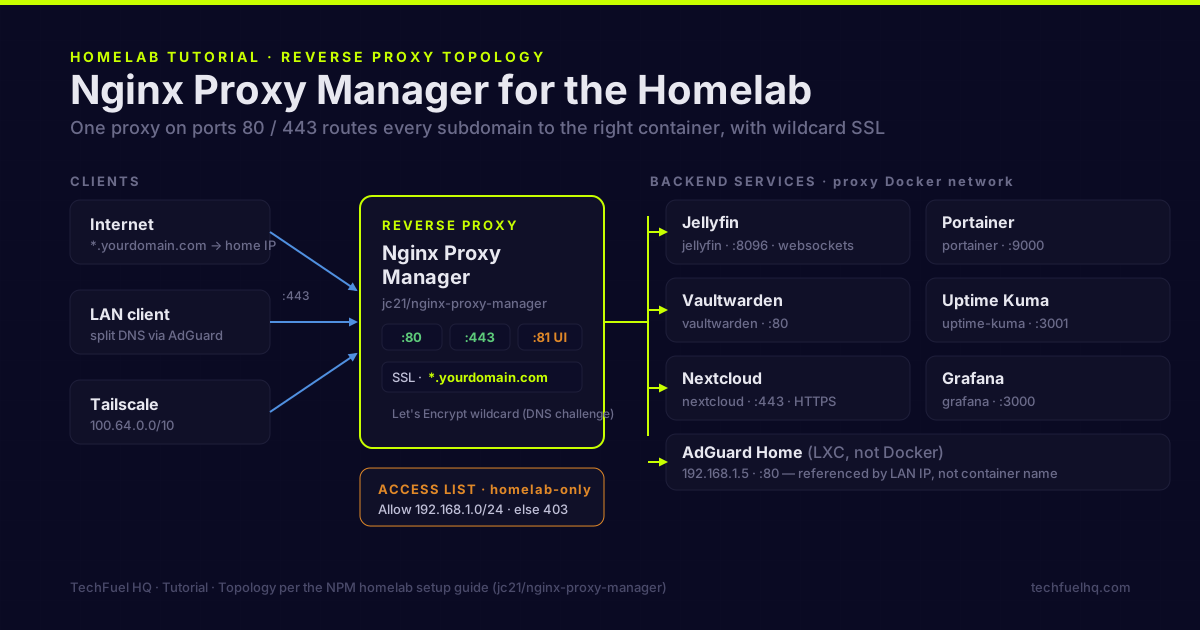
Every self-hosted service runs on its own port. Portainer on 9000, Jellyfin on 8096, Vaultwarden on 8222, Uptime Kuma on 3001. After six services you stop remembering which port is which and start typing 192.168.1.10:???? into every browser.
Nginx Proxy Manager fixes this: one reverse proxy that takes jellyfin.yourdomain.com and routes it to the right container. Let’s Encrypt SSL included. A web UI that doesn’t require touching an nginx config file.
What you’ll have at the end
- NPM running as a Docker container, listening on ports 80 and 443
- Each self-hosted service reachable at its own subdomain with a valid HTTPS certificate
- Access lists that restrict specific services to your homelab IP range
- DNS challenge SSL for internal-only services that don’t have public internet exposure
Prerequisites
- Docker running on your homelab host
- A domain name (DuckDNS is free:
yourname.duckdns.org) - Port 80 and 443 forwarded on your router to the Docker host (for Let’s Encrypt HTTP challenge) — OR a DNS provider with API support (for DNS challenge, no port forward needed)
Step 1: Deploy NPM with Docker Compose
The Docker Compose starter stack uses a shared proxy network so all containers can talk to NPM. If you’re starting from scratch, create this standalone:
mkdir -p /opt/stacks/npm && cd /opt/stacks/npm
# docker-compose.yml
services:
  npm:
    image: jc21/nginx-proxy-manager:latest
    container_name: npm
    restart: unless-stopped
    ports:
      - "80:80"
      - "443:443"
      - "81:81"   # NPM admin UI
    volumes:
      - ./data:/data
      - ./letsencrypt:/etc/letsencrypt
    networks:
      - proxy

networks:
  proxy:
    external: true
If the proxy network doesn’t exist yet:
docker network create proxy
Start NPM:
docker compose up -d
Open the NPM admin UI at http://your-host-ip:81. Default login:
- Email:
admin@example.com - Password:
changeme
Change both immediately on first login — NPM prompts you automatically.
Step 2: Get a Let’s Encrypt SSL certificate
Before adding any proxy hosts, get a wildcard certificate — one cert that covers all subdomains (*.yourdomain.com) so you don’t need a separate cert for each service.
In NPM → SSL Certificates → Add SSL Certificate:
- Domain Names:
*.yourdomain.comandyourdomain.com - Email address: your email (for Let’s Encrypt expiry notices)
- Enable “Use a DNS Challenge”
- Select your DNS provider (Cloudflare, DuckDNS, Namecheap, etc.)
- Enter your DNS provider API credentials
For DuckDNS:
- DNS Provider: DuckDNS
- Credentials file:
dns_duckdns_token=YOUR-DUCKDNS-TOKEN
For Cloudflare:
- DNS Provider: Cloudflare
- Credentials file:
dns_cloudflare_email = you@email.com
dns_cloudflare_api_key = YOUR-GLOBAL-API-KEY
Click “Save” — NPM creates the TXT challenge record, waits for DNS propagation, and retrieves the cert. This takes 30–60 seconds for DuckDNS, up to 2 minutes for Cloudflare (propagation time).
The wildcard cert covers jellyfin.yourdomain.com, portainer.yourdomain.com, and any other subdomain you add — no additional cert requests needed.
Step 3: Add your first proxy host
NPM → Proxy Hosts → Add Proxy Host:
For Jellyfin running on the same Docker host:
- Domain Names:
jellyfin.yourdomain.com - Scheme:
http - Forward Hostname/IP:
jellyfin(the container name on the proxy network) - Forward Port:
8096 - Websockets Support: on (Jellyfin uses websockets for playback events)
Under the SSL tab:
- SSL Certificate: select the wildcard cert you created
- Force SSL: on
- HTTP/2 Support: on
Click Save. Within seconds, https://jellyfin.yourdomain.com routes to your Jellyfin container with a valid cert.
If Jellyfin isn’t on the same Docker host, use its LAN IP instead of the container name:
- Forward Hostname/IP:
192.168.1.10
Step 4: Add more services
Repeat Step 3 for each service. Common homelab NPM entries:
| Subdomain | Container/IP | Port | Notes |
|---|---|---|---|
portainer.yourdomain.com | portainer | 9000 | Enable websockets |
uptime.yourdomain.com | uptime-kuma | 3001 | |
vaultwarden.yourdomain.com | vaultwarden | 80 | Enable websockets; see Vaultwarden guide |
nextcloud.yourdomain.com | nextcloud | 443 | Set scheme to HTTPS if NC uses TLS internally |
grafana.yourdomain.com | grafana | 3000 | |
adguard.yourdomain.com | 192.168.1.5 | 80 | IP since AdGuard is in LXC, not Docker |
For containers on the proxy Docker network: use the container name as the hostname.
For services on a different host or in LXC: use the LAN IP address.
Step 5: Restrict access to sensitive services
You don’t want Portainer or Vaultwarden’s admin interface accessible from the internet. Use NPM Access Lists.
NPM → Access Lists → Add Access List:
- Name:
homelab-only - Satisfy Any: off
- Access: Allow
192.168.1.0/24(your LAN subnet)
Apply it to any proxy host that should be LAN-only:
- On the proxy host → Access List: select
homelab-only
Now portainer.yourdomain.com returns a 403 when accessed from outside your LAN, even though port 443 is open.
If you’re using Tailscale for remote access, add your Tailscale subnet (100.64.0.0/10) to the same access list so you can reach restricted services while traveling:
Allow 192.168.1.0/24
Allow 100.64.0.0/10
Step 6: DNS entries for each subdomain
For external access (public internet), add DNS records at your registrar:
- A record:
*.yourdomain.com→ your home IP - A record:
yourdomain.com→ your home IP
For internal-only .lan access, add DNS rewrites in AdGuard Home:
jellyfin.yourdomain.com→ your Docker host’s LAN IP (192.168.1.10)portainer.yourdomain.com→192.168.1.10- etc.
With AdGuard Home DNS rewrites, internal clients resolve jellyfin.yourdomain.com directly to the LAN IP instead of going out to the internet and back in. This is split DNS in practice.
Custom error pages and headers
NPM supports custom nginx config snippets for advanced cases. For most homelab services, the defaults work. Two useful additions:
Remove server headers (minor security hardening):
In NPM → Edit proxy host → Advanced tab:
proxy_hide_header X-Powered-By;
more_clear_headers Server;
Increase upload size limit (required for Nextcloud and Immich):
client_max_body_size 0;
Set this on the Nextcloud and Immich proxy hosts — the default 1m limit causes upload failures for large files and photos.
Migrating from manual port-based access
If you’ve been running services on direct ports, the migration is:
- Deploy NPM, get the cert, add proxy hosts
- Test each service via its new domain
- Remove the host-level port mappings from each container’s compose file (the container doesn’t need to expose its port directly anymore — NPM handles it)
- Redeploy each container without the port mapping
After migration, only ports 80, 443, and 81 (NPM admin) need to be accessible externally. All other service ports stay internal to the Docker network.
NPM manages ingress; AdGuard Home manages DNS — together they give every service a clean hostname with working SSL on both internal and external access. The full Docker Compose stack that includes NPM, Portainer, Uptime Kuma, and more is in the Docker Compose starter stack.
Sources
- Nginx Proxy Manager Guide – official setup, Docker Compose deployment, and SSL guidance for NPM.
- Let’s Encrypt Challenge Types – official reference for HTTP-01 and DNS-01 validation used when issuing certs.
- Docker Compose Documentation – official docs for defining and running the multi-container stack NPM runs in.
- AdGuard Home Wiki – official wiki for the DNS rewrites used to point subdomains at LAN IPs.
Frequently asked questions
What is Nginx Proxy Manager and why do I need it?
Do I need a domain name for NPM to work?
NPM or Traefik or Caddy — which should I use?
Will NPM conflict with other services on ports 80 and 443?
ss -tlnp | grep -E ':80|:443' to check. On a fresh Docker host, nothing should be bound. If Portainer, Nextcloud, or another service is already using 80/443, move it to a different port before deploying NPM.How do I get a Let's Encrypt cert for a local-only service (no public exposure)?
Evidence ledger
- Last updated
- Methodology
- This tutorial was written and edited by Lowell K. Wood IV in St. Louis County, MO. Specs, prices, commands, and version numbers are drawn from the official vendor, reseller, and project documentation current on the date above, and were verified before publishing. First-person hardware claims appear only where the article shows a verifiable artifact — a photo, receipt, or measurement — or links to the TechFuelHQ Open Bench Datasets. Every fact is human-verified against its cited source before publishing; AI assists with first-draft structure and source-gathering, not with the verdict. Full editorial standard: methodology.
- Update log
- 2026-07-25 — Last reviewed and updated.
- Corrections
- Spotted an error or stale price? Email hello@techfuelhq.com. Confirmed corrections are added to the update log above.