 TechFuel HQ
Quorum of two is reachable on a pair of nodes only because a corosync-qdevice arbiter contributes the third vote. Build it with pvecm create, pvecm add, then pvecm qdevice setup. HA additionally needs shared storage, NFS, iSCSI or Ceph, plus watchdog fencing, which Proxmox arms automatically — softdog by default, or a hardware watchdog where the board offers one.
By LK Wood IV · 2026-06-16 · ~18 min read · St. Louis County, MO
A single Proxmox node is fine until it isn’t. The drive fails. The NIC dies. You need to reboot for a kernel update and everything goes down. A Proxmox cluster solves this — two or more nodes that share cluster state, can migrate VMs between them, and optionally restart VMs automatically when a node fails.
This guide covers building a cluster from scratch: the correct 2-node architecture with a QDevice, the cleaner 3-node architecture that doesn’t need one, shared storage options, live migration, HA groups, and the fencing question you can’t skip.
What a Proxmox cluster actually gives you
Proxmox clustering has two distinct features that people sometimes conflate:
1. Cluster management (no shared storage required)
- Unified web UI: manage all nodes from one panel
- Centralized user and permission management
- Pool-based resource allocation across nodes
- Live migration between nodes (with shared storage)
2. High Availability (HA) — requires shared storage + fencing
- Automatic VM restart on surviving node when a node fails
- HA watchdog groups with priority ordering
- Fencing to prevent split-brain and data corruption
You can run a cluster for live migration and unified management without HA. HA is the more complex addition and has specific hardware requirements (shared storage, fencing).
Architecture: 2-node vs 3-node
3-node cluster (recommended)
Three nodes each have a vote in corosync. Quorum is 2 votes (majority). If any single node fails:
- 2 surviving nodes form quorum
- Cluster continues operating
- HA restarts VMs on surviving nodes
This is the clean architecture. No workarounds, no QDevice, straightforward HA.
2-node cluster with QDevice
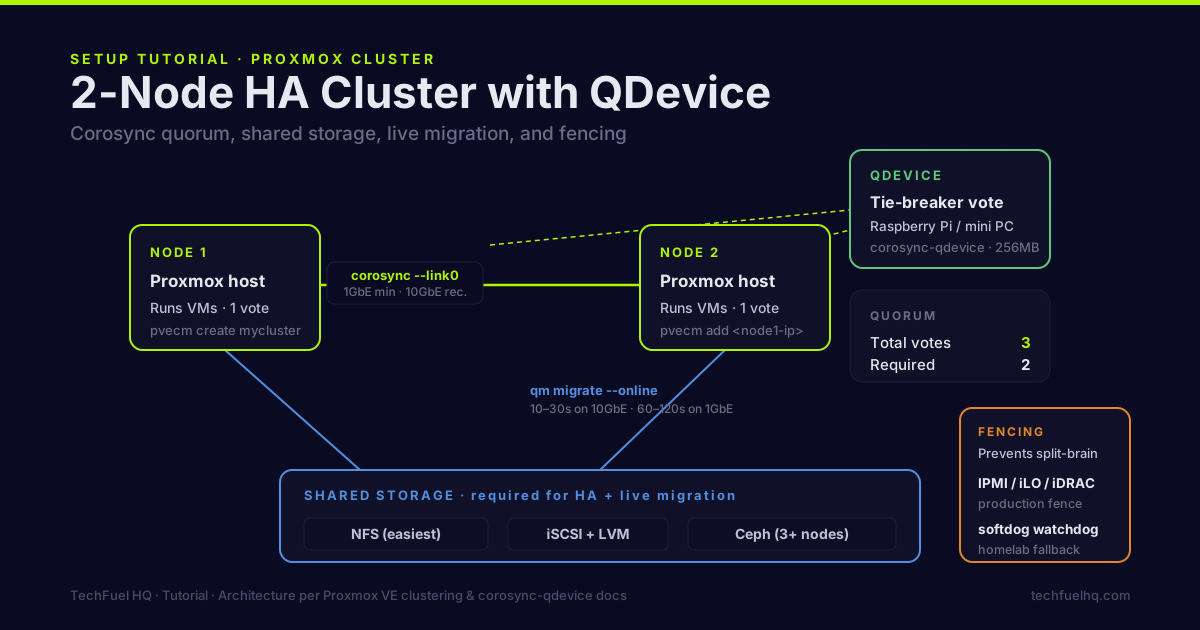
Two nodes cannot hold quorum on their own — each losing the other would leave one node alone, and one vote does not equal majority of two. The solution is a QDevice: a third machine running corosync-qdevice that provides a tie-breaking vote.
Node 1 (vote) + Node 2 (vote) + QDevice (vote) = 3 votes total
Quorum = 2 votes required
If Node 1 fails: Node 2 + QDevice = 2 votes → quorum → cluster continues. If the QDevice fails: Node 1 + Node 2 = 2 votes → quorum maintained (QDevice is just a tiebreaker). If Node 1 + QDevice both fail: Node 2 alone = 1 vote → no quorum → node fences itself.
The QDevice can be anything running Debian/Ubuntu with a network connection — a Raspberry Pi, an LXC on a third server, even a VM on a NAS. It requires minimal resources: 256MB RAM, a few hundred MB of disk, and a stable network connection to both nodes.
Prerequisites
For a 2-node + QDevice cluster:
- 2 Proxmox hosts (any hardware, same or different specs)
- 1 QDevice host (Raspberry Pi, mini PC, or any Debian/Ubuntu system)
- All three on the same network (or VLANs with routing between them)
- No existing Proxmox clusters on any node — clusters can only be created, not merged
For HA (optional, beyond basic clustering):
- Shared storage accessible from all nodes (NFS, iSCSI, or Ceph)
- Watchdog device for fencing (the kernel softdog works everywhere; a hardware/IPMI watchdog where the board offers one)
Step 1: Create the cluster on node 1
Log into node 1’s Proxmox web UI or SSH in:
# Create the cluster (run on node 1 only)
pvecm create mycluster --link0 <node1-ip>
Verify the cluster is created:
pvecm status
# Should show: Quorum information, Node ID 1, Member count 1
Step 2: Join node 2 to the cluster
From node 2, join the existing cluster:
# Run on node 2
pvecm add <node1-ip> --link0 <node2-ip>
This prompts for node 1’s root password. After joining, verify from node 1:
pvecm nodes
# Should show both nodes listed
At this point, both nodes appear in the web UI under Datacenter. The cluster exists but has no quorum capability — with 2 nodes and 2 votes needed for quorum, losing either node means no quorum.
Step 3: Set up the QDevice
On the QDevice machine (Debian/Ubuntu) — this is the arbiter, so it runs corosync-qnetd, not corosync-qdevice:
apt update && apt install -y corosync-qnetd
(corosync-qdevice is the node-side client. You do not install it by hand — pvecm qdevice setup puts it on node1 and node2 for you.)
On node 1, configure the QDevice:
pvecm qdevice setup <qdevice-ip>
This copies the cluster SSH key to the QDevice and configures corosync on all nodes to include the QDevice vote. Verify:
pvecm status
# Quorate: Yes
# Total votes: 3 (node1 + node2 + qdevice)
# Expected votes: 3
# Quorum:        2   <- the threshold, printed separately
Step 4: Configure shared storage (required for live migration and HA)
NFS (easiest for homelab)
If you have a TrueNAS or any NFS server:
In Proxmox web UI: Datacenter → Storage → Add → NFS
| Setting | Value |
|---|---|
| ID | nfs-shared |
| Server | 192.168.1.x (NFS server IP) |
| Export | /mnt/pool/proxmox (your NFS export path) |
| Content | Disk image, CT template, ISO image, VZDump backup file |
| Nodes | All (select all cluster nodes) |
After adding, both nodes should see the same NFS storage in their storage list.
Verify from both nodes:
# On both node1 and node2
ls /mnt/pve/nfs-shared/
# Both should show the same directory contents
iSCSI
For better performance than NFS, an iSCSI target (TrueNAS, OpenMediaVault, or a dedicated SAN):
# Discover iSCSI targets
iscsiadm -m discovery -t st -p <iscsi-server-ip>

# Log in to target
iscsiadm -m node -T <target-name> -p <iscsi-server-ip> --login
Add in Proxmox UI: Datacenter → Storage → Add → iSCSI, then put plain LVM on top. Do not use LVM-thin here: it is not cluster-aware and cannot be shared between nodes, so it cannot back HA or live migration — which is the whole point of this section.
Ceph (advanced, distributed storage)
Ceph runs on the Proxmox nodes themselves — each node contributes disks to a distributed object store. No separate NAS required.
Ceph requires:
- 3+ Proxmox nodes (Ceph quorum is formed by an odd number of monitors, not OSDs)
- A dedicated disk per node for Ceph OSD (separate from the OS disk)
- Low-latency network between nodes (10GbE strongly recommended)
Set up via Proxmox web UI: Datacenter → Ceph → Install → follow wizard. Ceph is powerful but adds complexity; for a 2-node homelab, NFS is simpler.
Step 5: Live migration
With shared storage, you can migrate running VMs between nodes. In the web UI:
- Select a VM
- Right-click → Migrate
- Target node: select the other node
- Check “Online” for zero-downtime live migration (requires VM disk on shared storage)
- Click Migrate
From the CLI:
# Live migrate VM ID 100 to node2
qm migrate 100 node2 --online
Migration over 10GbE takes 10–30 seconds for a typical VM. On 1GbE with a large-memory VM, plan for several minutes.
Step 6: Enable High Availability
Fencing is what makes HA safe. Without it, a node that becomes unreachable (but is not actually down) could keep running VMs while the surviving node restarts the same VMs, corrupting shared storage.
How Proxmox fencing actually works: watchdog self-fencing
Proxmox VE does not use external fence agents, and there is no fencing dialog in the GUI — this trips up people arriving from Pacemaker/corosync setups. Instead, every node running HA resources arms a hardware watchdog timer. If the node loses quorum, pve-ha-lrm stops petting the watchdog and the node hard-resets itself after about 60 seconds; only after that window does the cluster recover the VMs elsewhere. (Proxmox HA manager documentation)
Out of the box Proxmox uses the Linux kernel softdog module, which loads automatically the first time a node runs an HA resource — on a homelab you typically configure nothing at all. It is software, not hardware, fencing, but it is the supported default and it prevents split-brain.
Verify the watchdog device exists once an HA resource is active:
ls /dev/watchdog
Using a hardware watchdog (boards with IPMI/BMC)
Boards with a BMC usually expose a true hardware watchdog (ipmi_watchdog; many Intel boards expose iTCO_wdt). It keeps fencing working even if the kernel itself wedges, which softdog cannot guarantee. Select it in /etc/default/pve-ha-manager (not resources.cfg, which holds HA resource stanzas — writing this key there corrupts it), then reboot the node:
WATCHDOG_MODULE=ipmi_watchdog
Blacklist competing watchdog modules if the BMC and chipset both expose one — exactly one driver should own /dev/watchdog.
Enable HA for a VM
Fencing is armed automatically with the watchdog, so this is the only step most homelabs perform:
- Web UI → Select VM → More → Manage HA
- Click “Add HA”
- Set Group (optional: assign to a specific HA group)
- Max Restart: 3 (restart attempts before abandoning)
- Max Relocate: 3 (move attempts to another node)
Or CLI:
ha-manager add vm:100 --state started --max_restart 3 --max_relocate 3
Check HA status:
ha-manager status
# Shows: vm:100 in state started, node: node1
When node1 fails, HA manager on node2 detects the node timeout, confirms fencing (node has powered off or watchdog-rebooted), and starts VM 100 on node2.
Step 7: HA groups and priorities
HA groups let you prefer specific VMs on specific nodes while allowing failover to others:
# Create a group that prefers node1 but allows node2
ha-manager groupadd ha-group1 --nodes node1:2,node2:1 --restricted 0
# node1:2 = priority 2 (preferred), node2:1 = priority 1 (failover)
# restricted 0 = allow running on any listed node
Assign VMs to the group:
ha-manager set vm:100 --group ha-group1
With this config, VM 100 will preferably run on node1. If node1 fails, it migrates to node2. When node1 comes back, it migrates back (if --nofailback 0, the default).
On Proxmox VE 9 this becomes a node-affinity rule. Per the official HA manager reference, “HA Groups are deprecated and migrated to HA Node Affinity rules since Proxmox VE 9.0” (ha-manager docs, checked 2026-08-22), and the 8 to 9 upgrade converts existing groups for you. The same preference on 9.x is one node-affinity rule:
# PVE 9.x equivalent: prefer node1 (priority 2), allow node2 (priority 1), non-strict
ha-manager rules add node-affinity ha-rule1 --resources vm:100 --nodes node1:2,node2:1
--restricted 0 from the old group becomes the default non-strict rule; Datacenter → HA → Affinity Rules shows the same thing in the web UI.
Monitoring cluster health
# Cluster-wide status
pvecm status

# Node status
pvecm nodes

# HA manager status
ha-manager status

# Corosync ring status (network health between nodes)
corosync-cfgtool -s

# Check for quorum issues
corosync-quorumtool
In the web UI: Datacenter → Summary shows all nodes with CPU/RAM/disk graphs and cluster status.
Common issues
“Cluster not quorate” — Usually means the QDevice is unreachable or a node went offline without fencing. Check corosync-cfgtool -s for ring status. Confirm QDevice is running systemctl status corosync-qdevice.
Live migration fails with “node already contains this VM” — The VM disk is on local storage, not shared storage. Move the disk to shared storage first: VM → Hardware → Disk → Move Disk → Target shared storage.
HA manager won’t start VMs — check ha-manager status. The usual causes are lost quorum (the surviving side can’t fence-and-recover until quorum returns) or a resource stuck in an error state after a failed recovery; clear that with ha-manager set vm:<id> --state started once quorum is back.
Corosync ring 0 errors — Network instability between nodes. Check physical connectivity, switch port speed (ensure both nodes are at full duplex), and that the corosync network isn’t saturated. Corosync is very sensitive to dropped packets.
Network recommendations
- Dedicate a network interface or VLAN for corosync (
--link0parameter) - VM traffic on a separate interface or VLAN from cluster communication
- 10GbE between nodes for live migration (1GbE works but migration is slow)
- Storage traffic on a third interface if possible
The VLANs for the homelab guide covers network segmentation for cluster + storage + VM traffic with OPNsense and managed switches.
Cluster storage architecture connects to ZFS. The ZFS on Proxmox guide covers local storage pool creation; for cluster scenarios, set up local ZFS before joining nodes to the cluster. For backup strategy across a cluster, the Proxmox Backup Server guide covers PBS with cluster-aware storage repos.
Sources
- Proxmox VE Cluster Manager – official wiki for pvecm, corosync, quorum, and QDevice setup.
- Proxmox VE High Availability – official docs for ha-manager, groups, fencing, and the watchdog.
- Proxmox VE Storage – official reference for NFS, iSCSI, and other shared storage used by HA and live migration.
- Deploy Hyper-Converged Ceph Cluster – official wiki for the Ceph distributed storage option run on cluster nodes.
Frequently asked questions
Can Proxmox cluster work with only 2 nodes?
What network is needed between Proxmox cluster nodes?
Does Proxmox HA require shared storage?
What is fencing in Proxmox HA?
What is live migration and how fast is it?
Evidence ledger
- Last updated
- Methodology
- See our methodology for research and review standards.
- Update log
- 2026-08-22 — Page updated.
- Corrections
- Spotted an error or a stale number? Email hello@techfuelhq.com. Confirmed corrections are added to the update log above.