
Your vault runs as a single Rust binary in a Debian 12 LXC on Proxmox, bound to 127.0.0.1:8080 with Caddy in front issuing the Let’s Encrypt certificate for vault.yourdomain.com, because Bitwarden clients will not sync over plain HTTP. Back up rsa_key* alongside db.sqlite3, or every session invalidates after a restore. Total container RAM is about 100MB.
Contents
By LK Wood IV · 2026-05-29 · ~14 min read · St. Louis County, MO
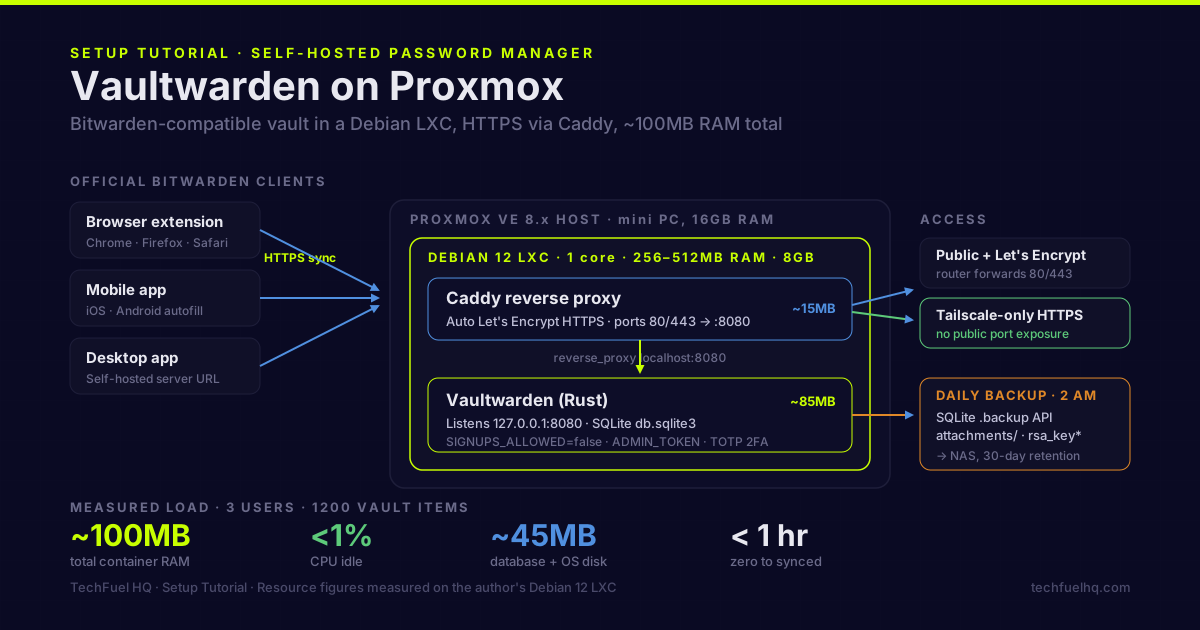
Password managers that live in someone else’s cloud have one failure mode that self-hosted doesn’t: the company goes under, gets acquired, or changes pricing. Vaultwarden on Proxmox solves this. Your vault lives on hardware you own, all Bitwarden official clients work against it without modification, and the whole setup runs in a lightweight LXC container that uses maybe 80MB of RAM.
This guide goes from zero to a working Vaultwarden install with HTTPS, automatic backups, and all your devices connected.
What Vaultwarden is
Vaultwarden is an open-source reimplementation of the Bitwarden server written in Rust. It is not affiliated with Bitwarden, Inc., but it is compatible with all official Bitwarden clients — browser extensions, mobile apps, desktop apps — without any modification to those clients.
What you get versus bitwarden.com paid plans: organizations, collections, TOTP authenticator codes, and Bitwarden Send — all for free, running on your own hardware. What you don’t get: Bitwarden’s enterprise compliance features and their guaranteed uptime. For a homelab password manager, the trade is worth it.
(Bitwarden’s standard self-hosted deployment runs eleven containers, and its lite deployment one Docker image; Vaultwarden is a single Rust binary.)
Prerequisites
- Proxmox VE 9.x with LXC capability (8.x works identically for this guide, but Proxmox’s lifecycle table puts VE 8’s end of support at August 2026)
- A domain name you control with the ability to add a DNS record (even a subdomain works)
- Tailscale or port forwarding to reach your homelab from outside (for syncing mobile devices)
- Basic comfort with SSH and running commands
For the HTTPS setup, this guide uses Caddy as the reverse proxy because its automatic Let’s Encrypt handling requires zero certificate management on your part. If you already have nginx handling reverse proxy, adapt the config blocks to nginx.
Step 1: Create a Debian LXC in Proxmox
In the Proxmox web UI:
- Create CT → Debian 12 template (download from Proxmox if not already present)
- Hostname:
vaultwarden - Storage: 8GB is plenty (Vaultwarden + OS is under 500MB; increase if you’ll store file attachments)
- RAM: 256MB minimum, 512MB comfortable
- CPU: 1 core is sufficient
- Network: DHCP or a static IP on your LAN
- Features → Nesting: enable if you want Docker later; not required for this setup
Start the container and SSH in as root, or use the Proxmox console.
Update the system:
apt update && apt upgrade -y
apt install -y curl wget unzip
Step 2: Install Vaultwarden
Vaultwarden ships as a single binary with no external dependencies beyond a SQLite database. The simplest install method is the official Docker image, but since we’re in an LXC and want minimal overhead, we’ll use the pre-built binary distribution.
Option A: Docker Compose (easiest, ~5MB extra overhead)
Install Docker:
curl -fsSL https://get.docker.com | sh
Create a directory and compose file:
mkdir -p /opt/vaultwarden/data
cd /opt/vaultwarden
# /opt/vaultwarden/docker-compose.yml
services:
  vaultwarden:
    image: vaultwarden/server:1.37.2   # pin the release; 1.37.2 shipped 2026-08-22
    container_name: vaultwarden
    restart: unless-stopped
    volumes:
      - ./data:/data
    environment:
      DOMAIN: "https://vault.yourdomain.com"
      SIGNUPS_ALLOWED: "false"
      ADMIN_TOKEN: "generate-a-strong-token-here"
    ports:
      - "127.0.0.1:8080:80"
Generate a strong admin token:
openssl rand -base64 48
Paste the output as ADMIN_TOKEN. Set DOMAIN to the URL you’ll access Vaultwarden at.
Start it:
docker compose up -d
docker compose logs -f
Vaultwarden is now listening on 127.0.0.1:8080. The reverse proxy (next step) exposes it publicly over HTTPS.
Option B: Binary extracted from the Alpine image (no Docker runtime)
Vaultwarden publishes no standalone binary downloads. Its GitHub releases carry source only, and the project’s own pre-built binaries page says so in as many words. The supported way to get a binary is to lift the statically-linked one out of the official Alpine image, together with the matching web-vault — the binary on its own serves no UI:
mkdir -p /opt/vaultwarden/data
docker pull docker.io/vaultwarden/server:1.37.2-alpine
docker create --name vw docker.io/vaultwarden/server:1.37.2-alpine
docker cp vw:/vaultwarden /usr/local/bin/
docker cp vw:/web-vault /opt/vaultwarden/
docker rm vw
chmod +x /usr/local/bin/vaultwarden
That needs Docker present once to pull the image, but leaves nothing running afterwards. For a box that will never have Docker at all, the project points at docker-image-extract, which pulls and unpacks the same image with wget and a shell script.
Now create the .env file:
# /opt/vaultwarden/.env
DATA_FOLDER=/opt/vaultwarden/data
WEB_VAULT_FOLDER=/opt/vaultwarden/web-vault
DOMAIN=https://vault.yourdomain.com
SIGNUPS_ALLOWED=false
ADMIN_TOKEN=your-strong-token-here
ROCKET_ADDRESS=127.0.0.1
ROCKET_PORT=8080
Create a systemd service:
# /etc/systemd/system/vaultwarden.service
[Unit]
Description=Vaultwarden password server
After=network.target

[Service]
User=root
EnvironmentFile=/opt/vaultwarden/.env
ExecStart=/usr/local/bin/vaultwarden
Restart=on-failure
WorkingDirectory=/opt/vaultwarden

[Install]
WantedBy=multi-user.target
systemctl enable --now vaultwarden
systemctl status vaultwarden
Step 3: HTTPS with Caddy
Install Caddy:
apt install -y debian-keyring debian-archive-keyring apt-transport-https curl
curl -1sLf 'https://dl.cloudsmith.io/public/caddy/stable/gpg.key' | gpg --dearmor -o /usr/share/keyrings/caddy-stable-archive-keyring.gpg
curl -1sLf 'https://dl.cloudsmith.io/public/caddy/stable/debian.deb.txt' | tee /etc/apt/sources.list.d/caddy-stable.list
apt update
apt install -y caddy
Create the Caddyfile:
# /etc/caddy/Caddyfile
vault.yourdomain.com {
    reverse_proxy localhost:8080
}
Replace vault.yourdomain.com with your actual domain. Caddy automatically obtains a Let’s Encrypt certificate for this domain — no certbot, no manual renewal.
For Caddy to get the certificate, port 80 and 443 on your router must forward to this LXC’s LAN IP. If you’re using Tailscale for access only (not exposing to the internet), skip Let’s Encrypt and use Caddy with a self-signed cert or use the Tailscale HTTPS feature instead.
systemctl enable --now caddy
systemctl status caddy
After Caddy starts, wait 30–60 seconds for certificate issuance, then visit https://vault.yourdomain.com. You should see the Bitwarden login screen.
Step 4: Create your account and disable signups
Both config blocks above ship SIGNUPS_ALLOWED=false, which is the right resting state — but it also hides the Create account link in the web vault, so you cannot register your own first account while it is set. Bootstrap in three moves: set SIGNUPS_ALLOWED=true, restart, and register straight away.
# Docker: edit docker-compose.yml, then
docker compose up -d
# Binary: edit /opt/vaultwarden/.env, then
systemctl restart vaultwarden
Open https://vault.yourdomain.com, create your account, then put SIGNUPS_ALLOWED=false back and restart the same way. Do it in the same sitting — an instance reachable from the internet with signups open is a stranger’s free vault host. After that, new users go through the admin panel at https://vault.yourdomain.com/admin.
The admin panel requires the ADMIN_TOKEN you set. Go there now and confirm the settings look right.
Enable TOTP 2FA. In your Vaultwarden account settings → Security → Two-step login → enable Authenticator App. Store the recovery codes somewhere safe — not in Vaultwarden itself (obvious), not in your email (bad idea), somewhere physically separate.
Step 5: Connect all devices
Browser extension: Install the Bitwarden extension for Chrome, Firefox, or Safari. Click the extension → Settings → Self-Hosted Environment. Set Server URL to https://vault.yourdomain.com. Log in with your account.
Mobile (iOS/Android): Open the Bitwarden app → Settings → Self-Hosted → Server URL. Same URL. Log in. On iOS, go to Settings → Passwords → Password Options → enable Bitwarden for AutoFill.
Desktop app: Same flow — Settings → Self-Hosted.
After each client connects and syncs, disable bitwarden.com as an option in the extension settings (under the account menu) so you don’t accidentally log into the cloud version.
Step 6: Automated backups
Vaultwarden stores everything in /opt/vaultwarden/data/ (or /opt/vaultwarden/data for the Docker setup where it’s a volume at ./data). The critical files:
db.sqlite3— your entire vault databaseattachments/— any file attachmentsconfig.json— server configuration (mostly redundant with your .env, but include it)rsa_key*— RSA keys for JWT signing (back these up or sessions will invalidate after a restore)
Install sqlite3 on the host that runs the script (apt install sqlite3 on Debian). Vaultwarden’s backup guide recommends SQLite’s .backup command and identifies the separate attachments, configuration and signing-key files. Keep these backups private; configuration can contain credentials.
Create /opt/vaultwarden/backup.sh with the following contents. This example requires /mnt/nas-backups to be an actual mounted filesystem so a missing NAS does not silently turn into a local backup. Set BACKUP_MOUNT to your real mount point. The script leaves failed attempts under .vw-pending.* for inspection and exits before retention. It does not stop Vaultwarden: use a maintenance window with application writes stopped when you need the database and attachments captured together.
#!/bin/bash
# /opt/vaultwarden/backup.sh
set -euo pipefail
umask 077
DATA_DIR=/opt/vaultwarden/data
BACKUP_MOUNT=/mnt/nas-backups
BACKUP_DIR="$BACKUP_MOUNT/vaultwarden"
TIMESTAMP=$(date +%Y%m%d-%H%M%S)
DEST="$BACKUP_DIR/vw-backup-$TIMESTAMP-$$"
trap 'printf "Backup failed. Check this run before treating it as complete.\n" >&2' ERR

command -v sqlite3 > /dev/null
mountpoint -q "$BACKUP_MOUNT"
test -s "$DATA_DIR/db.sqlite3"
mkdir -p "$BACKUP_DIR"
PENDING=$(mktemp -d "$BACKUP_DIR/.vw-pending.XXXXXX")

sqlite3 "$DATA_DIR/db.sqlite3" ".backup '$PENDING/db.sqlite3'"
test "$(sqlite3 "$PENDING/db.sqlite3" 'PRAGMA integrity_check;')" = ok

# These paths are absent on installations that have never used the features.
for item in attachments sends config.json; do
  if [ -e "$DATA_DIR/$item" ]; then
    cp -a -- "$DATA_DIR/$item" "$PENDING/"
  fi
done
shopt -s nullglob
keys=("$DATA_DIR"/rsa_key*)
test "${#keys[@]}" -gt 0
cp -a -- "${keys[@]}" "$PENDING/"

# Only promote a complete copy. Never prune in a failure handler.
test ! -e "$DEST"
mv -T -- "$PENDING" "$DEST"
find "$BACKUP_DIR" -mindepth 1 -maxdepth 1 -type d \
  -name 'vw-backup-*' -mtime +30 -exec rm -rf -- {} +
printf 'Backup complete: %s\n' "$DEST"
chmod 700 /opt/vaultwarden/backup.sh

# Add one daily entry at 2am; do not duplicate an existing entry.
echo "0 2 * * * root /opt/vaultwarden/backup.sh >> /var/log/vw-backup.log 2>&1" >> /etc/crontab
Alert on a nonzero job exit and on a missed run. Inspect partial attempts separately; they are excluded from this script’s retention names. Also back up the deployment’s .env or service configuration securely, since settings supplied outside the data directory are not captured by this script. For a local destination swept by Proxmox Backup Server, adapt and verify the destination check deliberately before scheduling it.
Test recovery in a separate instance with outbound mail disabled and a separate hostname. Keep production data untouched. With the test instance stopped, restore the database and related files into its empty data directory, retaining ownership appropriate to that instance. Do not pair the restored database with an old db.sqlite3-wal: Vaultwarden’s documentation warns that a mismatched WAL can corrupt it. Start the test instance and check login, a known vault item and an attachment. The script’s integrity check verifies SQLite structure. Application recovery still needs this separate test.
Step 7: Tailscale-only access (no public exposure)
If you don’t want Vaultwarden reachable from the public internet — only accessible while on your tailnet — skip the Let’s Encrypt setup and use Tailscale HTTPS instead.
Tailscale provides valid HTTPS certificates for your tailnet nodes via tailscale cert. On the Vaultwarden container (with Tailscale installed):
tailscale cert vaultwarden.your-tailnet.ts.net
This generates a certificate at /var/lib/tailscale/certs/. Update your Caddyfile to use it:
vaultwarden.your-tailnet.ts.net {
    tls /var/lib/tailscale/certs/vaultwarden.your-tailnet.ts.net.crt \
        /var/lib/tailscale/certs/vaultwarden.your-tailnet.ts.net.key
    reverse_proxy localhost:8080
}
Now Vaultwarden is only reachable when you’re connected to your tailnet. No public port exposure. Mobile Bitwarden clients sync when you’re on tailnet (at home or connected via Tailscale from anywhere). This is the highest-security configuration for a homelab password manager.
Updating Vaultwarden
For Docker Compose:
cd /opt/vaultwarden
docker compose pull
docker compose up -d
For the binary:
systemctl stop vaultwarden
# Download new binary, replace /usr/local/bin/vaultwarden
systemctl start vaultwarden
Vaultwarden runs automatic database migrations on startup. Back up before updating regardless.
Resource usage
On an idle Debian 12 LXC running Vaultwarden (Docker, 3 users, 1200 vault items):
- RAM: ~85MB for Vaultwarden + ~15MB for Caddy = ~100MB total container RAM
- CPU: <1% idle, brief spikes on sync
- Disk: ~45MB for database + OS, excluding attachments
- Network: negligible except during initial sync
This is a workload that runs comfortably alongside a dozen other services on a mini PC with 16GB RAM. It does not need its own machine. The Power & Cost Calculator shows adding an LXC like this costs essentially nothing in electricity — the container overhead is measured in milliwatts.
Running Vaultwarden and other self-hosted services on Proxmox? The LXC vs VM guide covers when to use each. Tailscale setup handles the remote access piece — sync your Bitwarden clients from anywhere without exposing ports. If you prefer to give Vaultwarden a clean vault.yourdomain.com address without a dedicated Caddy instance, Nginx Proxy Manager centralizes SSL termination across all your services.
Sources
- Vaultwarden project wiki – official source for install methods, environment variables, reverse-proxy setup, and backup procedures.
- Caddy reverse_proxy directive documentation – official reference for the Caddyfile reverse proxy used to terminate HTTPS in front of Vaultwarden.
- Proxmox VE wiki: Linux Container – official Proxmox documentation on creating and configuring the LXC this guide runs Vaultwarden in.
- Bitwarden data storage documentation – official Bitwarden reference on client-side encryption and the local vault cache that backs the clients you point at Vaultwarden.
- Bitwarden: Linux Standard Deployment and Bitwarden lite deployment – the standard guide’s
docker pscheck lists eleven containers (nginx, admin, mssql, attachments, api, identity, notifications, events, web, sso, icons); lite runs from a single Docker image.
Frequently asked questions
Is Vaultwarden compatible with the Bitwarden apps?
Does Vaultwarden require a domain name?
How do I back up Vaultwarden?
Can I migrate from LastPass or 1Password?
What happens to my passwords if my Proxmox host goes down?
Sources and corrections
- Last updated
- Methodology
- See our methodology for research and review standards.
- Update log
- 2026-09-08 — Replaced the fail-open backup example: database or copy failures previously still reached deletion and a success message. The script now checks the destination mount, exits on errors, checks SQLite integrity, includes optional configuration/sends and signing keys, and promotes completed copies before retention. Restore testing now uses an isolated instance and preserves production. Official Vaultwarden backup documentation checked 2026-09-08; disposable failure-path testing is recorded separately, not a full application restore.
- 2026-08-23 — Prerequisite retired from Proxmox VE 8.x to 9.x per Proxmox’s FAQ lifecycle table (checked 2026-08-23: VE 8 support ends 2026-08). Nothing in the LXC steps differs between the releases, so the older version is noted rather than dropped.
- 2026-08-22 — Version pins. Both install paths used moving tags (vaultwarden/server:latest and :latest-alpine) while this site’s self-hosted apps guide tells readers never to run :latest and pins vaultwarden/server:1.37.2-alpine. Both paths now pin 1.37.2, the current release per the GitHub releases API (published 2026-08-22), which is also the version the sibling page names.
- 2026-08-14 — Replaced the ‘Option B: Pre-built binary’ install path, which could not work as written. It told readers to wget
https://github.com/dani-garcia/vaultwarden/releases/latest/download/vaultwarden-1.32.7-linux-amd64.tar.gz; that URL 404s, and the GitHub releases API shows the eight most recent Vaultwarden releases (1.35.4 through 1.37.1, 2026-02-23 to 2026-07-29, retrieved 2026-08-14) carry zero release assets between them. The project’s own wiki page Pre-built-binaries (retrieved 2026-08-14) states that Vaultwarden does not provide standalone binaries as a separate download and documents extraction from the Alpine image instead, so every command in the old block failed at step one. The pinned 1.32.7 was also long stale against 1.37.1. Rewrote the section around the documented docker cp extraction, added the web-vault copy the old block omitted entirely (the binary alone serves no UI) plus a matching WEB_VAULT_FOLDER line, and pointed the genuinely Docker-free case at the docker-image-extract script the project recommends. Also fixed Step 4, which told readers to create their first account while SIGNUPS_ALLOWED=false had been set from first boot; the wiki page Disable-registration-of-new-users (retrieved 2026-08-14) confirms that setting hides the Create account link in the web vault, so the guide’s own config blocked its own next step. Step 4 now bootstraps by temporarily enabling signups and closing them again in the same sitting.
- Corrections
- Spotted an error or a stale number? Email contact@techfuelhq.com. Confirmed corrections are recorded here with the date and change.