 TechFuel HQ
Since Proxmox VE 8.1 the installer caps ARC at 10% of host memory, clamped to 16 GiB; older installs run the ZFS default of 50% of RAM, or 62.5% from ZFS 2.3.0 on. Set zfs_arc_max yourself on a VM host, then update-initramfs -u. Create pools from /dev/disk/by-id. The zfsutils cron scrubs monthly.
By LK Wood IV · 2026-05-26 · ~13 min read · St. Louis County, MO
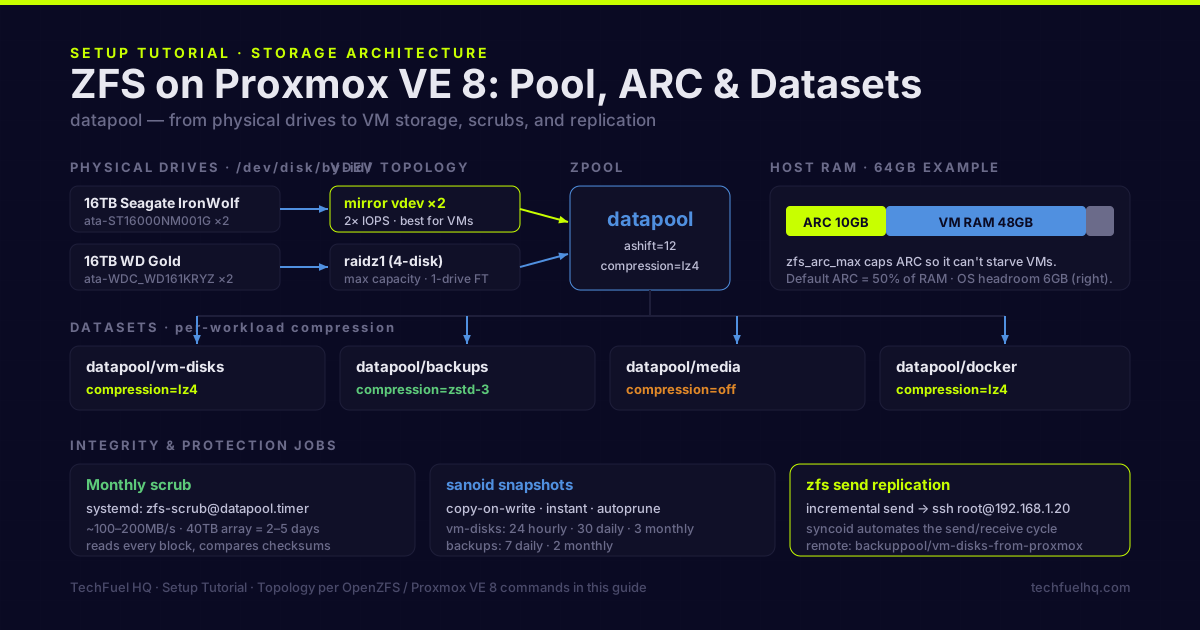
The ZFS storage backend comparison covers the why — topology tradeoffs, SLOG, special vdev, ARC theory. This is the how: the actual commands to create a ZFS pool on Proxmox VE 8, configure ARC to not eat all your VM RAM, set up scrub schedules, and create datasets with sane defaults.
Identify your drives
Before running zpool create, confirm you have the right devices:
lsblk -o NAME,SIZE,TYPE,MOUNTPOINT,MODEL
# Or with drive serial numbers:
ls -la /dev/disk/by-id/ | grep -v part
Use /dev/disk/by-id/ paths (not /dev/sda style) in zpool create — block device names like sda can change after a reboot if drives are reordered, which can corrupt your pool label mapping. The by-id paths are stable across reboots.
Example output you’d use:
ata-ST16000NM001G-2_ZR507B3X  → 16TB Seagate IronWolf
ata-ST16000NM001G-2_ZR507B3Y  → 16TB Seagate IronWolf
ata-WDC_WD161KRYZ-01_8DJNHXXX → 16TB WD Gold
ata-WDC_WD161KRYZ-01_8DJNHYYY → 16TB WD Gold
Create a pool: common topologies
2-disk mirror (minimum redundant pool):
zpool create -o ashift=12 \
  -O compression=lz4 \
  -O atime=off \
  -O xattr=sa \
  datapool mirror \
  /dev/disk/by-id/ata-Disk1 \
  /dev/disk/by-id/ata-Disk2
4-disk mirror-of-mirrors (better IOPS, best redundancy per drive count):
zpool create -o ashift=12 \
  -O compression=lz4 \
  -O atime=off \
  -O xattr=sa \
  datapool \
  mirror /dev/disk/by-id/ata-Disk1 /dev/disk/by-id/ata-Disk2 \
  mirror /dev/disk/by-id/ata-Disk3 /dev/disk/by-id/ata-Disk4
4-disk RAIDZ1 (maximum capacity, single-drive fault tolerance):
zpool create -o ashift=12 \
  -O compression=lz4 \
  -O atime=off \
  -O xattr=sa \
  datapool raidz \
  /dev/disk/by-id/ata-Disk1 \
  /dev/disk/by-id/ata-Disk2 \
  /dev/disk/by-id/ata-Disk3 \
  /dev/disk/by-id/ata-Disk4
What these flags do:
| Flag | What it does |
|---|---|
-o ashift=12 | Sets 4096-byte sector alignment. Use 12 for all drives made since ~2012. Use 13 for 8K-sector enterprise drives (check the datasheet). |
-O compression=lz4 | Dataset-level compression, on by default. Low overhead, meaningful ratios on text, logs, VM images. |
-O atime=off | Disables access time recording. Default behavior rewrites metadata on every file read — wasteful on a server. |
-O xattr=sa | Stores extended attributes in inodes instead of separate files. Significant performance improvement for Samba (SMB) workloads. |
Verify the pool:
zpool status
zpool list
Add the pool to Proxmox storage
A pool created on the command line isn’t automatically usable as Proxmox storage for VMs. Register it:
# Add as a storage backend in Proxmox
pvesm add zfspool datapool-storage \
  --pool datapool \
  --content rootdir,images \
  --sparse 1
Or via the web UI: Datacenter → Storage → Add → ZFS. Point it at your new pool.
Tune ZFS ARC for a shared host
This is the most important configuration step for anyone running VMs on Proxmox alongside ZFS.
How much ARC takes depends on when the host was installed. Since Proxmox VE 8.1 the installer writes a cap of 10% of host memory, clamped to a maximum of 16 GiB, into /etc/modprobe.d/zfs.conf. Proxmox’s ZFS on Linux wiki says exactly that. Installs that predate 8.1, and any host where that file carries no zfs_arc_max line, fall back to the ZFS built-in default. The same wiki puts that default at 50% of RAM before ZFS 2.3.0 and 62.5% from 2.3.0 on. The zfs(4) man page is more generous still on 2.3: the larger of five-eighths of RAM and all but 1 GiB. Either way an uncapped 64GB host can lose 32GB or more to cache. Your VMs need that RAM too, and ARC will not evict fast enough to feed a VM under sudden pressure. It does evict eventually, just slowly.
Set a hard ARC maximum:
# Calculate your target. Leave enough for VMs + OS headroom.
# Example for 64GB host running 48GB total VM RAM:
# 64GB - 48GB VMs - 6GB OS headroom = 10GB for ARC
# 10 * 1024^3 = 10737418240

echo "options zfs zfs_arc_max=10737418240" > /etc/modprobe.d/zfs.conf
update-initramfs -u
You can also set it live without rebooting (does not persist across reboots):
echo 10737418240 > /sys/module/zfs/parameters/zfs_arc_max
Check current ARC usage:
arc_summary | head -50
# or
cat /proc/spl/kstat/zfs/arcstats | grep -E "^(size|c_max|c_min|hits|misses)"
The Proxmox VM Capacity Planner accounts for ZFS ARC when calculating how many VMs your host can run — toggle the ZFS option to see how ARC allocation affects VM count.
How much ARC to give a homelab host:
| Host RAM | Total VM RAM | Recommended ARC max |
|---|---|---|
| 32GB | 20GB | 6GB (6442450944) |
| 64GB | 48GB | 10GB (10737418240) |
| 64GB | 32GB | 20GB (21474836480) |
| 128GB | 80GB | 32GB (34359738368) |
There’s no perfect formula — it depends on how read-heavy your VMs are and how large your working set is. Start conservative (6–10GB on a 64GB host), watch the ARC hit rate with arc_summary, and increase if you’re seeing sub-80% hit rates.
Create datasets with compression
Don’t put everything in the root dataset. Create datasets per workload — they inherit compression from the pool but can override it:
# VM disks dataset — lz4 is fast enough, images compress moderately
zfs create -o compression=lz4 datapool/vm-disks

# Backup dataset — zstd-3 for better compression on backup archives
zfs create -o compression=zstd-3 datapool/backups

# Media — most media files are already compressed, skip compression
zfs create -o compression=off datapool/media

# Docker volumes — lz4, lots of small files
zfs create -o compression=lz4 datapool/docker

# Check all datasets and their properties
zfs get compression,compressratio,used,available datapool
Confirm automatic scrubs
On Proxmox VE (and any Debian-family ZFS install), the zfsutils-linux package ships a cron job that scrubs every healthy pool on the second Sunday of each month — including pools you created by hand. Confirm it exists:
cat /etc/cron.d/zfsutils-linux
You should see a line calling /usr/lib/zfs-linux/scrub at 24 0 8-14 * * (00:24 on the second Sunday). Confirm on your own host that a pool you created by hand is actually picked up, rather than assuming it — the check is one command, below.
To confirm scrubs are actually happening, check the last-scrub line on the pool:
zpool status datapool | grep scan
If you want a different cadence, OpenZFS also ships systemd timer templates with per-pool units — they are in zfsutils-linux from OpenZFS 2.2 on, so Proxmox VE 8 already has them — note the real names, which include the interval:
systemctl enable --now zfs-scrub-monthly@datapool.timer
# or: zfs-scrub-weekly@datapool.timer
If you enable a systemd timer, comment out the cron entry so the pool isn’t scrubbed twice.
For a calendar the monthly/weekly templates don’t cover (say, the 1st and 15th at 02:00), override the timer with systemctl edit zfs-scrub-monthly@datapool.timer and add:
[Timer]
OnCalendar=
OnCalendar=*-*-1,15 02:00:00
Watch a scrub in progress:
watch -n5 zpool status
Scrub speed on mechanical drives: approximately 100–200MB/s read throughput. A 40TB array takes 2–5 days. A 4TB SSD pool takes minutes. Don’t interrupt a scrub — if you need to pause one:
zpool scrub -p datapool
# Resume:
zpool scrub datapool
Snapshot policy
ZFS snapshots are instant (copy-on-write, no data copied at creation), space-efficient (only changed blocks occupy space), and a critical backup layer.
For a rolling daily snapshot schedule:
# Take a snapshot now:
zfs snapshot datapool/vm-disks@$(date +%Y-%m-%d)

# List snapshots:
zfs list -t snapshot

# Destroy old snapshots:
zfs destroy datapool/vm-disks@2026-05-15
For automated snapshots, sanoid is the best tool — it’s a policy-based snapshot manager for ZFS:
apt install sanoid

# Config at /etc/sanoid/sanoid.conf
cat > /etc/sanoid/sanoid.conf << 'EOF'
[datapool/vm-disks]
  use_template = production

[datapool/backups]
  use_template = backup

[template_production]
  frequently = 0
  hourly = 24
  daily = 30
  monthly = 3
  yearly = 0
  autosnap = yes
  autoprune = yes

[template_backup]
  frequently = 0
  hourly = 0
  daily = 7
  monthly = 2
  yearly = 0
  autosnap = yes
  autoprune = yes
EOF

systemctl enable --now sanoid.timer
With this config, datapool/vm-disks keeps 24 hourly snapshots, 30 daily, and 3 monthly. datapool/backups keeps 7 daily and 2 monthly. Pruning happens automatically.
Enable ZFS send replication to Proxmox Backup Server
If you’re running Proxmox Backup Server (see the PBS 3-2-1 backup guide), you can also replicate ZFS snapshots to a TrueNAS or remote ZFS host via zfs send:
# Snapshot the source dataset
zfs snapshot datapool/vm-disks@replication-$(date +%Y%m%d)

# Initial full send to remote host (SSH key authentication required)
zfs send datapool/vm-disks@replication-20260613 | \
  ssh root@192.168.1.20 \
  "zfs receive backuppool/vm-disks-from-proxmox"

# Incremental send (subsequent runs) — only sends changed blocks
zfs send -i datapool/vm-disks@replication-20260612 \
         datapool/vm-disks@replication-20260613 | \
  ssh root@192.168.1.20 \
  "zfs receive backuppool/vm-disks-from-proxmox"
syncoid (bundled with sanoid) automates the incremental send/receive cycle, handling snapshot management on both ends. It’s the right tool once you have a replication relationship to maintain.
Monitor pool health
Check pool status and disk health regularly:
# Pool status and resilver/scrub progress
zpool status -v

# Pool space usage
zpool list

# Per-dataset usage
zfs list -r -o name,used,available,refer,mountpoint datapool

# ARC statistics
arc_summary

# Check for recent errors (look for READ/WRITE/CKSUM columns)
zpool status | grep -E "state|errors|status"
Set up an alert in your monitoring stack (see the Grafana + Prometheus monitoring guide) to fire when zpool status shows a degraded pool — the zfs-exporter for Prometheus exposes pool health as a metric, which means you can get a Discord alert when a drive drops out rather than finding out when your VMs start acting strange.
Common mistakes to avoid
Using /dev/sdX paths. If a drive order changes after a reboot, sda might become sdc. ZFS records pool members by ID, not path — but if you used /dev/sda to create the pool and the path changes, Proxmox may fail to import the pool on boot. Always use /dev/disk/by-id/ paths.
Creating a dataset per VM manually. Proxmox manages VM disk datasets automatically when you create VM storage. Don’t create datapool/vm-disks/vm-100-disk-0 manually — let Proxmox do it through the UI or pvesm.
Setting ARC too low. A 2GB ARC cap on a host with 32GB RAM and 10 VMs will result in constant cache misses and elevated disk IO as the VMs and ZFS fight over the tiny cache. 6–8GB minimum is sane for a homelab host with moderate VM density.
Assuming a scrub is scheduled without checking. The zfsutils cron job above is the packaged default, but verify it rather than trust it for a pool you created by hand. If you removed it in favor of the systemd timers, those do not auto-enable for a new pool. One year without a scrub on a RAIDZ1 array means silent corruption could exist undetected. Run cat /etc/cron.d/zfsutils-linux or systemctl list-timers | grep zfs and confirm one of the two is scheduled.
For pool topology decisions (mirrors vs RAIDZ, when to add a SLOG, special vdev), the ZFS storage backend comparison covers the tradeoffs. For planning how many VMs your Proxmox host can run given your ARC allocation, the Proxmox VM Capacity Planner lets you model it interactively. For automated snapshot retention policies and encrypted replication to a second ZFS host, the Sanoid and Syncoid guide is the natural next step after pool setup. For off-site backup, the PBS 3-2-1 backup guide covers the full stack.
Sources
- Proxmox VE: ZFS on Linux – official wiki on pool creation, RAID levels, compression, and adding pools as Proxmox storage.
- OpenZFS Module Parameters – official reference for tunables including zfs_arc_max used to cap ARC.
- OpenZFS zpool-scrub man page – official documentation for running, pausing, and scheduling scrubs via systemd timers.
- Sanoid and Syncoid – official repository for the policy-driven ZFS snapshot manager and the syncoid replication tool.
Frequently asked questions
How much RAM does ZFS ARC use on Proxmox?
What ZFS pool topology should I use for Proxmox VM storage?
Should I enable ZFS deduplication on Proxmox?
What compression should I use for ZFS datasets on Proxmox?
How often should I run ZFS scrubs on a homelab?
Evidence ledger
- Last updated
- Methodology
- See our methodology for research and review standards.
- Update log
- 2026-08-24 — Page updated.
- Corrections
- Spotted an error or a stale number? Email hello@techfuelhq.com. Confirmed corrections are added to the update log above.